My SD card suddenly stopped working after I moved photos and videos to my computer, and now my phone and laptop both say it needs to be formatted. I’m trying to figure out if a corrupted SD card can be repaired and if there’s any safe way to recover the files before I lose everything.
I learned this the annoying way. An SD card will look normal, mount fine, and then out of nowhere turn unreadable. I’ve had it happen after a camera froze, after a file copy got cut off, after a battery died mid-recording, and once from yanking the card out too fast. What makes it worse is the error usually shows up before you’ve copied anything off.
The part people miss is this. Corruption does not always mean your photos, videos, or docs are gone. A lot of the time the damage sits in the file system, not in the files themselves.
So if Windows, Android, your camera, or anything else pops up with “format this card,” stop there. Don’t hit format first if the data matters. I did this once years ago and spent way too long trying to recover stuff I didn’t need to lose in the first place.
Pull the files off first.
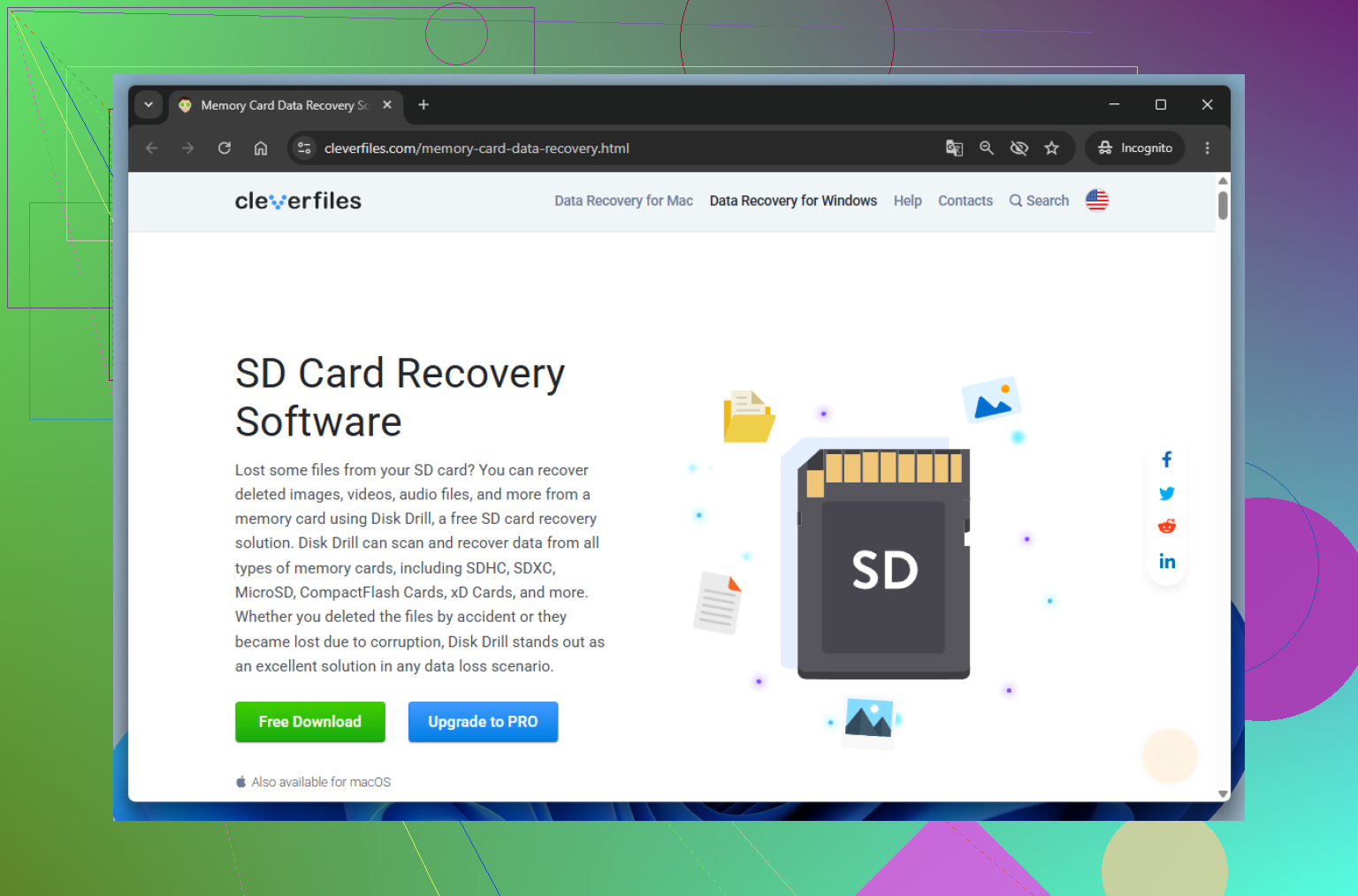
I usually start with Disk Drill. Main reason, it deals with a lot of corruption cases well enough, and it lets me make a byte-for-byte image before scanning. I prefer scanning the image instead of hammering the original SD card over and over. Once the important files are recovered, copied elsewhere, and I’ve opened a few to make sure they’re fine, then I mess with the card itself.
This is the order I usually go in.
Method 1: Run CHKDSK on the File System
CHKDSK is built into Windows. It targets file system errors, not dying hardware, so it’s a decent first step when the card suddenly won’t open, throws errors, or keeps asking for a format.
Steps:
1. Put the SD card in your computer.
2. Open File Explorer and check which drive letter it got.
3. Search for Command Prompt in the Start menu.
4. Right-click it and pick Run as administrator.
5. Enter chkdsk X: /r and swap X for the SD card letter.
6. Press Enter and let it finish.
On a big card, this can take a bit. If the issue is broken file system records and not worn-out flash storage, CHKDSK sometimes brings the card back without much drama. Sometimes. Not every time.
Method 2: Rebuild the Partition With TestDisk
If CHKDSK does nothing, or the card shows up as unallocated space, missing capacity, or a vanished partition, I move to TestDisk.
TestDisk goes after partition structure problems instead of hunting individual files. I’ve seen cards where the files were still sitting there, but the partition table was trashed, so the system had no clue where anything lived.
Here’s the usual process:
1. Download and open TestDisk.
2. Pick the SD card from the drive list.
3. Use the partition table type the tool suggests.
4. Choose Analyze.
5. Run Quick Search and wait.
6. Look through the partitions it finds.
7. If the missing one shows up correctly, choose Write to restore the partition table.
8. Restart if it asks.
The interface looks old. No way around it. Still, I’ve had it recover cards which looked dead at first glance, so I keep it around.
Method 3: Format the Card
If neither CHKDSK nor TestDisk gets the card back into shape, formatting is the last repair step I bother with.
By then, your important files should already be somewhere safe. At this stage, formatting is not about saving data. It’s about rebuilding the file system so the card becomes usable again, if the hardware still has some life left.
To format it:
1. Open File Explorer.
2. Right-click the SD card and choose Format.
3. Pick exFAT unless your device needs something else.
4. Leave allocation unit size on Default.
5. Click Start.
6. Wait for the process to finish.
If the format completes and the card behaves after, the issue was often file system damage. If it starts corrupting itself again after a fresh format, I stop trusting it. Repeated corruption is usually a bad sign. Flash memory wears down, and once a card starts acting flaky over and over, I replace it. I’ve tried squeezing extra life out of cards like that before. Wasn’t worth it, tbh.
4 Likes
Yes, a corrupted SD card is not always done for. A dead SD card and a corrupted SD card are not the same thing.
If both your phone and laptop want to format it right after a transfer, I’d treat it like this:
- Stop using the card.
- Try a different card reader or USB port first.
- Check if Disk Management on Windows shows the right size.
- If the size looks normal, your files often still exist and the file system is what broke.
I agree with @mikeappsreviewer on one big point. Do not format first if you still want the photos.
Where I differ a bit is CHKDSK. I don’t love using it on an SD card with important media still on it. CHKDSK is fine for repair, but it can rename fragments into .chk files or make changes you didn’t want. For data-first cases, I’d try recovery before repair.
My order is:
- Test another reader and another PC.
- Make an image of the card if the system still detects it.
- Scan the image or card with Disk Drill.
- Recover files to your computer, not back to the SD card.
- After recovery, test the card with a full overwrite format and then copy a few junk files onto it.
If it fails format, drops files again, shows wrong capacity, or turns read-only, toss it. SD cards often die without much warning. If it only had a damaged file table, it might work again, but I would not trust it for photos anymore tbh.
If you want a solid user breakdown, this Disk Drill recovery review for SD cards and deleted files covers the basics pretty well.
Not always done for, but I also would not assume it’s “fixable” in a way that makes it trustworthy again.
@mikeappsreviewer and @shizuka already covered the recovery-first angle pretty well. I’d add one thing they only touched on indirectly: if the card suddenly went bad right after a transfer, the card reader/adapter can be the actual jerk here, not the SD card itself. I’ve seen cheap USB readers corrupt cards or make healthy cards show as “needs formatting.” So before you do anything fancy, try a different reader, different port, and if it’s a microSD, a different adapter too. Sounds dumb, but it matters.
Also, I slightly disagree with the idea of trying to “repair” the card for future use unless this was clearly a one-off glitch. If a flash card throws a format prompt out of nowhere, that’s often the warning shot. Even if you get it working again, I would demote it to non-important stuff only.
What I’d do:
- Check whether the card shows the correct capacity in Disk Management or Disk Utility.
- If yes, recover data first with something like Disk Drill.
- Save recovered files to your computer, not back onto the card.
- If recovery works, format the card once and test it with junk files only.
- If it disconnects, goes read-only, gets slow as hell, or corrupts again, bin it.
One more thing people forget: counterfeit SD cards are super common. If the card says 256GB but starts failing once you actually filled it, fake capacity is possible. In that case, no software fix is gonna save the card itself.
If you want a decent walkthrough, this how to fix a corrupted SD card and recover lost photos/video video is pretty on point.
Short version: yes, corruption can sometimes be repaired, but “repaired” and “safe to trust again” are def not the same thing.
Not necessarily dead. I agree with @shizuka, @boswandelaar, and @mikeappsreviewer on the big thing: don’t format first.
My slight disagreement is with the idea of spending too long “repairing” the card itself. For SD cards, repair is often temporary. Recovery matters more than revival.
What I’d check that hasn’t been stressed enough:
- If the card shows up with the right capacity but no readable filesystem, that often means logical corruption, not total hardware death.
- If it shows 0 bytes, wrong size, or disappears intermittently, odds get worse fast.
- If it suddenly flipped to read-only, sometimes that is the controller protecting failing memory. That is usually retirement time.
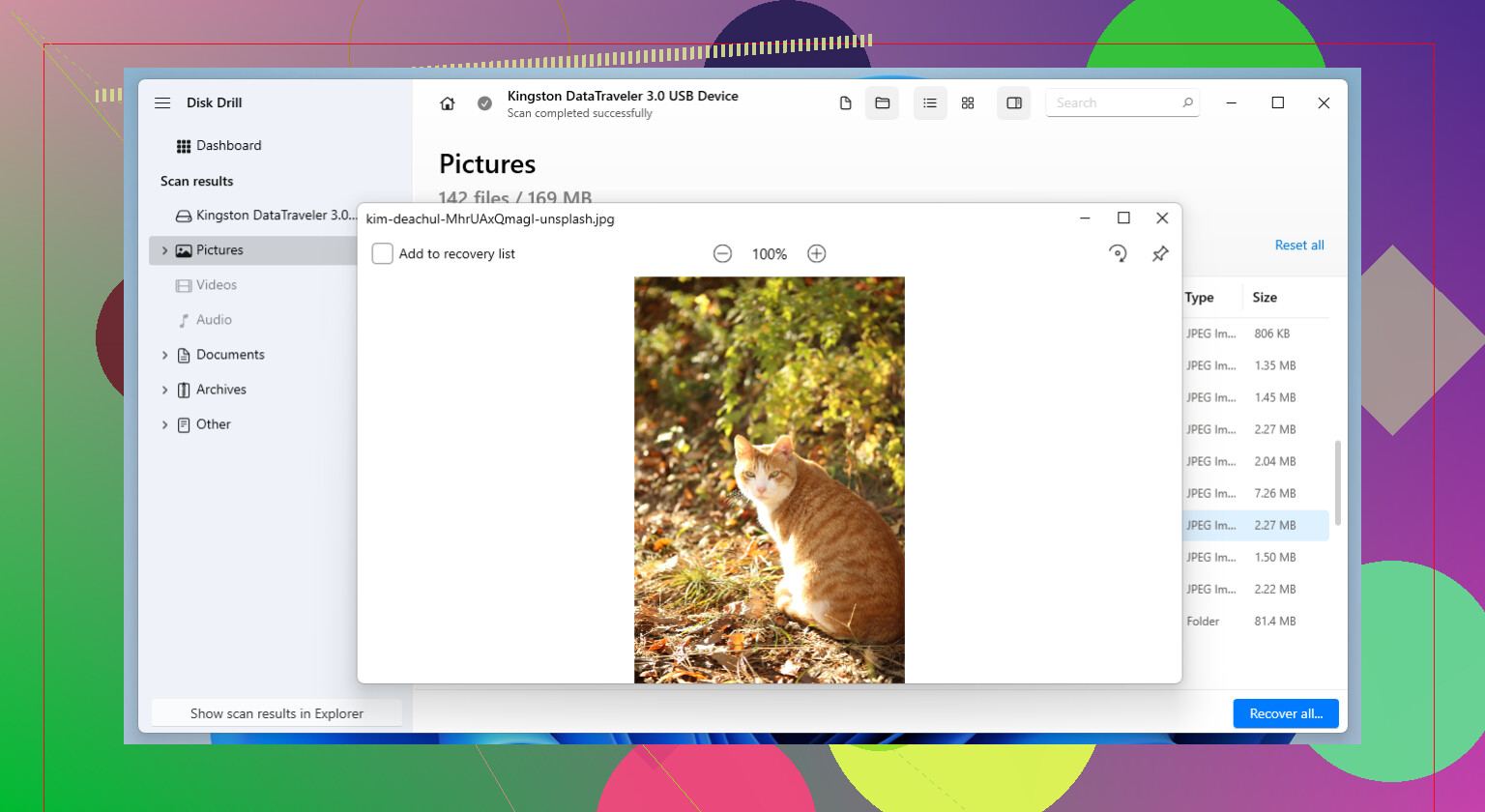
Disk Drill is decent here because it can scan shaky media and is easier than a lot of old-school tools.
Pros:
- Simple interface
- Good for photos/videos
- Can preview recoverable files
Cons:
- Deep scans can take a while
- Best features usually mean paid version
- Recovery success drops hard if the card is physically failing
My take: recover what you can, verify the files open, then format only as a test. If the card misbehaves again, stop trusting it for anything important.