I accidentally deleted important files from my Mac and emptied the Trash before realizing I still needed them. I’m looking for free data recovery software for Mac that actually works because I really need to recover documents and photos without paying for an expensive tool if possible.
I went looking for Mac recovery apps a while back, and the free side of it is kinda rough now. Most apps call themselves free, then you hit the paywall right when it’s time to save your files. On current macOS, with APFS and Apple Silicon in the mix, the list gets short fast. Still, I found two free options worth a shot.
-
PhotoRec is the one I’d try first if your budget is zero. It’s open source, old-school, and better than it looks. I’ve used it on a busted SD card and on a drive with filesystem damage where prettier apps failed during the scan. It did pull files out. The tradeoff is obvious the second you open it. It runs in Terminal, the workflow feels rough, and the recovered files often come back with generic names and no folder layout.
-
Exif Untrasher is free too, though it’s much narrower. It’s mostly for JPEG recovery from cameras and SD cards. If your problem is missing photos and you want something simple, it’s fine. If you need broad file recovery, it’s not enough.
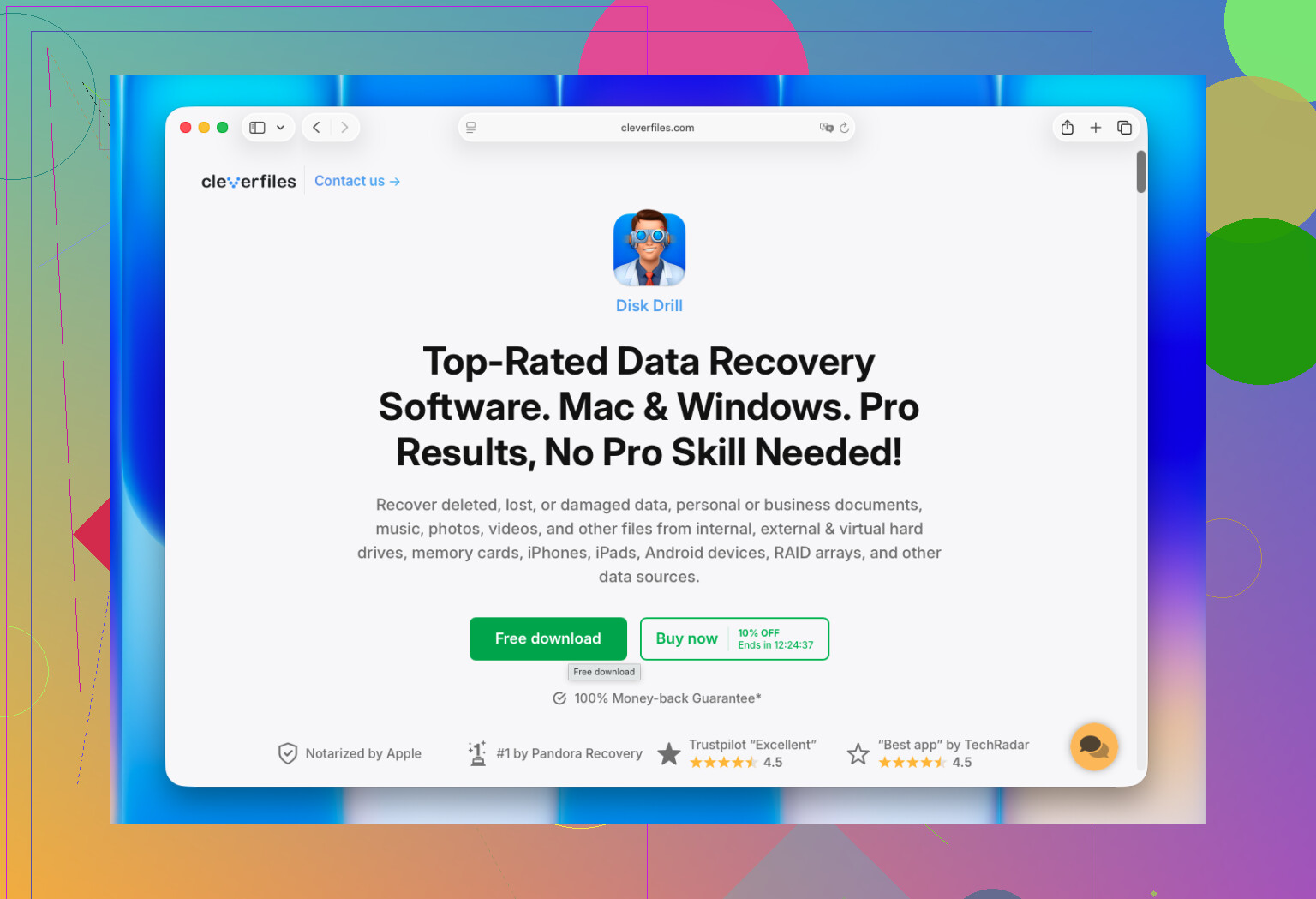
If you’re open to paying, I’d point you to Disk Drill. I ended up liking it more than most Mac options because it doesn’t fight you. On APFS volumes it behaved well for me, and I didn’t run into weird issues on Apple Silicon. It also handled external SSDs, USB sticks, SD cards, and Time Machine volumes without much setup drama.
What stood out to me:
The preview system felt trustworthy, so I could check files before saving anything.
Deleted files and formatted volumes gave better results than I expected.
It includes byte-to-byte backup imaging, which matters if the drive looks unstable.
Photo and video support is solid, including RAW formats from cameras.
It’s easier to work with than tools like R-Studio or PhotoRec, esp if you don’t want to babysit a technical interface.
The main rule is simple. Stop writing to the drive the moment you notice data loss. I learned this the hard way on SSDs. With TRIM on modern Macs, deleted data can disappear fast and stay gone. And when you recover, save the files to a different drive. Don’t write them back onto the same one you’re trying to rescue.
If you emptied Trash on a modern Mac SSD, your odds drop fast because of TRIM. So first, stop using the Mac. Every write hurts your chances.
I agree with @mikeappsreviewer on one thing, most “free” Mac recovery apps are fake-free. I disagree a bit on the shortlist though. I’d also try TestDisk, mostly if the issue is a damaged partition or lost volume info, not file-by-file recovery. It’s free, open source, and ugly as sin, but it has saved drives for me before. For docs, it’s less friendly than paid apps.
For a true free check, run this:
- Look in Time Machine first.
- Check iCloud Drive at iCloud.com, esp if Desktop and Documents sync was on.
- Try Terminal snapshots if you use APFS and the delete was recent.
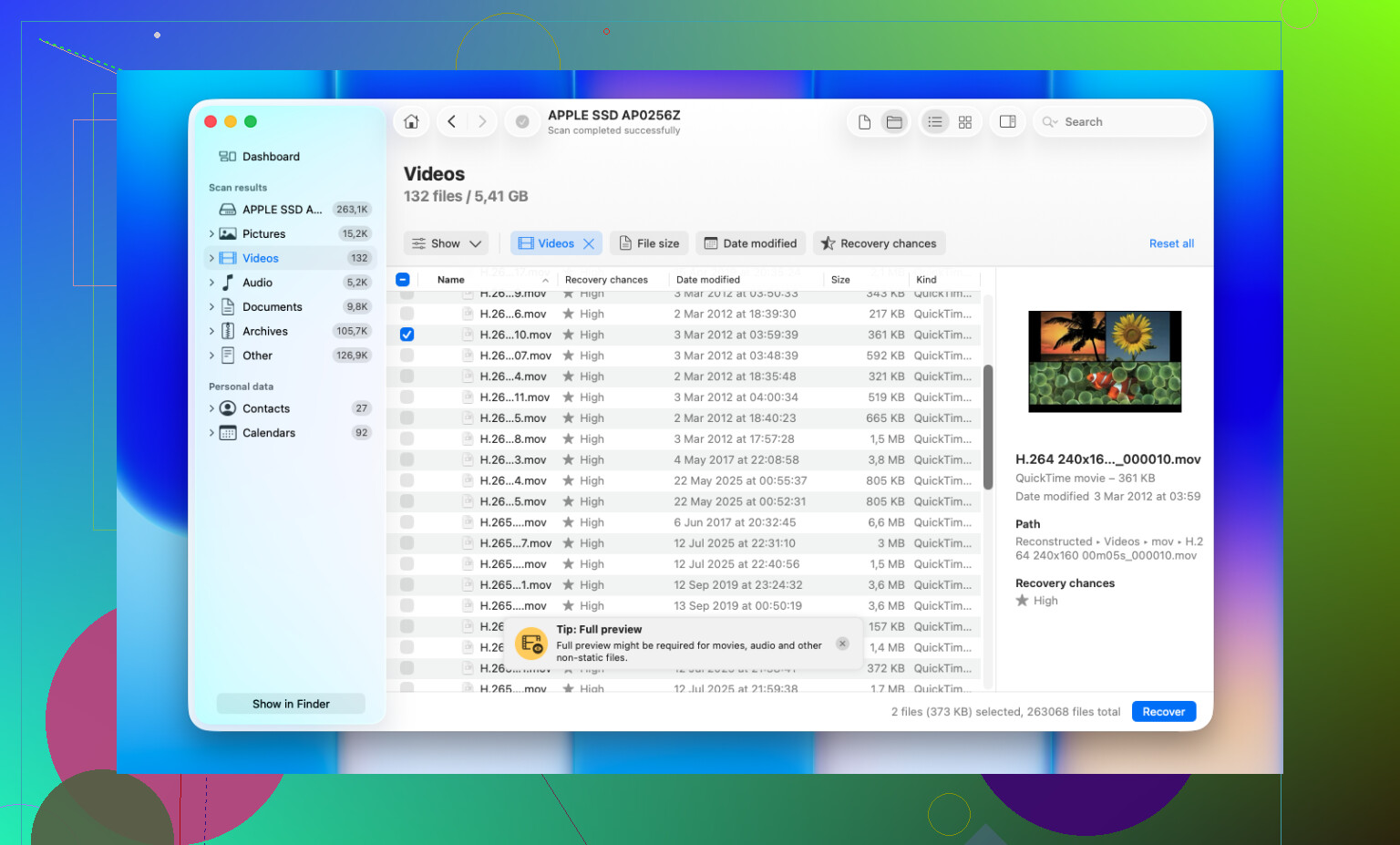
If you want the fastest path with a decent Mac interface, Disk Drill is still one of the better picks. The free part is preview, which matters, because you see whether your files are still there before spending money. If previews fail, move on.
Also, this title reads better for search:
Best data recovery tools for Mac, top 5 apps worth trying
And if you want a quick video roundup, this is decent:
watch this Mac data recovery tools comparison
Save recovered files to an external drive. Not back to your Mac. Thats a common mess-up.
Free on Mac that actually recovers emptied-Trash docs? Honestly, the truly free options are slim, and I think @mikeappsreviewer and @ombrasilente were maybe a little too generous about how usable some of them are for regular people. PhotoRec can work, sure, but for document recovery it can turn into a giant pile of weirdly named files. Not fun.
A couple things I’d try that weren’t really stressed enough:
- Check cloud app trash folders, not just iCloud. Dropbox, OneDrive, Google Drive all keep deleted files for a while.
- If the docs were in Pages, Word, or Excel, look for autosave/temp copies in:
/private/var/folders/
It’s annoying, but I’ve recovered stuff that way before. - If you have another Mac, put the drive in read-only mode or recover from external boot if possible. Less risk of overwriting.
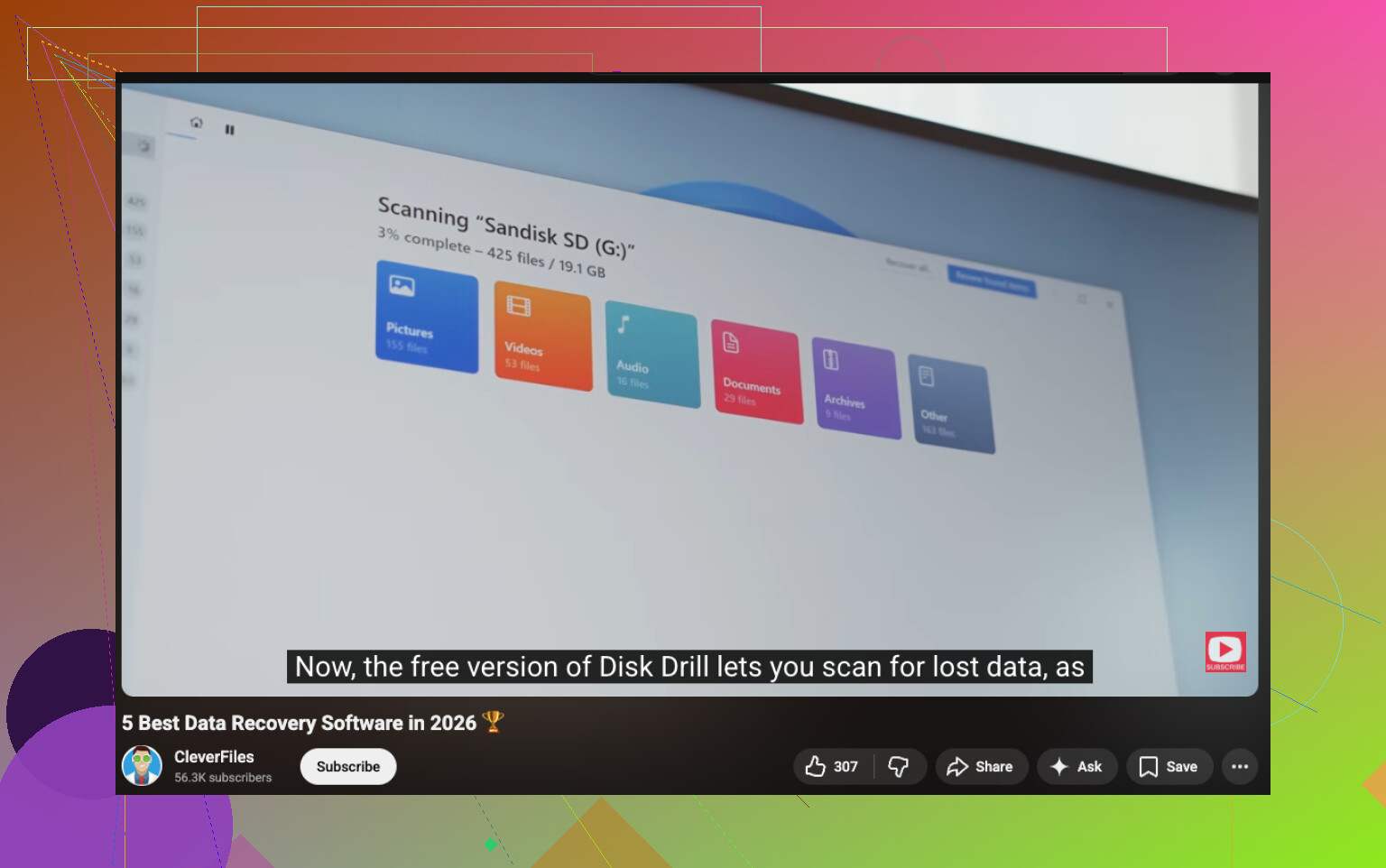
For software, Disk Drill is still one of the more realistic Mac data recovery tools because it at least shows you what’s recoverable before you spend money. I wouldn’t call it “free,” but it’s one of the least time-wasting options. If you insist on zero cost, TestDisk is worth a shot for volume issues, but for deleted documents it’s kinda meh IMO.
Also, if this is an internal SSD on a recent Mac, be preapred for bad news. TRIM is brutal.
For more opinions, here’s a solid best Mac data recovery tools discussion and app recommendations.
One thing I’d add to what @ombrasilente, @himmelsjager, and @mikeappsreviewer already covered: check the app-level “recent files” and local version history before doing recovery scans. Word, Pages, Excel, and some PDF editors sometimes keep recoverable copies even after the original file is deleted.
If you want actual free software, I’d split it like this:
- PhotoRec: best true free option for raw carving
- TestDisk: better for partition or volume weirdness than normal deleted docs
- No-cost built-in checks: app temp files, cloud version history, recent documents lists
I slightly disagree with the “just try recovery software first” angle. On a Mac internal SSD, I’d spend 10 minutes checking app-specific leftovers before scanning. Faster, less messy, and sometimes you get the original filename back.
About Disk Drill:
Pros:
- very easy Mac UI
- good preview before paying
- handles lots of file types
- useful if you need to scan external drives too
Cons:
- not really free for full recovery
- results on TRIMmed internal SSDs can still be poor
- deep scans can return tons of junk to sort through
So yes, Disk Drill is a reasonable pick if you want the least painful interface, but if this is a recently emptied Trash on an internal SSD, manage expectations. If the files were on an external HDD, USB drive, or SD card, your chances are much better.