I cleared temporary files on my iPhone because it was running really slow, but the phone still lags when I open apps, browse, and switch between screens. I’m trying to figure out what else could be causing the slowdown and what steps I should take next to improve iPhone performance.
I got stuck staring at the System Data bar too. Restarted the phone, waited, checked again, same mess. What helped was understanding what iOS wipes on reboot and what it leaves alone.
Why a restart barely changes temporary storage
A reboot clears active memory and kills off small background tasks. It does not scrub app caches. Those cached files sit in storage, not RAM. Safari keeps site data. Spotify hangs onto chunks of songs and cover art. TikTok stores video bits. Messages saves media previews and attachments. iOS treats all of this as useful for speed, so it keeps it until space gets tight. It does not do routine cleanup the way people expect.
Why the junk comes back right away
This part annoyed me the most. You clear space, open a few apps, and watch it creep back. Nothing is broken. Every app session pulls in fresh content and stores pieces of it again. iOS prefers faster loading over keeping storage neat. So the point is not to stop cache from returning. You are trimming it before it piles up enough to slow things down.
Why updates often inflate System Data
I noticed the worst spikes after iOS updates. The phone downloads install packages locally, unpacks them, writes logs, and leaves some leftovers behind now and then. Most of it goes away on its own after the update finishes, but not all of it, every time. If your storage graph jumps after an update, that lines up with what a lot of people see. A restart sometimes helps a bit. Sometimes, nope.
Does offloading an app fix its cache problem?
Only part way. Offloading removes the app binary and frees up some space, but it keeps Documents and Data. In plain terms, your logins stay, your files stay, and a chunk of cached stuff often stays too. If one app is hoarding space and you want a clean reset, deleting the app and installing it again worked better for me. Offloading felt neat on paper, less useful in pratice.
If you cleared caches and the phone still feels slow
This is where I lost time. I cleaned Safari, deleted some downloads, even cut down message history. The phone still dragged. The real storage hog was Photos. It was old screenshots, burst shots I never sorted, 4K clips I forgot about, and five versions of the same pic from bad lighting. When free space gets too low, iOS has less room for background work, indexing, and temp operations. The lag sticks around even after smaller cleanup jobs.
A few things worth doing first:
- Go to Settings, Apps, Safari, then tap Clear History and Website Data.
- Open Files, tap Browse, go to On My iPhone, then Downloads. Delete what you do not need.
- Go to Settings, Messages, Keep Messages, and switch it from Forever to 1 Year or 30 Days.
When the manual stuff stops helping
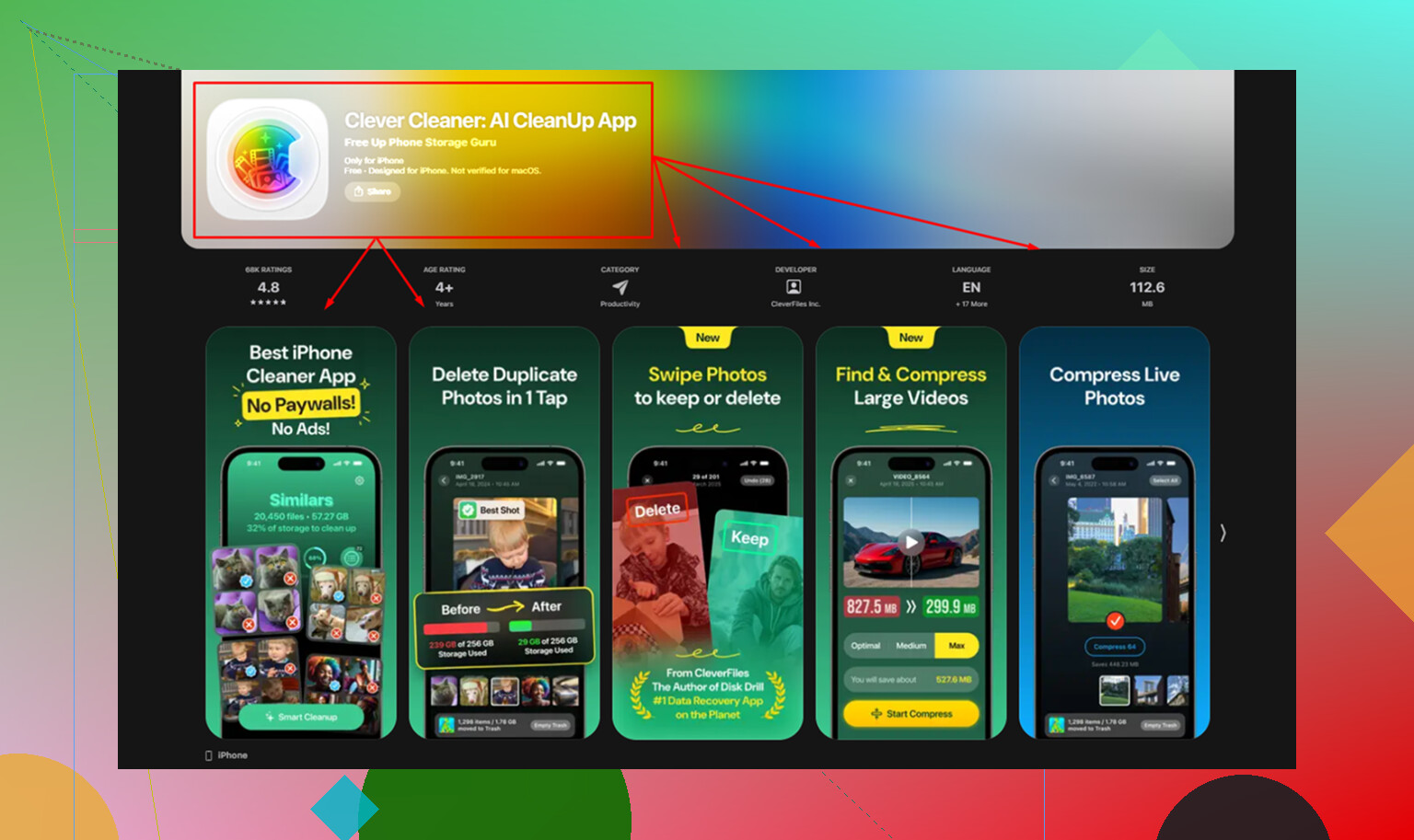
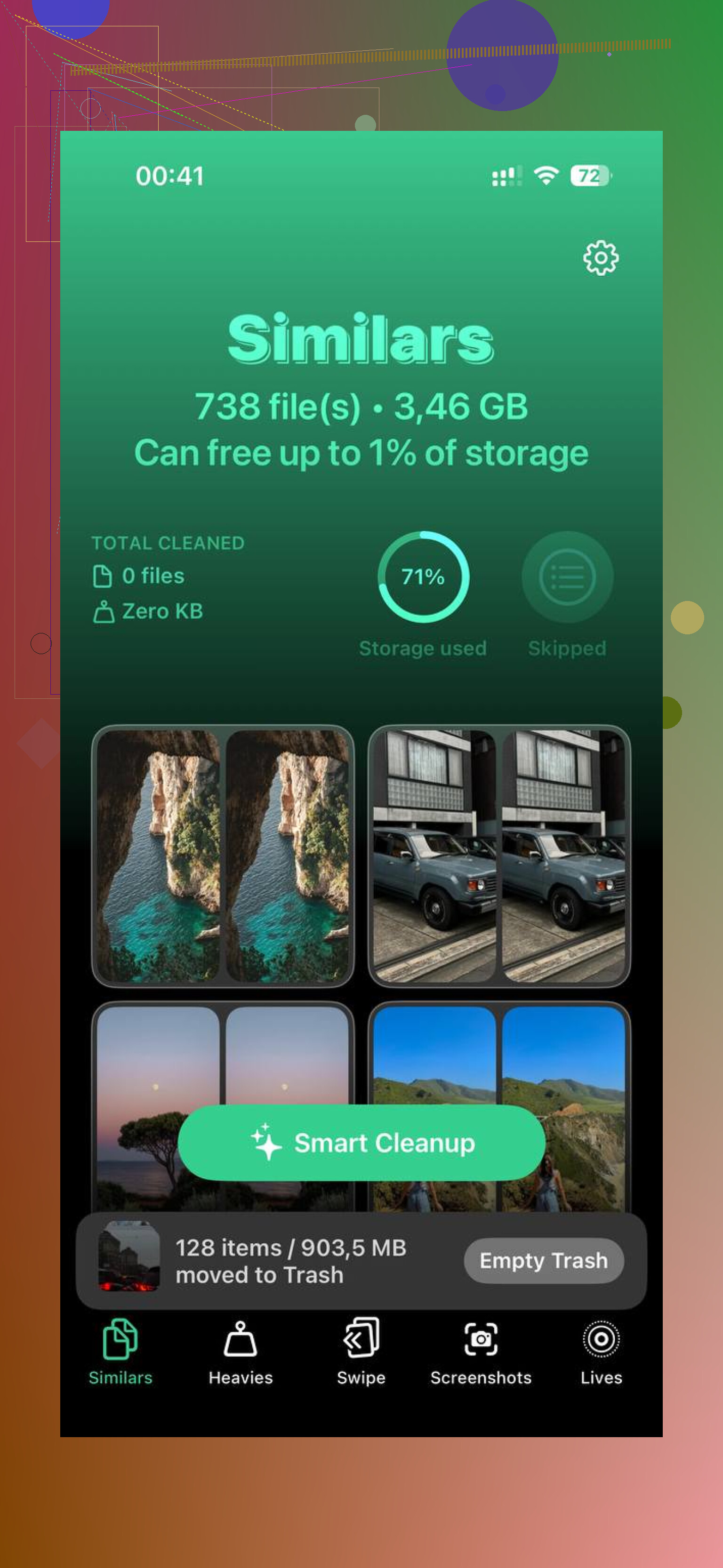
The gap for me was the photo library. Manual cleanup handled browsers and random files, but Photos was still bloated. Clever Cleaner helped with that part. The Heavies section puts the biggest files at the top, so large videos show up fast instead of being buried in years of media. The Similars section groups near-duplicate shots, which helped with burst photos and repeated attempts of the same thing. I liked seeing the biggest wins first. Saved time.
After I cut out duplicate photos and heavy videos, the phone stopped choking on low free space and felt normal again. One thing people miss, go into Photos and empty Recently Deleted. Until you do, those deleted files still count against storage for 30 days. I forgot once. Felt dumb after checking storage again and seeing no real drop.
2 Likes
Clearing temp files helps storage. It does not fix every speed issue.
A few other causes are common.
-
Battery health.
If Battery Health is under 80 percent, iPhone slows down to avoid shutdowns. Check Settings, Battery, Battery Health & Charging. I’ve seen old batteries make app launches feel laggy even with plenty of free space. -
Low free storage.
You want more than 10 to 15 percent free. On a 128 GB iPhone, try to keep 12 to 20 GB open. If you sit near full, iOS struggles with indexing, swap, and updates. @mikeappsreviewer talked about storage bloat. I agree on the space part, but I think battery health gets missed way too often. -
Background activity.
Photos indexing, iCloud sync, and post-update cleanup drag performance for hours, sometiems a day. Check if the phone got warm after an update or after plugging in on Wi-Fi. That is a clue. -
App-specific lag.
One bad app can make the whole phone feel off. Check Settings, General, iPhone Storage. If one app is huge or keeps growing fast, delete and reinstall it. Offload is hit or miss. -
Accessibility and motion settings.
Reduce Motion can help on older models. Settings, Accessibility, Motion, Reduce Motion. It cuts animation load. -
Network confusion.
People blame speed on the phone when the lag is Safari waiting on bad Wi-Fi, VPNs, or ad blockers. Turn VPN off for a test.
If Photos is the main storage hog, Clever Cleaner is worth a look for finding large videos, duplicates, and similar shots faster than digging through the library by hand. Also, this quick iPhone cleanup and speed fix video covers the process in a simple way.
If none of this changes anything, back up the phone and do a full reset and restore. That fixed mine once when iOS got weird and slooow after an update.
Clearing temp files only fixes one slice of the problem. I actually disagree a bit with the idea that storage is usually the main culprit. Sometimes the phone is just getting crushed by processes you can’t really see.
A few things I’d check that @mikeappsreviewer and @reveurdenuit didn’t really dig into:
- Background App Refresh: turn it off for junky apps or disable it fully for a day and test. Some apps are absurd about constant refreshing.
- Location Services abuse: if a bunch of apps are set to Always, that can make an older iPhone feel weirdly sluggish. Set most of them to While Using.
- Mail accounts: if you have multiple inboxes on Push, switch to Fetch. Mail can quietly hammer the phone.
- Widget overload: too many home screen widgets and live widgets can make swiping screens feel laggy, esp on older models.
- Free up RAM the normal way: just force close the truly broken apps, not all apps all the time. People overdo that.
Also check if lag happens:
- everywhere in iOS = likely battery, iOS bug, thermal throttling, or storage pressure
- only online = network/VPN/adblock issue
- only in one app = bad app install
One underrated fix is updating all apps from the App Store. Old app versions can act janky after iOS updates.
If Photos is still eating space, Clever Cleaner is decent for finding duplicate pics, similar shots, and heavy videos faster than doing it manually. And if you want a simple visual walkthrough, this is a better fit than “watch the step-by-step guide”: step-by-step iPhone speed cleanup tutorial
If the phone is warm all the time, tho, I’d honestly suspect battery age or background syncing before “temp files.” Thats usually where the real slowdown is hiding.