I accidentally deleted an important folder from my hard drive, and it had work files and personal documents I really need. I already emptied the Recycle Bin and now I’m trying to find the best way to recover deleted files from a hard drive without making things worse. What recovery steps or software should I try first?
I’ve been there, and yeah, it feels awful. Losing files hits fast. The good part is this, with a hard drive, recovery is often still on the table if you stop making the situation worse.
First step, stop using the drive right now. I mean it. Don’t save to it. Don’t install anything on it. Don’t keep browsing if it’s your Windows drive. When a file gets deleted, the data usually stays there for a while. The system only marks the space as available. Once new data lands on top of it, recovery drops off hard.
If the files were deleted from a second internal drive or an external drive, unplug it and connect it to another computer for recovery. If it was your main OS drive, boot from a USB stick or switch over to a different machine. The whole point is to avoid new writes.
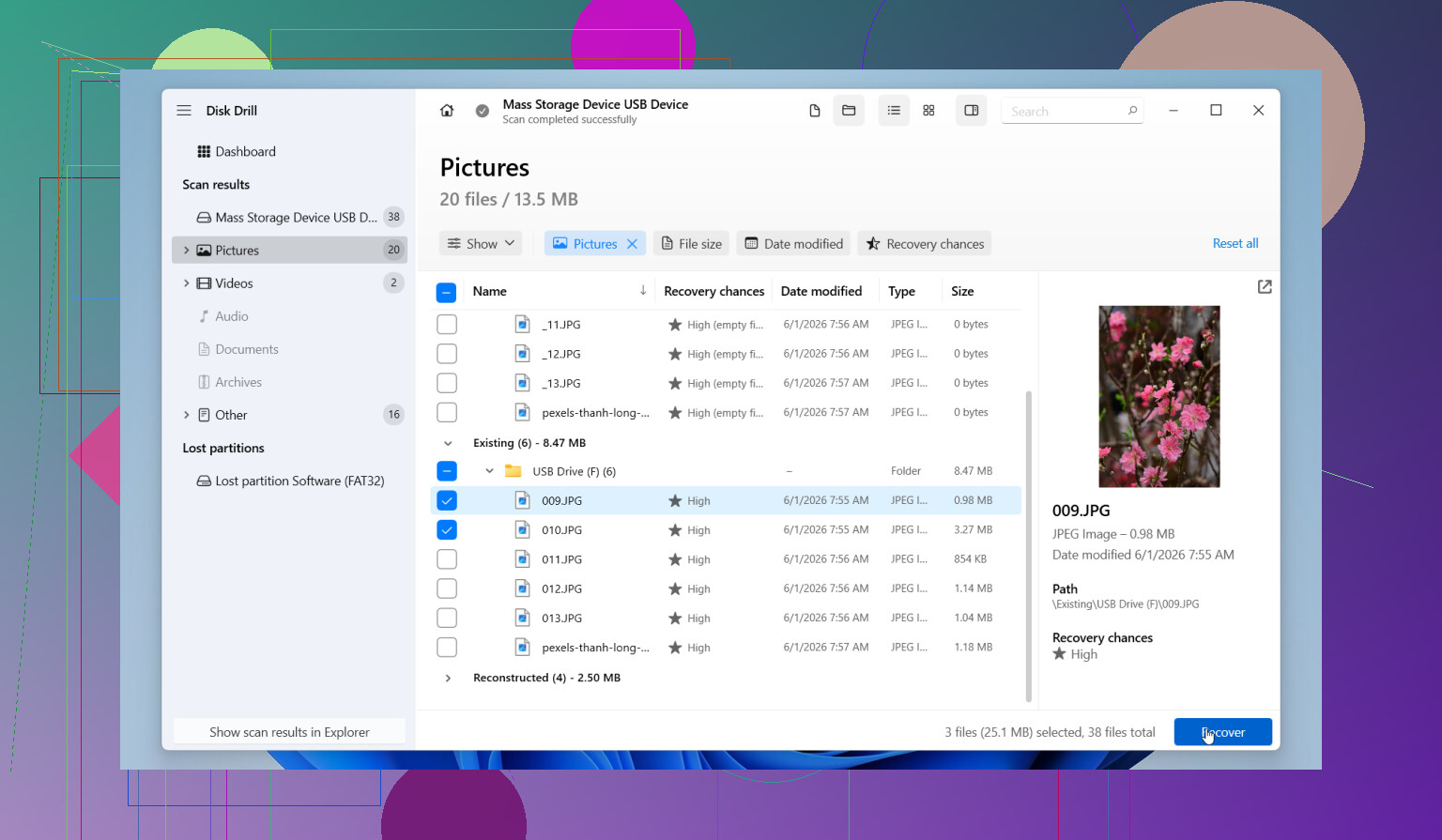
What I’d do next is install Disk Drill, but put it on a different drive from the one you’re trying to recover from. People miss this part all the time and end up overwriting the same files they want back. One useful thing in Disk Drill is the option to make a full byte-for-byte image first. I like doing recovery from the copy instead of poking at the original disk. It also lets you preview files before restoring them, which saves time when you’re sorting through junk filenames. There’s a free version, too. You can scan and preview first, then decide if it’s worth paying to recover.
A few things I’d keep in mind:
- Old-school HDDs usually give you a better shot than SSDs. Still, don’t wait around. Some newer hard drives support TRIM, and once cleanup runs, missing files get harder to pull back.
- If you hear clicking, grinding, or repeated spin-up noises, stop. Shut it down. Software won’t fix failing hardware. At that point, a recovery lab is the safer move.
- Run one proper deep scan. Repeating the same scan over and over doesn’t help much, and on a weak drive it’s extra wear for no gain.
If Disk Drill doesn’t get it done, I’d try something else before giving up. Recuva is simple and fast for basic deletes. DiskGenius is better when partitions or file systems got messed up. Data Rescue tends to come up a lot for Mac users. I’ve had the smoothest results with Disk Drill, but those are still worth keeping in your back pocket.
Main thing is speed and discipline. Stop writing to the drive, recover from another system if you can, and don’t keep experimenting on the original disk. That gives you the best shot at seeing your files again.

4 Likes
Empty Recycle Bin does not mean the folder is gone for good. It means Windows removed the easy path back. Your best move now is to check recovery options in this order.
-
Look for built-in copies first.
Windows File History, Previous Versions, OneDrive version history, Google Drive trash, company backup tools.
If the folder lived in Documents or Desktop, cloud sync sometimes saved your butt without you noticing. -
Check file type apps.
Word, Excel, Adobe, and some CAD tools keep temp or autosave files.
Search your drive for .asd, .wbk, .tmp, or the file extension you lost.
I’ve seen people recover 80 percent of a project from app temp files alone. -
Run recovery software once, and save recovered files somewhere else.
@mikeappsreviewer covered the stop-using-the-drive part. I agree with most of it. I disagree a bit on trying a bunch of tools back to back right away. More scans means more time, more stress, and on a sick drive, more risk.
Disk Drill is a solid pick for deleted folders because it sorts results well and keeps the process simple. If your drive is healthy, start there. -
If this is an SSD, move fast.
Deleted files on SSDs often vanish faster than on old HDDs because of TRIM. On many systems, recovery rates drop hard after normal use. Not always, but often enough. -
If the folder matters for work or taxes, stop DIY sooner.
If the files are worth more than a few hundred bucks, a lab is the safer path than experimenting till 2 a.m. Been there, did the dumb thing, lost more stuff.
Also, for a simple guide, this is decent:
easy guide to recover permanently deleted files from a hard drive
Short version, yes, recovery is still possible. Your odds depend on HDD vs SSD, how much you used the drive after deletion, and whether backups exist. Stop writing to the drive now, then check backups and temp files before you scan. Thats the fastest path with the least risk.

Yes, you still might be able to recover it, even after emptying the Recycle Bin. I agree with @mikeappsreviewer and @chasseurdetoiles on the big thing: stop using that drive. But I’d add one thing people skip way too often: check whether the folder was ever indexed, synced, or cached somewhere else before you start hammering the disk with recovery scans.
A few places worth checking that weren’t really covered much:
- Windows Search cache and Recent files
- Office recent docs list
- Email attachments you sent yourself or coworkers
- USB drives you may have copied the folder to months ago
- printer/scanner software folders, weirdly enough these sometimes keep copies
- network shares if this was a work PC
Also, if the deleted folder had mostly docs, pics, PDFs, spreadsheets, etc, recovery odds are better than if it had giant video files that got fragmented all over the place. People always ask “can I recover deleted files from hard drive?” but the real answer is “maybe, depending on file type, drive type, and how much you used it after.”
I slightly disagree with the “try every tool” mindset. If the drive is healthy, pick one solid tool first and do it carefully. Disk Drill is a pretty sensible place to start because it’s easy to sort recovered files by type and scan a hard drive without making the process more confusing than it already is. Just recover to a different drive. Not the same one. Seriously, dont do that.
If this is an SSD, your odds can drop fast. If it’s an old HDD, you’ve got a better shot. If the files are job-critical, tax stuff, legal docs, or irreplaceable family records, I’d stop the DIY stuff earlier than most people would.
Also, this might help if you want to read an actual case:
external hard drive data recovery success story from a real user
Short version: yes, recovery is possible, but every minute of normal use kinda chips away at your chances.
One angle I’d add to what @chasseurdetoiles, @caminantenocturno, and @mikeappsreviewer said: check whether the folder was deleted from an NTFS drive with Shadow Copies enabled. A lot of people say “Previous Versions” and move on, but on business PCs or older Windows setups, entire folder trees can sometimes be restored from snapshots even when File History was never manually configured.
Also, if the deleted folder had a very specific name, use recovery tools to search by known filenames first, not just by file type. That cuts through a ton of noise.
I slightly disagree with the “SSD means basically hopeless” vibe people sometimes give. SSD recovery is definitely worse because of TRIM, yes, but if the drive was external, TRIM may not have fired the way you expect. Worth checking before assuming it’s over.
If you go the software route, Disk Drill is fine for this kind of job.
Pros:
- easy to sort results
- previews many files
- can scan whole drives and lost partitions
- friendlier than a lot of recovery apps
Cons:
- deep scans can return messy filenames
- recovery quality depends heavily on file system damage
- paid recovery limit can be annoying
- not the best choice if the drive is physically failing
If Disk Drill comes up empty, that doesn’t always mean the data is gone. Sometimes it means the file metadata is toast, and another tool with different carving methods may find fragments. Just save everything recovered to another drive.