My iPhone storage is almost full and I keep getting “storage almost full” warnings. I’ve already deleted some photos and unused apps, but it barely made a difference. What are the best ways to permanently free up storage on an iPhone without losing important data, and are there any hidden files or settings I should check?
This happens to a lot of iPhones. Photos and apps are only part of the mess. The heavy stuff hides in system data, messages, and app caches. Here is what usually frees up real space.
- Check what is actually huge
Settings → General → iPhone Storage.
Wait a bit for it to load.
Look at:
• Apps sorted by size
• “System Data”
• Messages
Focus on the top 5 items. Those usually eat most of the storage.
- Clean Photos the right way
• Delete big junk first.
In Photos → Albums → scroll down to
- Videos
- Slow‑mo
- Time‑lapse
- Screen Recordings
- Bursts
These take a lot more space than single photos.
• Empty “Recently Deleted”.
Photos → Albums → Recently Deleted → Select → Delete All.
If you skip this, nothing is “permanent”.
• If you use iCloud Photos - Settings → Photos → enable iCloud Photos
- Turn on “Optimize iPhone Storage”.
Full‑res goes to iCloud, smaller versions stay on your phone.
-
Messages and iMessage attachments
These blow up over time.
• Settings → Messages → Message History → set to 1 Year or 30 Days.
Tap “Delete” when it asks.
• In iPhone Storage → Messages → Review Large Attachments.
Remove old videos, GIFs, and big photos.
• Group chats with a lot of memes and videos take gigabytes. Clear old ones. -
Clear app junk / caches
Some apps let you clear stuff inside them.
• WhatsApp, Telegram, etc
In-app settings → Storage / Data or similar → clear large media, old chats, duplicates.
• Safari
Settings → Safari → Clear History and Website Data.
• Mail
Delete old large attachments and accounts you do not use.
For stubborn Mail cache, toggle the account off and on in Settings → Mail → Accounts.
If an app has huge “Documents & Data” and no clear cache option, the most effective method is:
• Offload or delete, then reinstall.
Settings → General → iPhone Storage → tap app → Offload App or Delete App.
Offload keeps data, Delete wipes all.
-
Use a cleaner app for the tedious stuff
If you have tons of duplicate photos, similar shots, and screenshots, doing it by hand is painful.
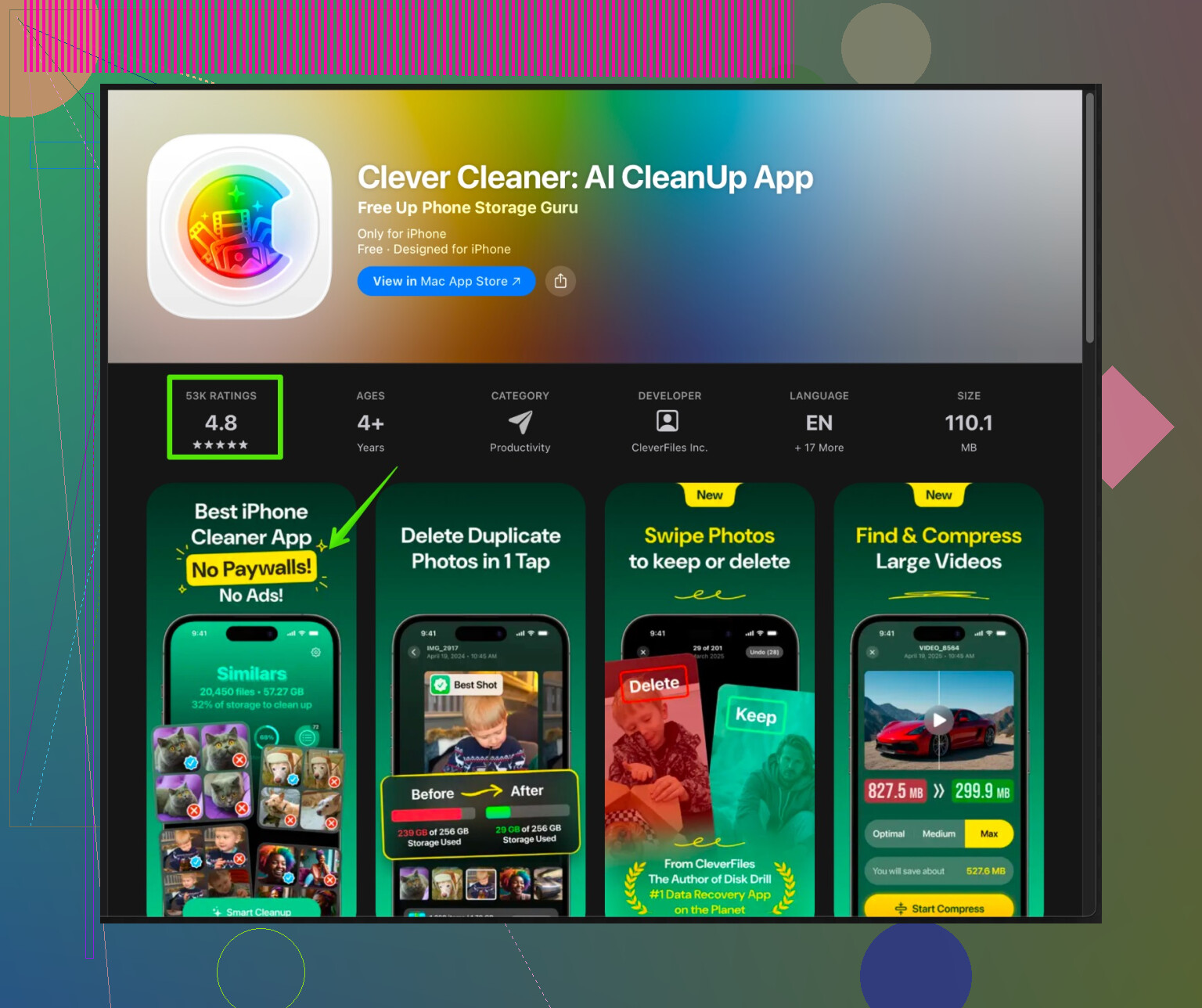
A tool like the Clever Cleaner App helps a lot:
Clever Cleaner App for faster iPhone cleanup
It scans for duplicate photos, similar images, large videos, old screenshots, and useless contacts. Then it lets you bulk delete in a few taps. This tends to free several GB on phones with big photo libraries. -
Offload unused apps
Settings → General → iPhone Storage → enable “Offload Unused Apps”.
This removes the app itself but keeps its data.
Icons stay with a small cloud symbol, and you reinstall by tapping them. -
Manage downloads and media
Check these:
• Files app
Go through “On My iPhone”. Delete old PDFs, videos, zips.
• Streaming apps
Netflix, Spotify, YouTube, etc often store offline downloads.
In each app, remove downloaded movies, playlists, or podcasts.
• Voice Memos
Long recordings are large. Export what you need, delete the rest. -
Reduce future bloat
• Stop keeping giant original videos forever
Offload to a computer or external drive once in a while.
• Turn off auto‑download in WhatsApp / Telegram for media you do not need saved.
• Avoid recording in 4K if storage is tight
Settings → Camera → Record Video → pick a smaller setting like 1080p. -
If “System Data” is huge
“System Data” over 10–15 GB often comes from cached logs and temporary files.
Things that often shrink it:
• Restart the phone.
• Remove and reinstall heavy apps.
• Update iOS to the latest version.
As a last resort, backup to iCloud or computer, then reset and restore. That is more effort but usually recovers a lot of space.
If you combine:
• Photo cleanup with “Recently Deleted” emptied,
• Messages + large attachments cleanup,
• Clearing app caches or reinstalling storage hogs,
• A pass with Clever Cleaner App to wipe duplicates and big junk
you usually see multiple gigabytes freed, not a few hundred megabytes.
1 Like
Couple of things to add on top of what @techchizkid already covered, without just rehashing the same checklist.
1. Stop iCloud from secretly filling your phone
People think “iCloud = more space,” but if it’s misconfigured, it actually uses more space.
- Go to Settings → Apple ID → iCloud → Manage Account Storage
- Check:
- iCloud Drive: If “Sync this iPhone” is on and you’ve got big folders (Desktop/Documents from a Mac, large project folders, etc.), those can mirror locally and chew space. Turn off stuff you do not need on the phone.
- Messages in iCloud: Good long term, but if it’s on and you keep everything forever, it can still cache locally. After turning on Messages → 30 days / 1 year, give it time to purge.
So yeah, iCloud helps, but it is not magic and can backfire if you sync everything.
2. Tame Mail, but properly
I half‑disagree with the light “delete attachments” advice. Mail is one of the sneakiest storage hogs, and deleting some emails usually does almost nothing.
Try this:
- Settings → Mail → Accounts
- For each account you no longer use, remove it entirely.
- For accounts you do use:
- Temporarily toggle them off, wait a minute, then back on.
- This often slashes the local cache the app keeps.
If you use IMAP (Gmail, Outlook, etc.), your mail still lives on the server, so this is fairly safe.
3. Don’t ignore Podcasts & Books
Two apps people forget:
-
Podcasts
- Open Settings → Podcasts
- Set Download Episodes to “Off” or “Only New”
- Auto delete played episodes
- Then open the Podcasts app → Library → Downloads → remove old stuff
-
Books (Apple Books)
- Open Books → Library
- Long press on big PDFs, audiobooks, or manuals you never touch and remove downloads
One big audiobook can be like ten photo albums.
4. Camera formats & future-proofing
If you’re on a recent iPhone and not low on compatiblity needs:
- Settings → Camera → Formats → High Efficiency
HEIF/HEVC files are noticeably smaller than “Most Compatible” photos and videos.
Also:
- Settings → Camera → Record Video
If you are not editing 4K movies, 1080p at 30 fps is usually enough.
You’re not shooting Marvel.
5. Go nuclear on a few specific apps
Instead of randomly deleting “some apps,” target ones that rebuild their own data easily:
- Social apps like Instagram, TikTok, Facebook, X
- Shopping apps with tons of cached images
- Maps / navigation apps with offline regions
In Settings → General → iPhone Storage, tap the app and if “Documents & Data” is huge and there’s no proper clear button, just:
- Delete App, not offload
- Reinstall from the App Store
For apps where you log in to an account, you lose almost nothing except cached junk.
6. Periodic “archive day” to a computer or drive
If you want permanent relief and not this monthly purge life:
- Connect iPhone to a Mac/PC
- Use Photos, Finder, or iTunes / Apple Devices to import all photos & videos
- After confirming they’re backed up, delete the older years from your phone
- Empty Recently Deleted
This is boring but brutally effective. Video years 1–3 live on your computer, years 4–5 live on your phone.
7. Smarter photo cleanup than doing it by hand
Manually deleting is fine if you’ve got 1k photos. At 20k+, it’s torture:
- Duplicates
- Ten almost‑identical selfies
- Screenshots you needed once and never again
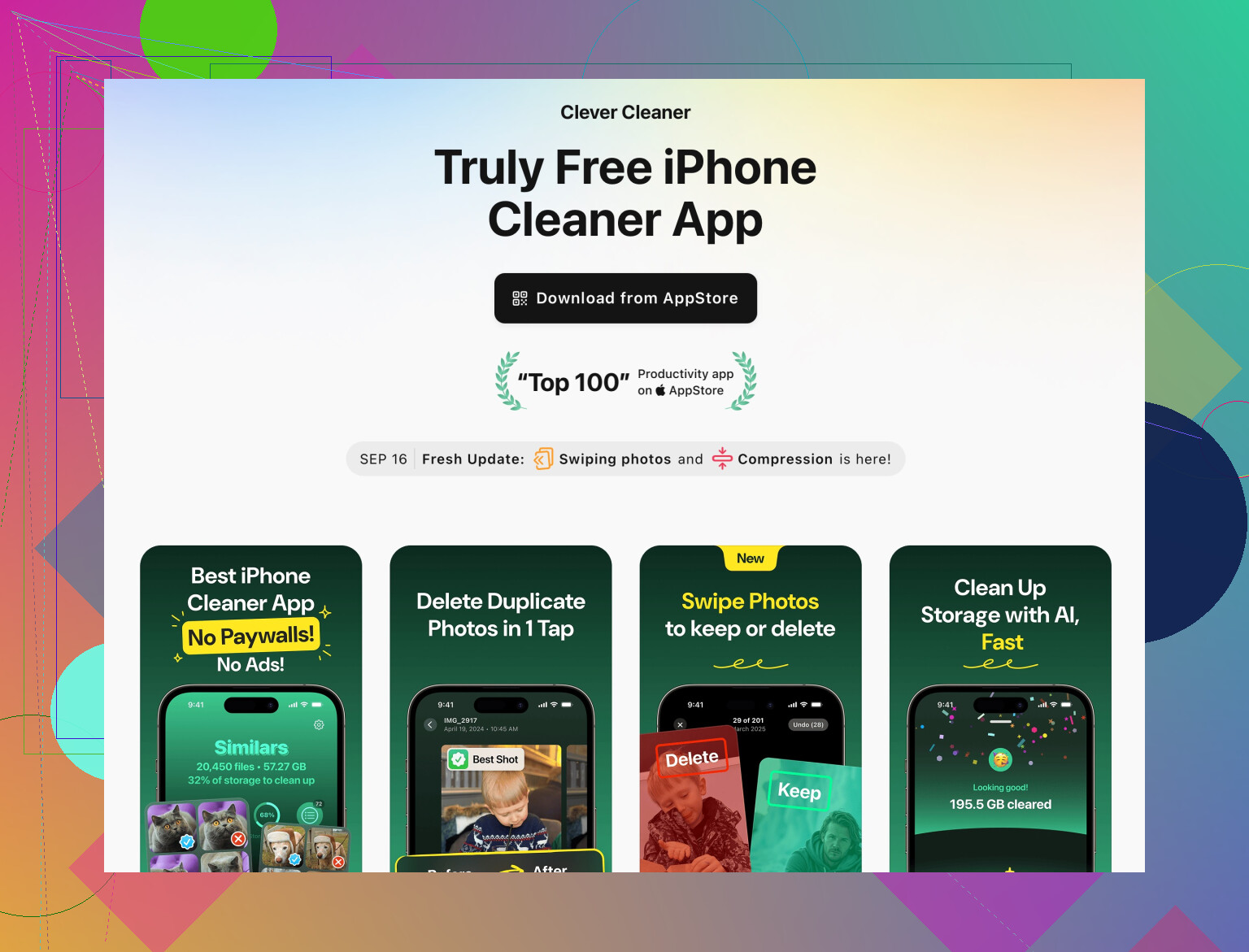
This is where something like the Clever Cleaner App actually makes sense. It looks for:
- Duplicate / similar photos
- Massive videos
- Old screenshots
- Useless contacts
That combo is what usually eats space. For anyone searching for a solid iPhone cleaning tool, check out
smart ways to clean and speed up your iPhone storage
It’s faster than scrolling for an hour pretending you’ll “just delete a few pics.”
8. When all else fails: backup + restore
If your System Data stays ridiculous and nothing seems to shrink it:
- Backup to iCloud or to a computer
- Settings → General → Transfer or Reset iPhone → Erase All Content and Settings
- Restore from that backup
Takes time, but this is usually how you reset all the hidden temp files, logs, and system junk that no toggle will ever touch.
TL;DR approach that actually moves the needle:
- Fix iCloud / Mail / Podcasts / Books instead of only poking Photos
- Delete and reinstall a couple of massive, cache‑heavy apps
- Offload old photos & videos to a computer
- Use something like Clever Cleaner App for the mind-numbing duplicate/screenshot cleanup
That combo usually frees multiple GB, not a measly 300 MB that comes back next week.
@jeff and @techchizkid already nailed the “what to delete” side. I’ll skip repeating that and focus on strategy and a few things I partially disagree with.
1. Decide what your iPhone is actually for
People try to keep everything on a 64 / 128 GB phone, then fight iOS every month. Ask yourself:
- Is this a camera roll device (photos / videos first)?
- A work device (files, mail, messaging)?
- Or mainly social / media consumption?
Pick 1 priority. Then:
- Priority stuff stays local.
- Everything else gets offloaded to cloud / computer / external drive.
This mindset change frees more space long term than any one cleanup app or trick.
2. Stop chasing 100% “System Data” perfection
I only half agree with blowing up your phone just because System Data is 12+ GB.
Reality:
- iOS needs a chunk of space for caches, logs, Spotlight indexing.
- It will grow and shrink as you install and use apps.
I treat System Data like this:
- Under 15 GB on a 128 GB device → normal, ignore it.
- Over 25 GB and not dropping after a restart and some app reinstalls → then consider the backup + erase route like @techchizkid mentioned.
Constantly resetting the phone “just because” is overkill and wastes time unless System Data is clearly broken.
3. Use “cold storage” for photos instead of trying to be clever on‑device
Everyone says “use iCloud Photos” or “optimize storage.” Works, but:
- If your iCloud plan is small
- Or your network is bad
- Or you want real control
A better long term pattern:
- Once or twice a year, plug into Mac/PC.
- Export photos & videos up to a certain date.
- Store those on:
- External drive
- NAS
- Cloud drive of your choice
- Backed up? Then delete those older years from the iPhone and empty “Recently Deleted.”
That permanently turns your iPhone into “last 6–18 months only” while everything else lives in a safer archive.
I actually prefer this to keeping 6 years of memories “optimized” in iCloud and hoping sync magic never fails.
4. Be ruthless with types of content, not just apps
Something both @jeff and @techchizkid hint at, but not quite in this framing: stop thinking “which app should I delete?” and think:
- What category is bloated?
- Chat media
- Offline downloads
- Work files
- Raw camera media
- Social / short‑form video addiction
Then apply rules per category:
- Chat apps: Disable auto download of media in groups, auto delete media older than X months.
- Offline stuff: Podcasts, Netflix, Spotify, YouTube. Pick one or two apps to allow large offline content and keep the rest online only.
- Work: Move active projects to cloud folders and pin only your current project locally.
This avoids the treadmill where you free 5 GB today and lose it all next week because behavior did not change.
5. Where a cleaner app actually makes sense (and where it doesn’t)
You asked about “permanently” freeing space. System / cache stuff will always slowly come back. The most permanent gains come from:
- Deleting duplicate / near duplicate media
- Nuking screenshots, screen recordings, long forgotten videos
- Removing stale contacts & junk files
That is exactly where a tool like the Clever Cleaner App can save you from misery.
Pros of Clever Cleaner App
- Fast at spotting:
- Duplicate and similar photos
- Very large videos that you forgot about
- Old screenshots and screen recordings
- Messy contacts with duplicates or no info
- Lets you review before deleting so you keep control.
- Good for people with 10k+ photos where manual cleanup is torture.
Cons of Clever Cleaner App
- It will not solve:
- Huge System Data
- Bloated app caches from social or streaming apps
- iCloud misconfigurations
- You must still be careful while bulk deleting. If you just tap through everything quickly you can lose shots you actually liked.
- One more app on the phone, so if you only have a few hundred photos it is overkill.
- It complements what @jeff and @techchizkid suggested; it does not replace the need to change habits.
Used smartly, it is best for a “deep clean day” a couple of times a year, not something you hammer every week.
6. When to ignore some popular advice
A few places I’d go against common tips:
-
Don’t constantly toggle “Offload Unused Apps” on and off
If you rely on some apps for travel, banking, 2FA, etc, you really do not want iOS randomly offloading them before a flight or an offline trip. -
Don’t micromanage every app’s cache daily
Social apps will just refill it. Do a big sweep once in a while, then leave them alone. -
Don’t try to keep free space at exactly X GB
Aim for a reasonable buffer, like 10 to 20 percent of total capacity free. If you’re way under that, do a serious purge. Otherwise, stop stressing about the number.
7. A practical game plan that works for most people
In practice, for someone in your situation who already removed some apps and photos:
-
Define the phone’s priority
Decide whether photos, media, or work files come first. -
One big archival move
Transfer older years of photos & videos to a computer or drive, delete them from the phone, and empty Recently Deleted. -
Target categories, not individual apps
- Turn off or limit auto downloads in chat and streaming apps.
- Keep only 1 or 2 apps with large offline content.
-
Run a specialist pass with Clever Cleaner App
Use it mainly for:- Duplicates & similar photos
- Large videos
- Old screenshots
- Messy contacts
Review carefully so you only delete real junk.
-
Only if System Data is truly wild
Then consider the backup → erase → restore approach.
Do this once properly, with that archival step, and you usually will not be fighting “storage almost full” every other week.