My iPhone keeps saying storage is almost full, and now apps are crashing and I can’t take new photos or download updates. I’ve already deleted a few big apps and old photos, but it barely made a difference. Can someone explain the best ways to clear storage on an iPhone, including any hidden files, caches, or settings I should check so I can actually free up a good amount of space?
Had the same problem on a 64 GB iPhone. Deleted a ton of stuff, nothing changed, phone still crying about storage. Here is what helped in a more systematic way.
- Check what is really eating space
Settings > General > iPhone Storage.
Wait a bit. Look at:
• System Data
• Photos
• Messages
• Big apps with “Documents & Data”
System Data often bloats after updates and heavy app use.
-
Offload apps instead of only deleting
In iPhone Storage, tap large apps you rarely use.
Hit “Offload App”.
This removes the app but keeps its data. Icon stays, you reinstall with a tap when you need it.
Great for big games, social apps, editing apps. -
Clean up Photos the smart way
Open Photos > Albums > Recently Deleted and empty it.
If you use iCloud Photos:
Settings > Your name > iCloud > Photos > Optimize iPhone Storage.
That keeps smaller versions on the phone and full ones in iCloud.
Also remove:
• Long 4K or 60 fps videos
• Bursts and Live Photos you do not need
You can sort by size in Photos app on a Mac if you sync, or use “Videos” album and delete the worst offenders. -
Messages are storage killers
Settings > Messages:
• Set “Keep Messages” to 30 Days or 1 Year
• Under “Photos” and “Videos” inside a conversation, delete big attachments
You can also go to Settings > General > iPhone Storage > Messages and clear:
• Large Attachments
• Videos
• GIFs and Stickers
These cleanups free gigabytes on some phones. -
Safari and app caches
• Settings > Safari > Clear History and Website Data
Some apps like TikTok, Instagram, Reddit store a lot of cache.
Open Settings > General > iPhone Storage, tap those apps, if you see huge “Documents & Data”, delete the app, then reinstall.
You lose logins and downloaded content, but you get storage back. -
Offload mail and downloads
Mail:
• Delete large old threads with many attachments
• Empty Trash and Junk
Files app:
• Check “On My iPhone” and “Downloads” folders, delete what you no longer need -
iCloud trick if you are stuck
If you are near 0 bytes free, iPhone bugs out, apps crash, camera fails.
Try:
• Temporarily turn on iCloud Photos with Optimize iPhone Storage
• Plug into Wi‑Fi and power for a few hours
After sync, local copies shrink and you get space back.
Needs enough free iCloud storage though. -
Use a cleaning app to automate junk removal
If most of your space problem comes from duplicate photos, blurry shots, screenshots and similar junk, a cleaner helps a lot.
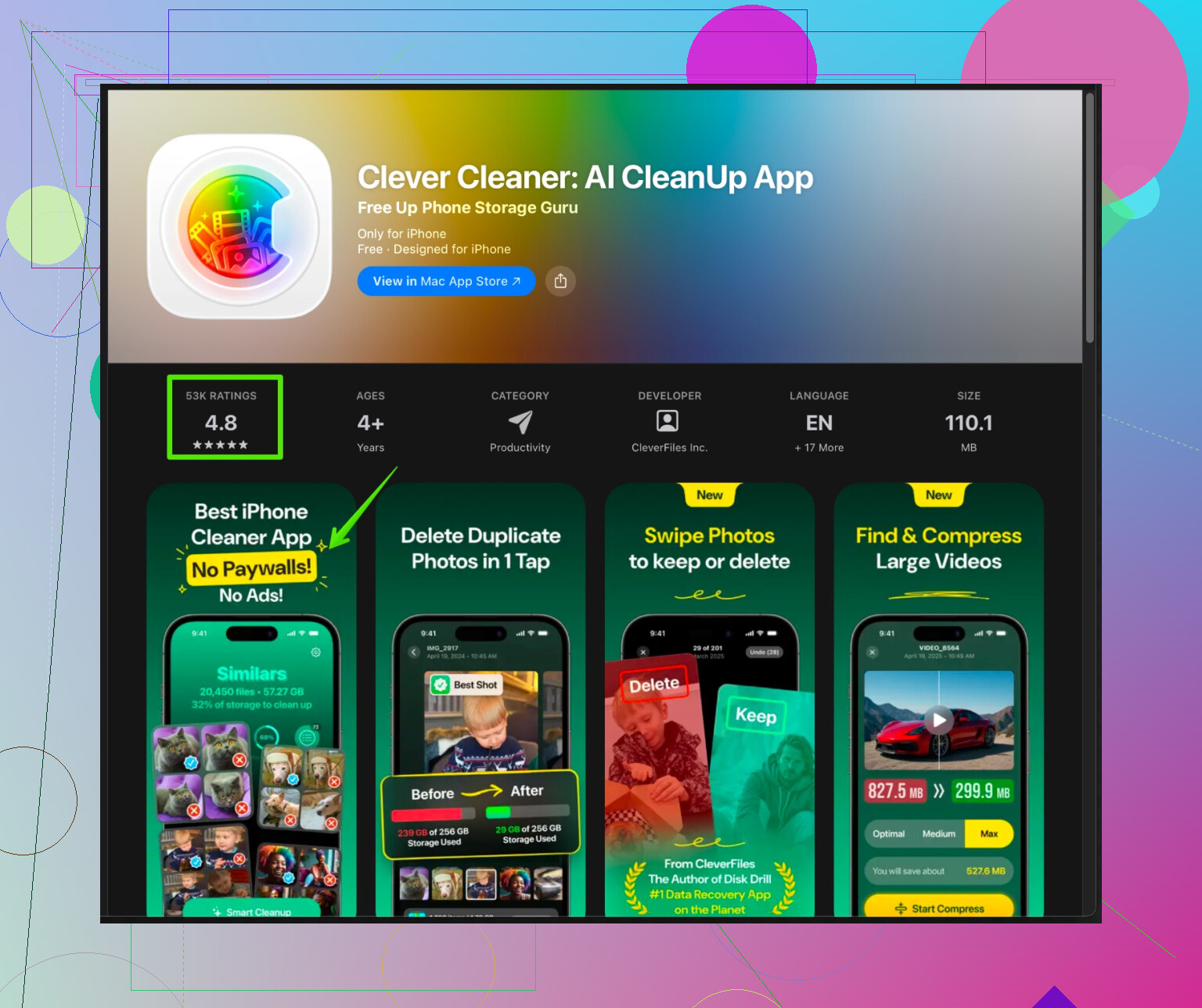
One option is Clever Cleaner App for iPhone. It groups duplicates, similar photos, big videos, and useless screenshots so you can delete them in a few taps instead of scrolling for an hour.
You can check it out here:
Clever Cleaner App for fast iPhone storage cleanup
Still double check what you delete, but it speeds up the process a lot. -
Last resort steps
• Backup with iCloud or iTunes / Finder
• Reset all settings if things feel glitchy
If storage is always full even after a big cleanup and you sit at like 55 GB used out of 64 without any huge apps or media, sometimes a full backup, erase, then restore gives back space eaten by corrupted System Data.
I would start with Messages large attachments, then Photos videos, then heavy app caches, then run Clever Cleaner App to finish the job. That mix freed over 15 GB on my phone.
2 Likes
Couple of extra angles you can try that @nachtdromer didn’t really touch, or I partly disagree with.
- Hunt down “other people’s” data inside apps
Deleting or offloading apps is nice, but a lot of space is actually inside apps that don’t show it clearly. Check these, one by one, from Settings > [app name]:
- Streaming apps (Netflix, Spotify, YouTube, Prime, etc.):
- In each app’s own settings, clear:
- Offline downloads / cached songs
- “Watch later” / “Saved” stuff that’s downloaded locally
- In each app’s own settings, clear:
- Messaging apps besides iMessage: WhatsApp, Telegram, Signal, etc.
- In app settings, look for “Storage and Data” or “Data and Storage Usage”
- Clear big media from old chats, especially group chats
I’ve seen WhatsApp alone take 10+ GB while iPhone Storage made it look like “only” a couple.
- Stop the phone from filling itself again
This is where I slightly disagree with going too heavy on just cleaning once. If you don’t change the behavior, you’re back to “Storage Almost Full” in a month. Check:
- Settings > Camera > Formats
- Use “High Efficiency” instead of “Most Compatible” to shrink photo/video size
- Settings > Camera > Record Video
- You probably don’t need 4K 60 fps for everything. Try 1080p 30 fps as default.
- Social apps auto-saving media
- In Instagram / TikTok / Snapchat, turn off “Save to Camera Roll” for every single story, reel, etc. That stuff quietly floods your Photos.
- Locally stored music & podcasts
Apple Music, Spotify, Podcasts, Audible can secretly eat tens of GB.
- Apple Music:
- Open Music > Library > Downloaded
- Remove offline albums/playlists you don’t actually use
- Spotify:
- In the app, go to Your Library > Downloaded, delete massive playlists
- Podcasts:
- Settings > Podcasts
- Turn “Download Episodes” to only “Most Recent” and limit “Episodes to Keep”
- In the app, delete old downloaded episodes, then clear “Recently Deleted.”
- Mail attachments and “mystery” docs
The Mail app can hold a ton of attachments that do not show clearly.
- Open the Mail app, go to big threads where people keep sending PDFs, PPTs, photos
- Manually delete the thread if you do not need it locally
- Files app:
- Check “On My iPhone,” “Downloads,” and random app folders
- A lot of saved PDFs / zips / installers just sit there forever
- Shared albums and third party backup overlap
Sometimes you are keeping the same photos in multiple places without noticing:
- Shared Albums in Photos: if people spam memes and screenshots there, you can turn off or leave old shared albums
- If you use Google Photos, Dropbox, OneDrive, etc. and already backed everything up, you can be more aggressive in deleting local photos and videos from the iPhone itself. Just make sure they actually finished backing up first.
- System Data: nuke from orbit if it’s insane
If your “System Data” is like 15–25 GB and not going down, you can try:
- Backup to iCloud or a computer
- Update to the latest iOS (sometimes it shrinks this a bit)
If after all your cleaning the numbers still look crazy (e.g. 64 GB phone, 55 GB used, but you swear you barely have anything), the only truly reliable fix is: - Full encrypted backup to a computer
- Settings > General > Transfer or Reset iPhone > Erase All Content and Settings
- Restore from that backup
It’s annoying, but this is often the only way to clear corrupted “Other/System Data” that normal cleaning will never touch.
- Automating the “boring scroll and delete” part
Where I agree with @nachtdromer: manually hunting duplicates, bad screenshots, and near-identical photos is miserable. If most of your problem is the Photos mess, something like Clever Cleaner App helps a lot.
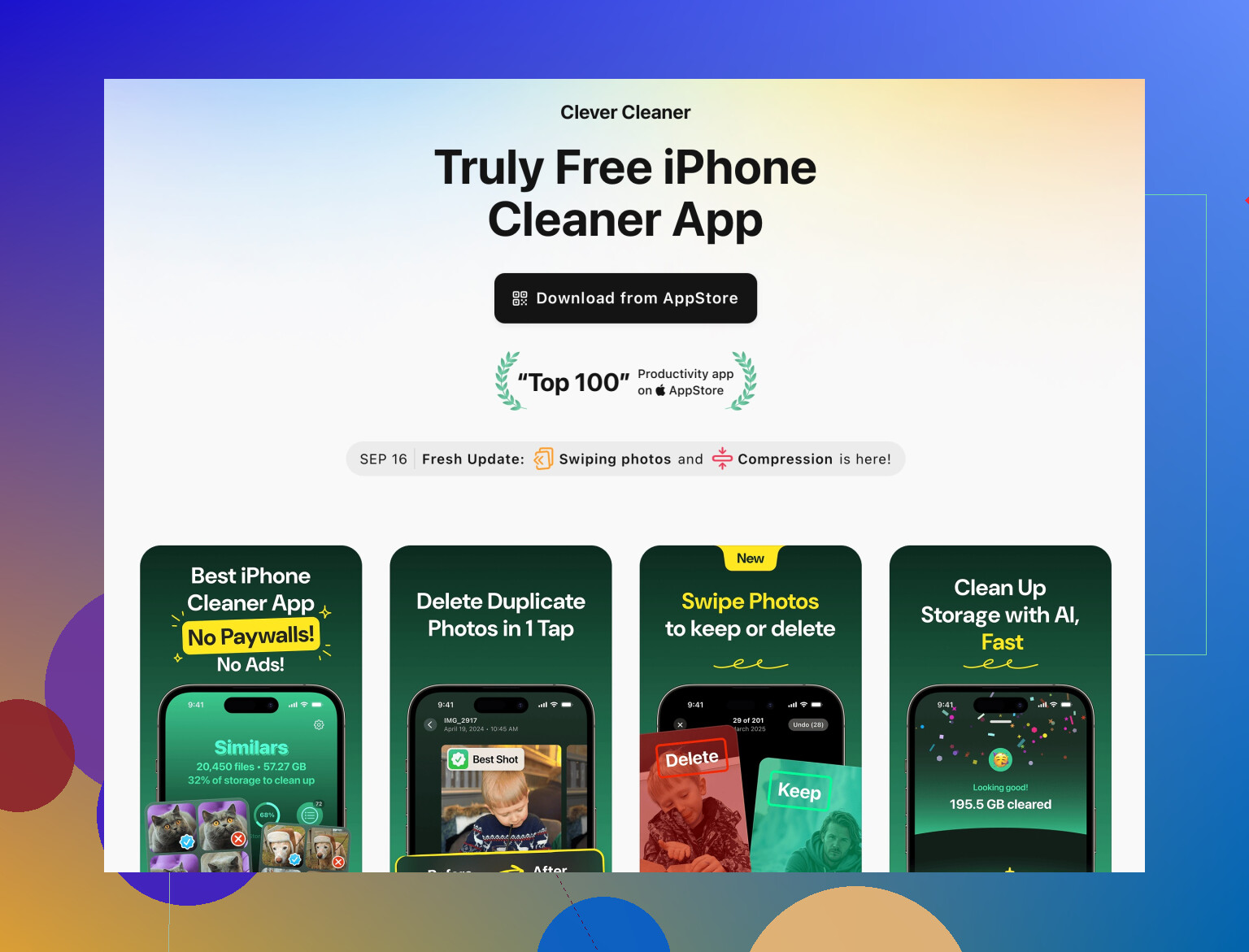
A more readable option to check out is smart iPhone storage cleanup with Clever Cleaner. It groups:
- Duplicate and similar photos
- Blurry shots
- Massive videos
- Useless screenshots
So you can bulk-review instead of tapping delete 5,000 times. Still, don’t just spam “select all” unless you enjoy deleting that one important pic by accident.
If you’re totally stuck right now because storage is at 0 and the phone is glitching, prioritize like this:
- Delete a few giant offline videos / movies from streaming apps to free at least 3–5 GB fast
- Then clean huge chats in WhatsApp / Telegram / Messages
- Then run a targeted photo cleanup (manually or with something like Clever Cleaner App)
- If System Data is still monstrous, consider the backup + erase + restore route.
Couple of extra tactics that play nicely with what @chasseurdetoiles and @nachtdromer already covered, but from a slightly different angle:
1. Look for “hidden hoarders” in iCloud & Photos
Everyone talks about iCloud Photos, but two things often get missed:
a) Shared albums and hidden media
- Photos > Albums
- Scroll to “Shared Albums” and “Hidden”
- Old shared albums (vacations, events, meme dumps) can stack a lot of photos and videos.
- If you no longer care about an album, remove yourself or delete it to prevent silent bloat.
b) Photo editing history
If you use third party photo editors (VSCO, Lightroom, Snapseed, etc.), they often:
- Save edited copies instead of overwriting
- Keep their own internal cache and previews
So:
- In each editor app, check “Manage storage” / “Clear cache” options.
- In Photos, search for “Edited” and remove old, redundant edited copies if you still have originals.
2. Stop iCloud Drive and app sync from duplicating your life
Even if Photos is optimized, iCloud Drive and app document syncing can be a second, invisible suitcase:
- Settings > Your name > iCloud
- Look at every app using iCloud Drive
- Apps like Pages, Keynote, Scanner apps, and note apps can sync a lot of PDFs and scans.
If you use another cloud service (Google Drive, Dropbox, OneDrive) already:
- Turn off iCloud for apps where you are effectively syncing the same files twice.
- Open the Files app > iCloud Drive and manually delete old large folders (exports, backups, unneeded PDFs).
3. Fix apps that endlessly “rebuild” their cache
I partly disagree with constantly deleting and reinstalling huge apps, because some of them quickly re-download the same data.
Instead, inside these apps, try to change behavior:
- Navigation / maps apps
- Turn off or minimize offline map areas you do not actually need.
- News apps & “offline reading” apps
- Disable automatic offline download of every issue or every article.
- Social apps
- Turn off “preload videos” / “auto-play on Wi‑Fi” to reduce incoming cached media.
This slows the rate at which your “Documents & Data” balloon returns after cleaning.
4. Offload content types, not just apps
Think in categories, not icons:
- Scans & PDFs
- Open all scanner apps and PDF readers and export old scans to cloud or email, then delete local copies.
- Creative projects (music production, video editors like CapCut, LumaFusion, etc.)
- Old projects keep raw media inside the app. Archive final exports to cloud or a computer, then delete project files from inside the app.
Sometimes one video editing project or one giant scan archive equals several big apps in size.
5. Use “temporary parking” on a computer
If you have access to a Mac or PC, a very low tech but powerful trick:
- Connect iPhone to computer.
- Use Photos / Finder / iTunes to import:
- Long 4K videos
- Time‑lapses
- Event albums
- After double checking they are safely on the computer (and maybe an external drive), delete them from the iPhone.
This is often safer and more controlled than trusting only cloud and gives you a long term archive so you can aggressively clean the phone.
6. What about Clever Cleaner App specifically?
Since both @chasseurdetoiles and @nachtdromer mentioned clever cleaners and manual cleanup pain, here is a quick take on using Clever Cleaner App in the mix:
Pros:
- Groups duplicates, similar shots, screenshots, and large videos so you do not have to scroll forever.
- Good for “first pass” cleanup if your Photos library is chaos.
- Helps surface big storage hogs you would not spot manually, like a random 5‑minute 4K clip.
Cons:
- Any automated cleaner risks suggesting deletion of something you actually care about. You still need to quickly review before confirming.
- Does not really solve systemic issues like huge System Data or app caches that regrow.
- If you are already very organized with albums and regular manual deletes, the benefit is smaller.
Used right, I would place Clever Cleaner App as:
- Step 3 or 4 in your process, after you remove obvious monsters (offline Netflix movies, massive chat media, old projects).
- A periodic “maintenance pass” every couple of months so junk does not rebuild.
7. When nothing makes sense anymore
If, after all of this plus what @chasseurdetoiles and @nachtdromer suggested, your numbers are still weird (for example System Data is huge and your used space does not match what you see):
- Make a full encrypted backup to a computer.
- Erase the iPhone.
- On restore, do not blindly restore every app:
- Let the essentials come back.
- Redownload big non‑critical apps manually later so you do not revive old cached junk.
Often this “clean restore with selective app return” frees more space than any other single trick.