My WD My Passport external hard drive suddenly stopped showing up on my computer after I connected it to transfer important files. It powers on, but I can’t access my photos, documents, and backup data. I need help with safe first steps for WD My Passport data recovery before I do anything that could make the problem worse.
I’ve messed with a lot of WD My Passport drives, and missing files do not always mean the data is dead. More than once, I found the drive itself was fine and the mess came from a broken file system, a damaged partition, or somebody deleting stuff by mistake.
First thing I do is check whether Windows still sees the drive.
Open Disk Management and find the WD My Passport in the disk list. I would ignore the drive letter for now. What matters first is simple. Does Windows detect the device, and does the reported size look close to what the drive should be?
If it shows up with the right capacity, I take that as a decent sign. Even when Windows marks it as RAW or Unallocated, or throws up a format prompt, recovery often still works because the hardware is responding.
If it does not show up, drops in and out, or starts making weird clicking or buzzing sounds, I stop there. At that point I’d suspect hardware trouble, not a file system issue.
If the drive is visible, stop writing anything to it. I learned this the hard way years ago. If files were deleted recently, or the partition suddenly went bad, every new write raises the odds of overwriting data you still had a shot at pulling back.
Before you fire up recovery tools, check whether the files already exist somewhere else. I’ve seen people spend half a day scanning a drive, then realize the missing folder was sitting in OneDrive, Google Drive, Dropbox, or some old synced laptop profile. Worth five minutes. Saves a lot of pain.
If there’s no backup, I’d go straight to recovery software. On WD My Passport drives, Disk Drill is one of the tools I tend to try early. It deals with deleted files, formatted partitions, and RAW volumes without much fuss. It also supports NTFS and exFAT, which is what I usually see on these drives. The preview option helps a lot too, since you get a quick check on whether the files still open before you recover them.
This is the flow I usually follow:
Install the software on your PC, not on the WD drive.
Plug in the My Passport and wait for the software to detect it.
If the drive acts flaky, make a byte-to-byte backup first and scan the image instead of the original disk.
Run a full scan.
Look through the results and preview the files you care about.
Recover everything to a different drive. Do not save recovered files back to the same Passport.
The preview step matters more than people think. If a photo renders, a video starts, or a document opens in preview, I usually feel a lot better about the recovery result. Not perfect, but a good sign.
After you get your files back, set up backups before using the drive like normal again. External drives are fine for storage, but I would never keep the only copy of important stuff on one portable disk. Use File History, Acronis, or some cloud sync if it fits your setup. One extra copy turns a bad night into a small annoyance. I learned taht one after losing an old project folder years ago.
If it powers on but does not mount, I’d check the bridge board and cable before doing any scan. WD My Passport drives often fail at the USB side first. Swap the cable. Try a rear USB port. Try another PC. If the drive shows in Device Manager but not File Explorer, test it with CrystalDiskInfo or smartctl. If SMART will not read, that points more toward hardware or the USB-SATA bridge.
One place I differ a bit from @mikeappsreviewer is software should not be step one if the drive drops out during reads. Step one there is imaging. Use HDD Raw Copy Tool or ddrescue and clone/image the disk to a healthy drive. Read the image, not the Passport. That saves wear and cuts the risk of a bad head getting worse.
If the disk stays stable, Disk Drill is a solid pick for WD My Passport data recovery. It handles deleted files, lost partitions, RAW volumes, NTFS, exFAT, FAT32, and it lets you preview photos, docs, and video before recovery. Install it on your PC, scan the WD drive or its image, then restore files to a different disk. Do not write back to the Passport. This quick video guide for recovering files with Disk Drill is worth a look.
If you hear clicking, scraping, or the size reads wrong, stop. That’s lab territory, not DIY. Price is rough, but overwritten data is worse. Also, if your Passport uses WD hardware encryption through the USB board, pulling the bare drive out often won’t help. People do this and then wonder why the data looks garbled. Annoying, but true.
If it lights up but vanishes from Explorer, I’d also check for a super boring issue people skip: the drive may be stuck in an offline state or missing a mount point. In Disk Management, right click the disk itself and see if it says Offline. If yes, bring it online. If the partition is there but has no letter, assign one. Sounds dumb, fixes more cases than it should.
Also, don’t run CHKDSK right away. I know people love tossing that command at every storage problem, but on a shaky external drive it can make a messy file system even messier. I disagree with the “just repair it first” crowd for that reason.
@mikeappsreviewer and @caminantenocturno already covered detection, imaging, and recovery software pretty well, so I’d add one WD-specific angle: check Device Manager under Disk drives and USB controllers. If you see repeated disconnects, Unknown USB Device, or power-related errors in Event Viewer, the issue may be the enclosure electronics and not the platters. That matters because a stable read session is half the battle.
If the disk is detected consistently, Disk Drill is a reasonable move for WD My Passport data recovery, especially for photos/docs on corrupted exFAT or NTFS. But I’d scan during a short test first. If reading speed tanks or the drive disappears mid-scan, stop and image it instead of forcing a full pass. That little detail saves people from making a bad drive worse.
One more thing: if BitLocker was ever enabled on that PC, check whether the Passport was encrypted through Windows and you forgot. Seen that happen, and folks think the drive “died” when it was really an unlock issue.
If you want a quick visual walkthrough, this easy WD My Passport data recovery walkthrough is probly more useful than reading twenty scattered posts.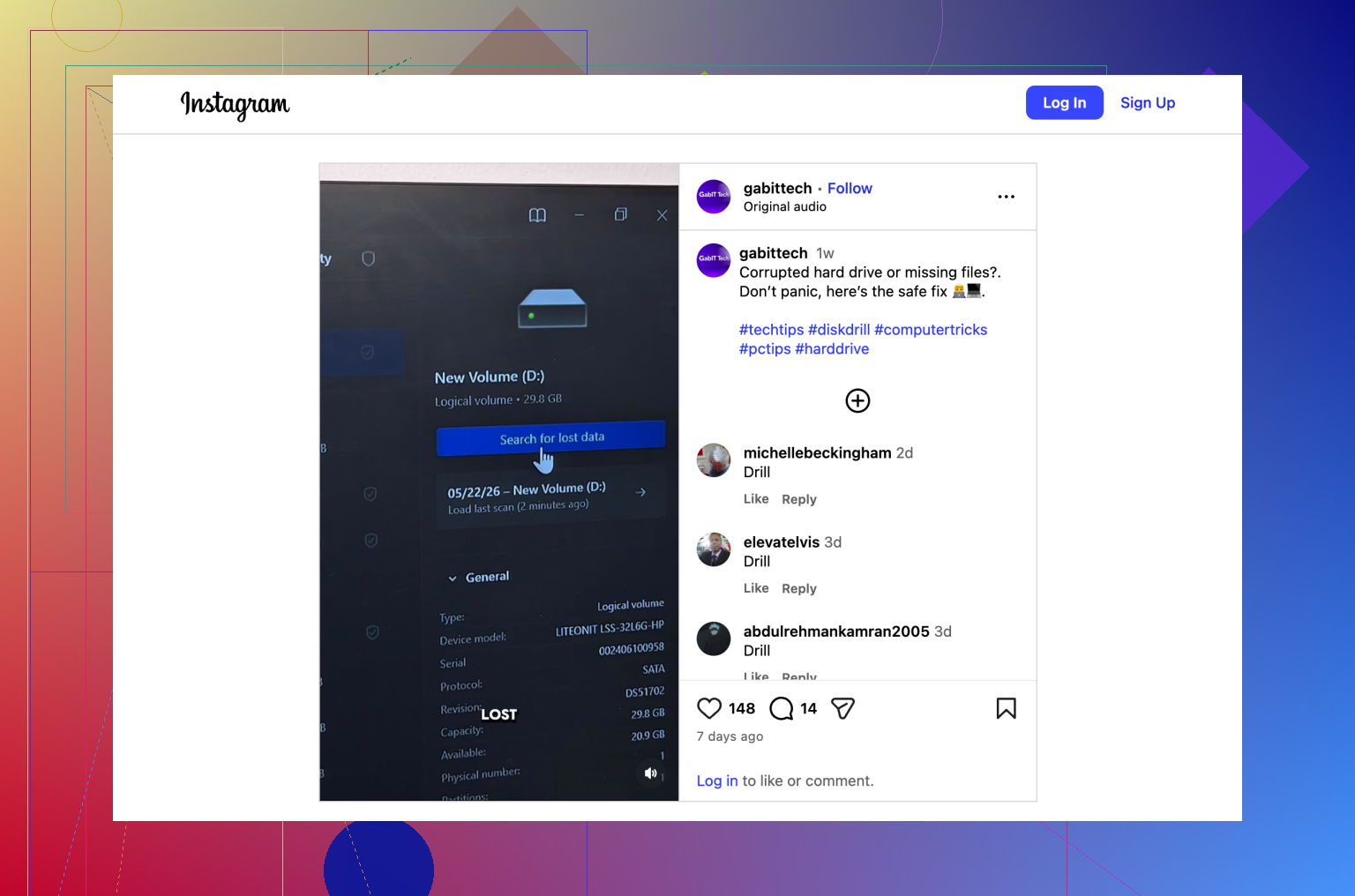
I’d add one check nobody’s pushed hard enough yet: look in **DiskPart** or **Linux live USB** before assuming the file system is the main problem.
If Windows is flaky with USB mass storage, boot a Ubuntu live USB and see if the Passport appears in **Disks**. I’ve had WD externals that were invisible in Explorer but readable enough under Linux to copy the important folders first. Not elegant, but sometimes faster than a deep recovery pass.
I slightly disagree with jumping into a full scan too early even on a “stable” drive. If the data matters a lot, I’d first try to copy the most critical visible folders with something fault-tolerant like TeraCopy. Recovery scans are useful, but they also mean lots of reads.
About **Disk Drill** specifically:
**Pros**
- easy to use
- good previews for photos/docs/video
- handles RAW, lost partitions, NTFS, exFAT, FAT32
- decent choice after imaging
**Cons**
- deep scans can take ages
- results can be messy without original filenames/folders
- not magic if the USB bridge or heads are failing
- paid recovery can be a turnoff
So yeah, I’m mostly with @caminantenocturno, @byteguru, and @mikeappsreviewer on the order of operations, but my personal move is: test on another OS, copy anything readable immediately, then use Disk Drill on an image if direct access is unreliable. If capacity shows wrong or the drive resets itself, stop DIY.