My iPhone storage is almost full, and I think large videos are the main reason. I have a lot of clips in the Photos app, but I can’t find a simple way to sort iPhone videos by file size without tapping into each one first. I need help finding the biggest videos quickly so I can delete or move them and free up space.
Trying to find your biggest videos on an iPhone is weirdly harder than it should be. I went looking for a simple size sort in Photos and, nope, still missing. Even on iOS 26, Apple gives you polished views for people, trips, albums, screenshots, and all the usual stuff, but no plain file-size sort for videos.
When my storage got tight, I did not need to clean out hundreds of tiny photos. The problem was a handful of fat video files sitting there quietly. Since Photos does not help much, these are the methods worth using.
Key takeaways
- Photos still does not sort videos by file size on iPhone, including iOS 26.
- Video length gives you a rough clue, but it misses plenty.
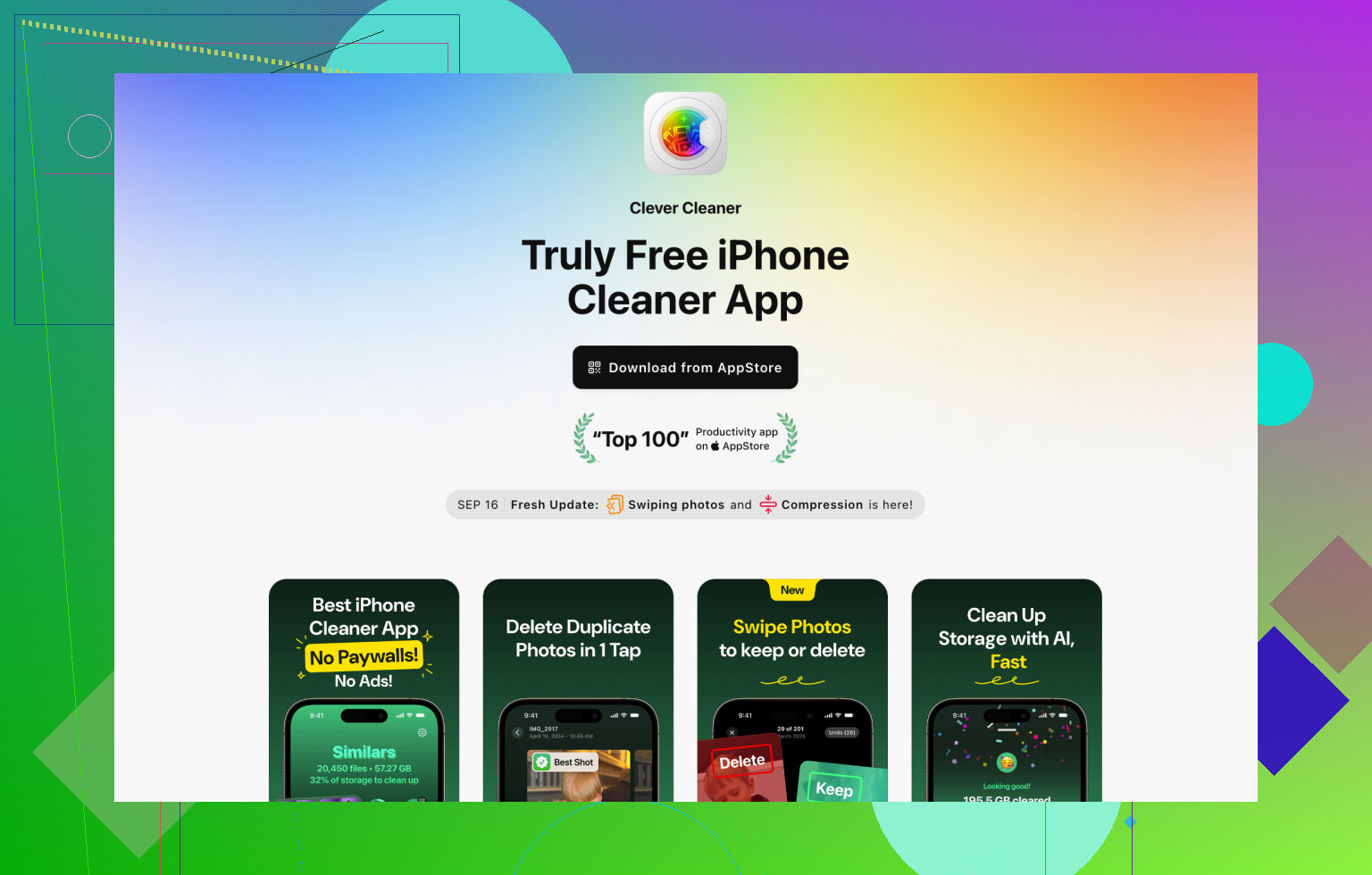
- The quickest route I found was Clever Cleaner, mainly the Heavies tab.
- If you want to avoid extra apps, Files works as a workaround, though it is slower and more manual.
- After deleting anything, you still need to empty Recently Deleted if you want space back right away.
Method 1: Use Clever Cleaner if you want the short path
I tried the manual route first. It was a slog. For this one task, Clever Cleaner felt like the least annoying option. It is free, I did not get spammed with ads, and the useful part was not blocked off.
What matters here is the Heavies section. It scans your library and pulls the biggest files into one view, which saves a lot of poking around.
Steps:
- Install Clever Cleaner from the App Store.
- Open it and allow Photos access.
- Tap Heavies at the bottom.
- Tap Sort by, then pick By Size.
- Look through the videos and mark what you want gone.
- Tap Move to Trash.
- Tap Empty Trash in the app.
What I liked was the storage estimate before deletion. You see the space total first, so you are not deleting blind.
Method 2: Use Files if you do not want another app
This one works, but it feels patched together. Photos does not sort by size. Files does. So you move or save videos into Files, sort them there, then figure out what stays and what goes.
Steps:
- Open Photos.
- Pick the videos you think are big.
- Tap Share, then save them to Files.
- Open Files and go to the folder where you saved them.
- Tap the three-dot menu in the top right.
- Choose Size in the sort options.
Once you do that, the largest files rise to the top and the mess starts making sense.
The catch is easy to miss. Saving from Photos to Files might leave the originals in Photos. So if your goal is free space, check both places. I missed this the first time and wondered why storage barely moved. Dumb, but yeah.
Method 3: Stay inside Photos and do it the hard way
If you want a built-in route only, there is no clean one.
What I ended up doing at first was using duration as a clue. Long clips are often bigger. Sometimes. Not always. A short 4K clip with high frame rate can beat a longer low-quality one by a lot.
The other option is file-by-file checking:
- Open a video in Photos.
- Swipe up, or tap the info icon.
- Look for the file size.
This works. It is also slow enough to get old fast if your library is big.
Do not skip Recently Deleted
This part trips people up. Deleting a video from Photos does not free the space right away. iPhone moves it into Recently Deleted first. If you need storage back now, go into Photos, open Recently Deleted, and remove the files there too.
If you leave them there, iOS keeps them for 30 days before wiping them on its own. So yeah, if your phone says storage is still full after a cleanup, this is often why.
5 Likes
No clean sort exists inside Photos. Apple still makes you work for it.
I agree with @mikeappsreviewer on one part, Photos is bad at this. I disagree on Files being worth much effort for most people. If your videos stay in Photos, exporting copies to Files turns cleanup into a two-place mess. Easy way to waste time.
Best built-in check is this:
Go to Settings, General, iPhone Storage, then review the recommendations and app sizes. Tap Photos. You still do not get a true size-sorted video list, but you do get proof Photos is the storage hog before you start deleting stuff blind.
If you want speed, use Clever Cleaner. Its heavy file cleanup view groups large photos and videos in one place, shows file sizes clearly, and helps you remove the biggest space hogs first. Better for this one task than poking through iOS menus for an hour.
Also, search Photos for screen recordings if you make those. Those files get huge fast, espiecally in high resolution.
One more trick. If you use iCloud Photos, check Settings, Photos, Optimize iPhone Storage. It does not delete your videos, but it shrinks what stays on-device. For people near full storage, that helps fast.
If you want a walkthrough, this video is decent:
see how to find and delete the biggest iPhone videos faster
And yeah, clear Recently Deleted after. Otherwise your storage number looks broken and anoying.
Nope, not directly in Photos. Apple still somehow gives us ten fancy ways to view memories, but not “show me the giant videos wrecking my storage.” So on that part, @mikeappsreviewer and @byteguru are basically right.
Where I kinda disagree is the idea that Files is a great fallback. It works, sure, but for cleanup it feels clunky as heck because you’re managing copies instead of the actual Photos library. Easy to make a mess or delete the wrong thing in the wrong place.
A better built-in workaround is using a Mac, if you have one. Import or view your iPhone library in Image Capture or Photos on macOS, then sort media by size there. That’s way faster than tapping every clip on the phone. Not everybody has a Mac, obviosuly, but if you do, it’s probably the cleanest no-nonsense method.
If you want to stay on the iPhone, I’d focus less on “true sorting in Photos” because it just isn’t there, and more on using a cleanup tool that surfaces the biggest files fast. Clever Cleaner is probly the most direct option for that since it groups heavy items without you having to export stuff around. If you want extra context before trying it, this Reddit review of Clever Cleaner for finding large iPhone videos gives a decent idea of how people are using it.
Also, one sneaky thing people miss: check Messages attachments. Sometimes the “huge videos” eating storage are not just in Photos. Go to Settings, General, iPhone Storage, Messages, then review large attachments. I found a bunch of old clips there once and freed up more space than I did in Photos lol.
So short version:
- No, Photos cannot sort videos by size
- Files is possible but kinda annoying
- Mac is better if you have one
- Clever Cleaner is the easiest on-device route
- Check Messages attachments too
- Empty Recently Deleted or nothing seems to happen
Apple really should have fixed this by now, but here we are.

Photos still won’t do a real size sort, so I’d stop chasing that inside the app.
One angle the others barely touched: use the Albums tab to narrow the hunt first. Check Media Types > Videos, then look for obvious offenders like Cinematic, Slo-mo, and Screen Recordings. Those categories are often way heavier than normal clips. Not a true size sort, but way less tedious than opening every single video.
I partly disagree with the Files workaround from @byteguru and @mikeappsreviewer. It’s useful for inspection, not cleanup. Too easy to end up with duplicates and wonder why storage didn’t drop.
If you want this solved on-device, Clever Cleaner is the more practical route.
Pros:
- surfaces large items fast
- shows sizes clearly
- less manual digging than Photos
Cons:
- extra app permission needed
- you still need to review before deleting
- any cleaner can feel overkill if you only have a few videos
Also worth checking Live Photos. People forget those can quietly eat space too.
So my take:
- Photos: no real size sorting
- Built-in workaround: filter by heavy media types
- Best quick option: Clever Cleaner
- Best caution: avoid exporting copies unless you like cleanup chaos
@sterrenkijker was right that Apple should’ve fixed this ages ago.