I noticed synced media is taking up space in my iPhone storage, but I can’t tell what files are included in that category. I recently checked my storage to free up space and saw synced media listed without any clear breakdown. I need help figuring out where to view it and what counts as synced media on iPhone so I can manage my storage better.
I hit the same mess after iOS 17, and the confusing part was Apple showing ‘Synced Media’ like it was some separate mystery pile with no file list, no useful button, nothing.
What changed with iOS 17 is the labeling. Older versions tended to bury media under the app type, Music, Books, TV, whatever. After the update, stuff copied over from a Mac or PC through iTunes or Finder started getting grouped under ‘Synced Media’ instead. Stuff pulled from Apple’s own services usually stays under the app bucket. Stuff pushed from your computer gets flagged differently.
So if you’re seeing, say, 50 GB in Music and another big chunk in Synced Media, it can look like iOS is counting the same thing twice. From what I saw, it’s more like bad reporting than two full copies. Still takes local storage, still blocks installs, still wrecks updates. Same outcome for you.
If you want to check it, go here:
Settings > General > iPhone Storage
You’ll see the storage bar up top. The annoying part is ‘Synced Media’ usually does not open into a proper list. Mine didn’t. It was mostly old music, some video files, and random synced leftovers from years ago. Some people also find old photo albums there if they used computer sync in the past.
Without a computer, Apple does not give you a clean removal switch. The official route is plugging into the machine you synced with and removing the media there. But I found a clunky workaround which did work for me.
What I did:
- Reinstall Apple Music or Apple Books, even if you never use them.
- Open the app and look for downloaded or local files.
- Delete anything stored on the phone.
- Remove the app again if you want.
For some reason, iOS seemed to need the original app present before it would expose and purge some of those older synced files. It felt dumb, but the ghost storage dropped after I did it. Not elegant. Still worked.
If you’re thinking about a factory reset, yes, it clears synced media off the phone. Those files do not come back from a normal iCloud backup because they were originally copied from your computer. They only return if you reconnect to that computer and sync them back over.
I also noticed performance got ugly when this storage issue got bad. Mine passed 100 GB and the phone started dragging. Camera launch took seconds. Apps froze on open. Typing got weirdly laggy too. iPhones need free space for temp files and system work. When storage is packed, the whole thing starts acting tired.
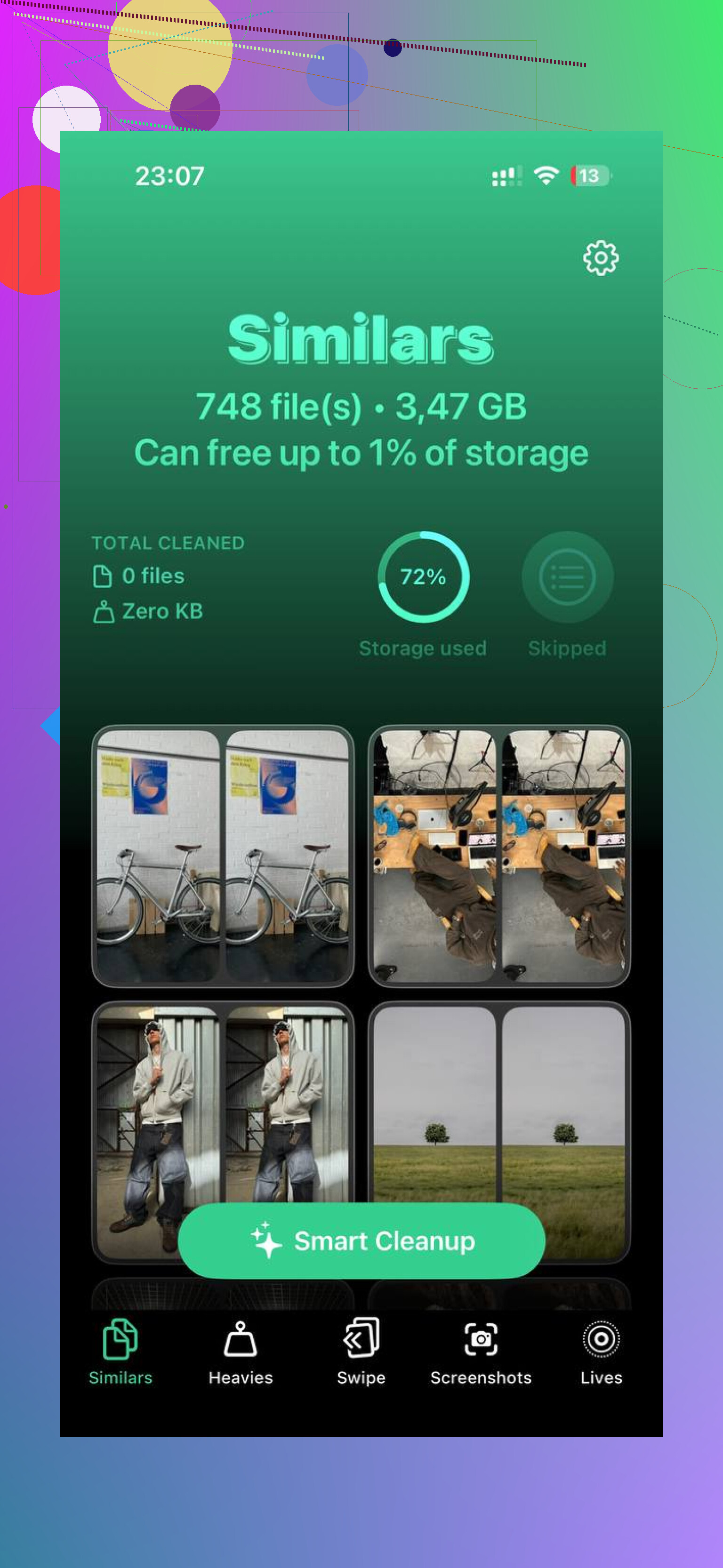
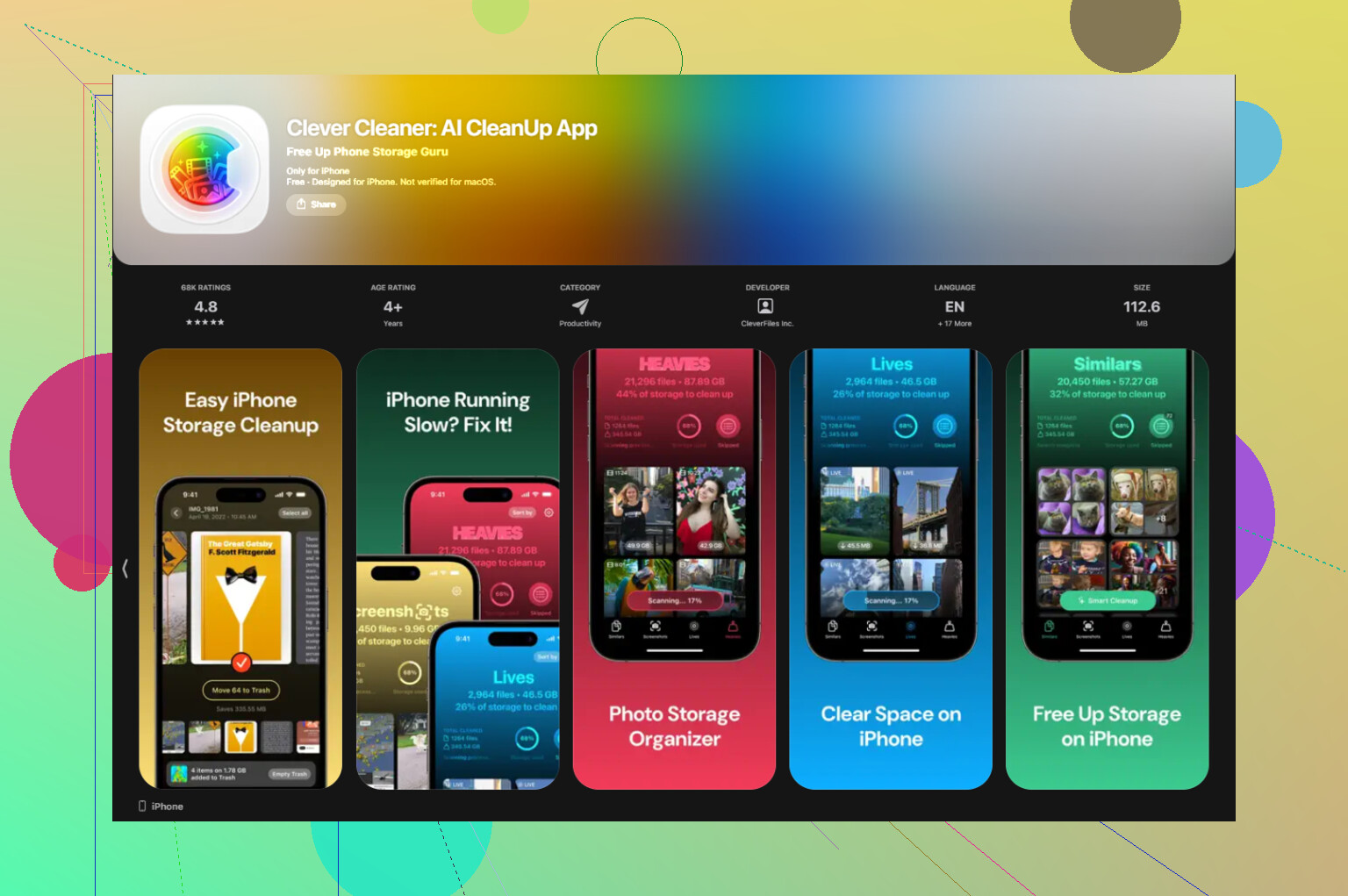
While chasing the Synced Media problem, I found my photo library was doing even more damage than the music files. Screenshots, duplicate pics, old videos, all the usual junk. I ended up using Clever Cleaner because it gave me a fast way to sort by file size and cut the junk first.
What I liked was simple:
- free
- no ads in my use
- file sizes were easy to scan
- the big videos stood out fast
- duplicate and near-duplicate photos were easier to remove
I used the Heavies section first because giant videos are low effort wins. Then I went through similar photos and trashed the blurry repeats. That alone freed a lot more space than I expected. I think I cleared around 30 GB from photos before I even finished cleaning the synced stuff. Typo maybe, but yeah, it was way more than I guessed.
After both steps, deleting media leftovers and clearing the gallery, the phone stopped choking. If your storage is full, I’d start with the app reinstall trick for Synced Media, then check your photos right after. In my case, the mystery bar was only half the story.
2 Likes
What Apple calls Synced Media is usually stuff copied from a Mac or PC, music, movies, TV files, podcasts, books, and sometimes old photo albums from Finder or iTunes sync. The bad part is iPhone Storage often does not show the file list. So no, there isn’t a proper on-phone breakdown most of the tiem.
I’d disagree a bit with @mikeappsreviewer on one point. It is not always bad reporting. A lot of it is real local storage from old manual syncs. iOS is bad at showing it, not always bad at counting it.
Best way to check what’s in there:
- Connect your iPhone to the Mac or PC you used before.
- Open Finder on Mac, or Apple Devices app or iTunes on Windows.
- Check each media tab, Music, Movies, TV Shows, Books, Photos, Podcasts.
- Look for anything set to sync to this iPhone.
- Uncheck it, sync again, then recheck only what you want.
If you no longer have the old computer, your next best check is inside Apple apps:
- Music app, Library, Downloaded.
- TV app, Library, Downloaded.
- Books app, Library, Downloads.
- Podcasts app, Downloaded.
Those won’t always show every old synced file, but they catch part of it.
Also check Settings, your name, iCloud, Photos. If iCloud Photos is off and you used cable photo sync years ago, old albums often sit there hidden in storage totals.
If your goal is free space fast, clean Photos first while sorting out Synced Media. Clever Cleaner helps with large videos, duplicates, and blurry shots. If you want a quick read on user feedback, see real Clever Cleaner app reviews from iPhone users. That part is often easier than fighting Apple’s storage labels tbh.
You usually can’t see a clean itemized list for Synced Media on the iPhone itself, and that’s the part Apple weirdly leaves vague. I slightly disagree with @mikeappsreviewer on the “double counting” angle though. Sometimes it looks bugged, sure, but a lot of the time it’s just old manually synced stuff that iOS labels badly.
What counts there is typically media copied from a Mac/PC, not stuff streamed from iCloud or Apple Music:
- imported songs
- movies/home videos
- TV episodes
- audiobooks/books
- old photo albums synced by cable
One extra way to check without repeating the same steps above is this:
Settings > Music / TV / Books / Podcasts and look for storage-related toggles or downloaded content behavior. Then compare those app sizes back in iPhone Storage. It’s indirect, but if one app is tiny and Synced Media is huge, that usually points to older computer-synced files sitting outside the normal app view.
Also, if you use a Mac, check System Information when the phone is connected. Sometimes it gives a slightly clearer category breakdown than the iPhone screen does. Not amazing, but better than the black box Apple gives on-device.
If your real goal is just freeing space fast, I’d honestly stop obsessing over Apple’s label and clear the obvious heavy stuff first. Clever Cleaner is pretty useful for that, especially for big videos, duplicate pics, and all the junk screenshots that pile up. I also found this full week of real-world Clever Cleaner testing and results if you want a better idea of how it handles storage cleanup.
So yeah, short version: you can identify the type of Synced Media, but not usually a proper file-by-file list on the phone. That’s the annoyng part.
One angle I don’t see mentioned enough by @cacadordeestrelas, @nachtdromer, or @mikeappsreviewer is this: Synced Media can also be inferred from what does not show up elsewhere.
If your storage graph shows:
- Photos seems normal
- Music app size is small
- TV/Books/Podcasts app sizes are small
- but Synced Media is huge
then that usually means older computer-managed files are sitting in a legacy bucket iOS no longer exposes well. I’m not fully sold on the “just bad reporting” theory either. Sometimes it is, but often it’s real local data that survived app changes and iOS updates.
A useful check that avoids the usual sync-tab routine:
- Go to Settings > Screen Time > See All Activity
- open your media apps over a day or two
- if none of them reflect the amount of storage supposedly used, that points to orphaned synced files rather than current downloads
Another clue:
- if Backups on Mac or iCloud seem much smaller than your phone’s used space, Synced Media is often part of the gap because it usually is not restored the same way as normal app content
If your goal is not forensic-level identification but just reclaiming space, I’d separate the job into:
- mystery synced media
- obvious heavy storage like videos and duplicate photos
That’s where Clever Cleaner is actually useful.
Pros: quick scan for large videos, duplicate detection, easy to clear photo junk.
Cons: won’t give you a true file-by-file list of Apple’s Synced Media bucket, and it can’t magically manage old computer-sync leftovers outside what iOS exposes.
So, short answer: there’s no reliable on-device itemized list. Best you can do is infer what category it belongs to, verify what is not counted in app storage, and clear other large items while you decide whether a reset is worth it.