I imported my iPhone photos to my computer, but I’m not sure how to safely delete them from the iPhone afterward. I need help confirming the photos were fully imported and removed from the device, including any Recently Deleted or iCloud Photos issues.
The main thing to know here is that importing photos to your Mac doesn’t automatically mean your iPhone storage gets freed up. Apple treats backups/imports and iCloud syncing as two different things, and that’s where a lot of the confusion comes from.
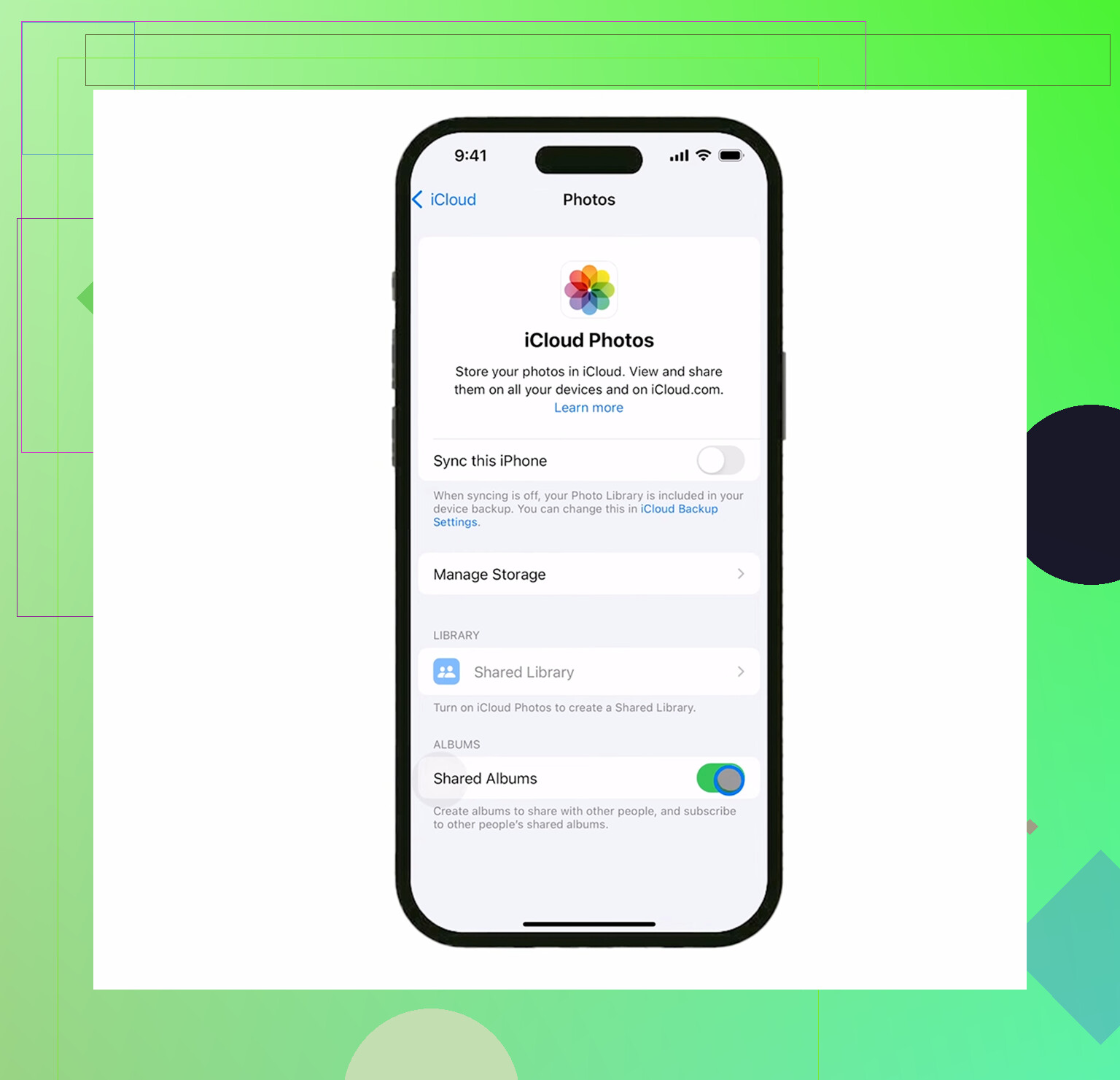
If iCloud Photos is turned on, your iPhone, Mac, and iCloud are basically being kept in sync. So if you delete a photo from the phone, it also gets removed from iCloud and any other device using that same synced library. That’s also why the “Delete items after import” option in Photos may not show up. Apple doesn’t want you deleting something from one synced device and then acting surprised when it disappears everywhere else.
If your goal is “keep these on the Mac, but remove them from the iPhone,” turn off iCloud Photos on the iPhone first:
Settings > Photos > iCloud Photos
Once that’s off, the phone is no longer just mirroring the same iCloud library, so deleting from the phone won’t wipe the copies already on the Mac.
For bulk deleting from the Mac side, Image Capture is usually easier than the Photos app. It’s already on macOS, but a lot of people forget it exists. Plug in the iPhone, open Image Capture, select the phone, press Command+A to select everything, then use the red delete button at the bottom. It’s much more direct than trying to fight Photos and its sync behavior.
If you already imported everything and just want to clean up on the phone, go to the Imports album. You’ll find it in Albums under Utilities. It’s useful because it groups photos by when they were imported, so you don’t have to scroll through your whole camera roll looking for them.
Also, when selecting a lot of photos on the iPhone, don’t tap them one at a time. Tap “Select,” tap one photo, then drag your finger across and upward. You can grab hundreds pretty quickly that way.
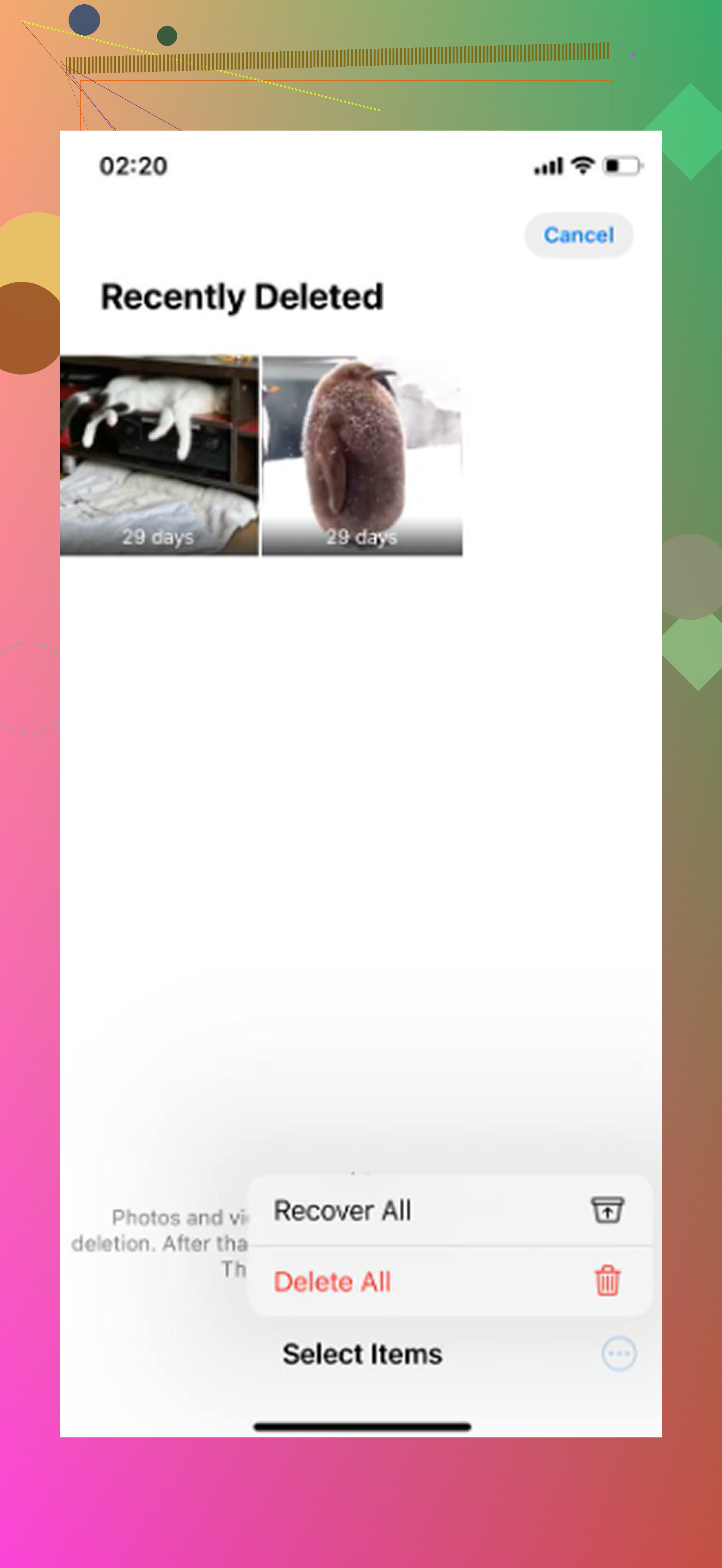
The part that catches people is Recently Deleted. Deleting photos does not immediately free the space. iOS keeps them there for 30 days, and they still count against your storage until you empty that folder.
Go to:
Albums > Recently Deleted > Delete All
After that, check:
Settings > General > iPhone Storage
If the storage number still looks wrong, restart the phone. Sometimes iOS takes a little while to recalculate it.
I ran into this because my iPhone started acting ancient. Keyboard lag, camera taking forever to open, random app crashes, all of it. I thought the phone was dying, but it was just down to around 800MB free. Once storage gets that low, iOS doesn’t have enough room for temporary files, so the whole system starts dragging.
Even after clearing the imported photos, the library can still be full of junk. Near-duplicate photos, huge 4K screen recordings, old screenshots, random videos you forgot about. Cleaning all of that by hand is miserable, so I ended up trying Clever Cleaner.
I’m normally suspicious of cleaner apps because a lot of them are bloated with ads or subscriptions, but this one was actually decent. It’s free, with no paywalls, ads, or subscriptions. The other good part is that it processes everything on the device, so your photos aren’t being uploaded somewhere else.
The Heavies tab sorts media by file size, which is how I found a few 2GB videos that were eating most of the space. The Similars tab groups near-identical shots and suggests the “Best Shot” to keep. It also shows the file size for screenshots and duplicates before you delete anything. After running it, I cleared another 12GB I didn’t even realize was there, and the phone stopped lagging right away.
So the safe order is: make sure the Mac import really finished, check whether iCloud Photos is on, delete from the phone only when you know what’s synced, and empty Recently Deleted. If the phone is still sluggish after that, the leftover clutter is usually the next place to look.
Don’t wipe the phone just because the import window said “finished.” Open the photos on the computer first, spot-check a few videos too, and make sure they exist as normal files or in the Photos library you actually back up, then delete from the iPhone and empty Recently Deleted. If iCloud Photos is on, be extra careful, because deleting on the phone may be deleting from the synced library rather than only from the device.
Check the count before you delete anything.
The safest confirmation is boring: compare what is on the phone with what landed on the computer. Don’t just trust the “import complete” message, because that only means the import job ended. It does not prove every video opened correctly, every Live Photo came over the way you expected, or that the files are somewhere you actually control.
If this is on a Mac, open Photos and check the Last Import view, but I’d also check a few items outside the pretty grid. Videos especially. Play a couple of the largest ones. If you imported into the Photos app, remember the files may be inside the Photos Library package, not sitting loose in a folder. That’s fine if you back up that library, but it’s not fine if you think you copied files to a normal folder and later delete the library.
If this is on Windows, I would not rely only on the Windows Photos import screen. Open the destination folder in File Explorer and sort by date or type. Make sure you see both photos and videos. If you copied from DCIM manually, check that the folder sizes and file counts make sense. iPhones split stuff into a bunch of Apple folders, so it is easy to miss one if you drag only the first folder you see.
A simple safe routine is:
- Import to the computer.
- Open the imported folder/library.
- Sort by newest and oldest and spot-check both ends.
- Play some videos, not just photos.
- Back up that computer copy somewhere else if the photos matter.
- Only then delete from the iPhone.
- Empty Recently Deleted.
- Reconnect the phone and confirm the photos are no longer visible in DCIM/Image Capture/Finder/Photos import.
That last reconnect check is the part a lot of people skip. After you delete and empty Recently Deleted, unplug the phone, restart it if storage still looks wrong, then plug it back in. If the importer still shows the same old items ready to import, they are not gone. If DCIM no longer has those files, that is a much better sign than just seeing fewer thumbnails in the Photos app.
I agree with the iCloud warning above, but I’d phrase it even more bluntly: if iCloud Photos is on, “delete from my iPhone” usually means “delete from my photo library.” It is not the same as removing a downloaded copy like you would with a movie or podcast. If your Mac is using the same iCloud Photos library, deleting from the phone can delete from the Mac library too after sync catches up. That is exactly how people accidentally delete the only synced copy and then think the import failed.
If your intent is to archive photos on the computer and clear the phone, make a separate archive first. For example, export the originals from Photos to a normal folder on an external drive, or copy the DCIM files to a dated folder like “iPhone import July 2026.” Once you have a separate folder that is not just another synced iCloud view, you are in much safer territory.
Another small annoyance: Live Photos can be tricky depending on how you import. A Live Photo may come over as a still image plus a short video component, or as something Photos manages internally. If those matter to you, test one before deleting hundreds of them. Same with edited photos. Some import methods grab the edited version, some can export the unmodified original, and some keep both available only inside the Photos library.
For confirming they are gone from the iPhone itself, check in more than one place:
Photos app main Library
Albums > Recently Deleted
Albums > Hidden, if you use it
Settings > General > iPhone Storage > Photos
Then reconnect to the computer and see what the import tool detects
The storage number may lag. iOS is not always instant about recalculating space, so don’t panic if it still shows a big Photos number for a few minutes. But if Recently Deleted still has thousands of items, the space has not really been freed.
Cleaner apps are a separate step, not part of proving the import worked. They can be useful for finding huge videos or duplicates after the main cleanup, and Clever Cleaner has been mentioned already for that kind of sorting. I just would not use any cleaner as the first move when the real question is “do I have a safe copy?” First prove the archive exists. Then delete. Then clean up leftovers.