My iPhone storage and iCloud are both almost full because my photos keep syncing and taking up space. I’m trying to find the best way to organize, back up, or move iPhone photos without upgrading to a paid iCloud plan. I need help figuring out a simple photo storage solution that won’t risk losing pictures.
My photo library got out of hand. This fixed it.
Once my phone crossed into the ‘tens of thousands of photos’ zone, it stopped feeling like a library and started feeling like a junk drawer. Stuff took longer to open. Scrolling hiccupped. Finding one pic from a trip turned into a dumb little excavation project.
You do not need to wipe everything. I didn’t. But you do need to get picky.
No, you do not need to delete your whole camera roll
What helped me was treating phone photos more like old digital camera photos. Back then, you kept the keeper. You didn’t hang onto 14 near-misses of the same lunch, sunset, dog, receipt, whatever.
So I started cutting hard. One good shot from a moment. Sometimes two. The rest went. It felt harsh for about ten minutes, then the library started making sense again.
If your Photos app is stuffed with burst shots, retries, weird angles, accidental black screens, and screenshots from 2021, your memories are buried under junk. Mine were.
Why a giant library slows the phone down
The main issue is storage pressure. Years of photos, videos, screenshots, and screen recordings eat local space. When your iPhone gets too close to full, it starts acting tired.
I saw it in a few places:
- apps opening slower
- lag while scrolling
- camera roll loading in chunks
- random stutter switching between apps
Clearing photos is not only about being neat. It affects how the phone runs day to day.
The fastest way I found to clear a huge backlog
Deleting one image at a time is miserable. I tried doing it manually and quit fast.
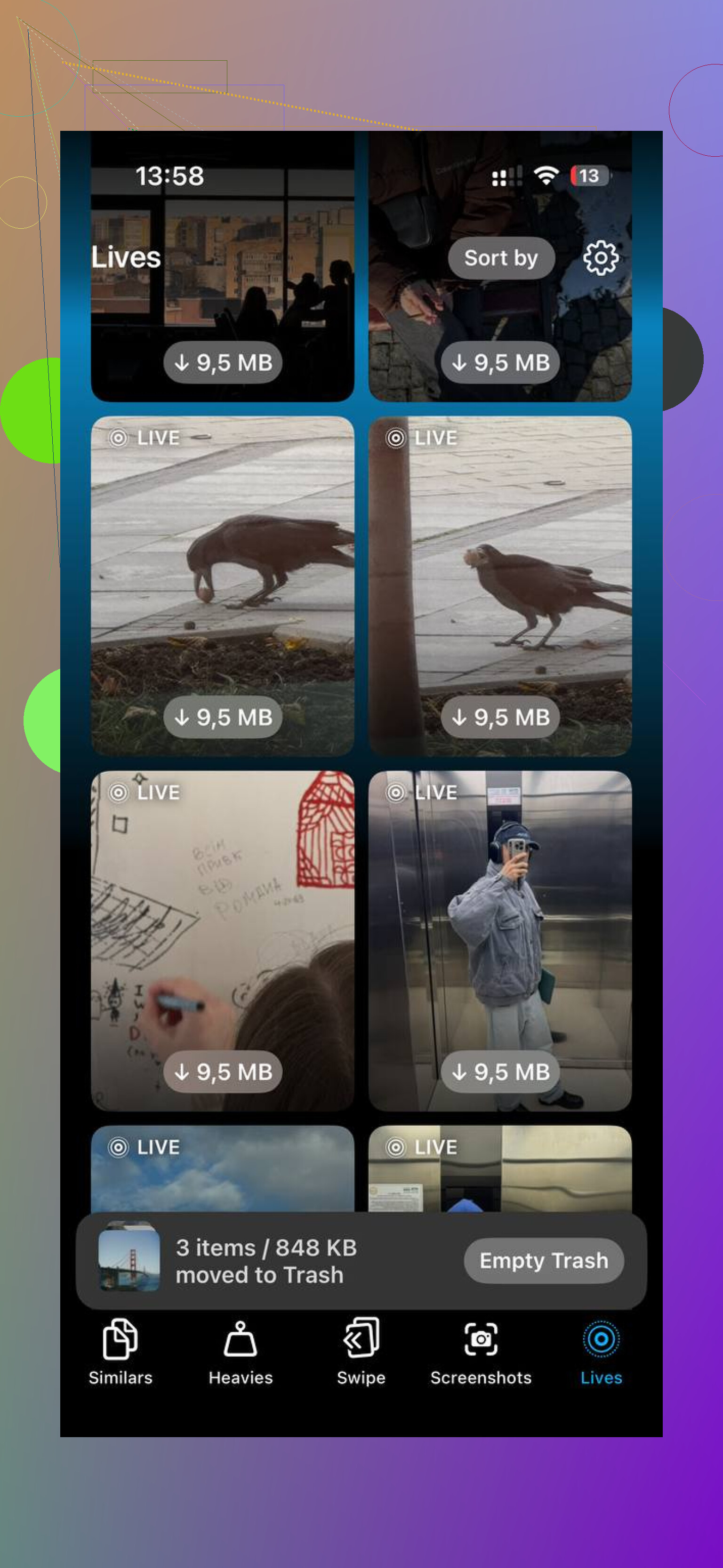
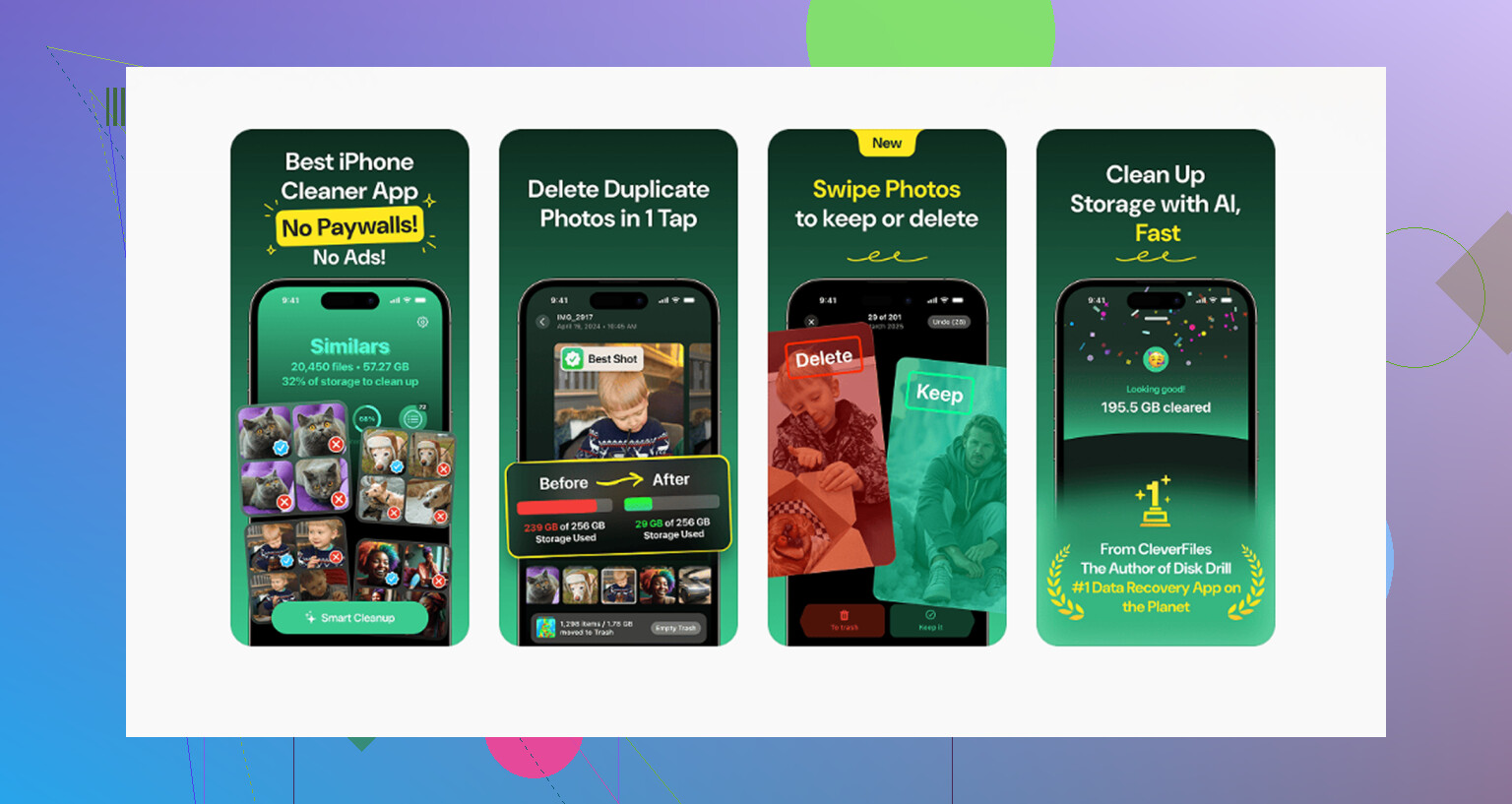
I used Clever Cleaner. It did the sorting work on-device, which mattered to me. I didn’t want years of personal photos getting sent off somewhere.
The order below worked best for me.
Start with the biggest files
Open the Heavies tab first.
This was the part I underestimated. A few long videos and old screen recordings were taking more space than thousands of regular photos. Seeing files sorted from largest to smallest with exact sizes made the easy calls obvious.
Delete the top offenders first. You get space back fast.
Then kill the duplicate clutter
Next was the Similars tab.
It grouped near-identical shots together. Burst photos, five attempts at the same portrait, slight angle changes, all of it. The app marked a Best Shot on its own, then I kept or changed it if the pick looked off.
One tap per group cleared out a lot. Mine had so many repeated cat photos it was embarassing.
Screenshots are sneakier than people think
Then I checked the Screenshots tab.
This was ugly. Old shipping confirmations, parking spot pics, memes, one-time passcodes, half-read recipes, random settings screens. Stuff I meant to delete later and never did.
Seeing the file size on each screenshot helped. A pile of tiny junk still adds up. In my case it was multiple gigabytes.
Older photos were easier month by month
Swipe mode made the slow part less annoying.
Instead of staring at the whole library, I moved month by month. Left to delete, right to keep. That broke the job into chunks I could finish without losing steam.
If you try to clean five years of photos in one sitting, your brain checks out. Month-by-month felt human.
My phone felt better after the cleanup
After I cleared about 10GB, I noticed the difference. Not magic. Not night-and-day movie nonsense. But enough to feel it.
Apps opened cleaner. Photo browsing felt less sticky. The library stopped fighting me.
The only organization system I’ve stuck with
I used to make too many albums, then ignore them. What lasted was simpler.
I now treat Recents like an inbox. If a photo is sitting there, it has not been sorted yet.
Once a week, I spend around ten minutes cleaning it up:
- favorite the best shots with the heart
- move event photos into albums
- delete the obvious trash
That’s it.
Folder setup I kept using
Mine stays simple on purpose:
- Year folders
- Inside each year, month subfolders
- Inside a month, albums only for real events, like a trip, birthday, concert, or holiday
- One Reference album for useful non-memory stuff, like receipts, recipes, notes, saved measurements, and screenshots worth keeping
This split helped a lot. Personal photos stay separate from utility junk.
If you do not want to pay for more iCloud
I stopped treating paid cloud storage as the only answer.
Every few months, I plug the phone into a computer and export organized photos off the device. On Mac, Image Capture works fine. On Windows, a basic USB transfer does the job.
I only delete from the phone after the files exist in two places. For me, that means the computer plus an external drive. I’m paranoid here, and I think you should be too.
Google Photos is another option if you want backup without paying Apple right away. You get 15GB free, while iCloud starts at 5GB. I wouldn’t dump my whole life into one free service with zero thought, but for backing up the keepers, it’s decent.
The part that matters most
The cleanup sucked less once I stopped thinking of it as a giant project.
Ten minutes a week beats one horrible six-hour purge twice a year. If you keep Recents under control, the backlog never gets feral again. Your phone keeps more free space, and your photo library stays usable.
That was the difference for me. Less clutter, less lag, fewer dumb duplicates, and I could find the photos I cared about without digging through 9,000 screenshots of nothing.
1 Like
Stop using iCloud Photos as your main archive if you do not want to pay Apple.
Best low-cost setup I’ve found:
- Turn on iCloud Photos only long enough to download originals.
- Export your library to a Mac or PC.
- Copy it again to an external drive.
- After you confirm both copies open fine, delete older stuff from the phone.
- Turn off iCloud Photos, or it keeps filling back up.
This matters because iCloud sync is not a backup. Delete on the phone, it deletes in iCloud too. A lot of people miss taht.
I half-agree with @mikeappsreviewer on doing a big cleanup first. Good idea, but I would not spend hours hand-sorting before offloading. Move the bulk out first, then trim. Less risk, less stress.
Use Apple’s built-in albums too:
Screenshots, Duplicates, Videos, Live Photos, Screen Recordings. Those are the fastest wins.
If you want help before exporting, Clever Cleaner is decent for finding duplicate photos and large files without dragging this out for days.
Also, if you want a solid walkthrough, this iPhone photo storage cleanup video review is easy to follow.
One more tip. Set camera video to High Efficiency. HEIF and HEVC save a lot of space. 4K60 chews storage fast, so drop it if you do not need it. Small setting, big diff.
I’d actually push back a little on @mikeappsreviewer and @codecrafter on one thing: turning iCloud Photos off too early can get messy if you do it before you verify what is actually stored locally vs only synced. People think everything is “on the phone” when sometimes it’s optimized thumbnails. That’s how pics go missing and everybody panics.
If you want to avoid paying Apple, the safest cheap setup is:
- Check Settings > Photos and see if Optimize iPhone Storage is on.
- If it is, first export your library to a Mac or PC carefully.
- Then make a second backup to an external drive or even a big USB stick.
- Only after that, start removing older photos from the iPhone and iCloud.
Also, don’t ignore shared albums, Messages attachments, and WhatsApp media. Those can eat space too and ppl forget about them. Go to iPhone Storage and look at the app-by-app breakdown before blaming only Photos.
Another thing I’d do is change habits, not just clean once. Turn off saving every single screenshot forever. Use Notes or Files for docs/receipts instead of keeping them mixed into your camera roll. Makes a huge diff over time.
Apple’s built-in Duplicates album is fine, but if your library is a total disaster, Clever Cleaner is faster for spotting similar photos and bigger files without making it a whole weekend project. If you want a decent visual walkthrough, this Clever Cleaner review for freeing up iPhone photo storage is pretty easy to follow.
Short version: don’t buy more iCloud just because Apple nudges you. Backup first, then trim smart, then stop using iCloud Photos as your forever archive. That’s the real fix tbh.
I’d do one thing differently than @codecrafter, @viajeroceleste, and @mikeappsreviewer: separate sync, backup, and archive in your head.
A lot of people treat iCloud Photos like all three. It’s really mostly sync.
My cheap setup:
- Keep only the last 6 to 12 months on the iPhone
- Move older years into the Files app or a computer folder by year/month
- If you have a Mac, use Photos library exports only for albums you care about, not one giant dump
- For videos, move them out first because they are the real storage killers
- Use Shared Albums sparingly since quality is reduced
One underrated move: create a “To Keep Off-Phone” album first. Add your must-save photos there before deleting anything. It prevents panic later.
Also check:
- Messages attachments
- Downloads
- WhatsApp/Telegram media
- Recently Deleted album
About Clever Cleaner:
Pros
- faster than manual review
- good for duplicates/similar shots
- helps surface large files
Cons
- you still need to double-check what it flags
- similar-photo detection is never perfect
- cleanup apps can make people delete too aggressively
So yes, Clever Cleaner is useful, but I would use it as a triage tool, not as the boss of your library. Built-in Photos search plus a simple archive habit usually matters more long term.