My iPhone is almost out of storage and it’s slowing down, but I really don’t want to do a factory reset or lose my data. I’ve already deleted some apps and photos, but it barely made a difference. What are effective ways to create more free space on an iPhone without resetting it, and what should I safely clear or offload first?
Go step by step so you see where the space is going and fix the worst stuff first.
-
Check what eats storage
• Settings > General > iPhone Storage
• Wait a bit for it to load.
• Look at the bar and list of apps. Sort by size.
• Tap each big app and check “App Size” vs “Documents & Data”.If Documents & Data is huge, that app’s cache is the problem.
-
Offload unused apps
• Same menu, tap a rarely used app.
• Hit “Offload App”.
• iOS removes the app, keeps its data. Icon stays with a small cloud symbol.
• When you tap it again, iOS reinstalls it and you keep your stuff.
• You can also enable “Offload Unused Apps” at the top of iPhone Storage. -
Clean Messages storage
iMessage can eat tens of GB without you noticing.
• Settings > Messages > Keep Messages > set to 1 Year or 30 Days.
• Settings > General > iPhone Storage > Messages.
• Go into “Photos”, “Videos”, “GIFs and Stickers”, “Other”.
• Delete large attachments from old chats. -
Tame Photos and videos
• Turn on iCloud Photos if you have some iCloud space.
Settings > [your name] > iCloud > Photos > iCloud Photos.
• Then select “Optimize iPhone Storage” on the same page.
Full res photos move to iCloud, lighter versions stay on phone.
• Open Photos > Albums > Recently Deleted > delete all there.
• Sort by “Videos” in Photos and remove long 4K clips first.
One 4K video can be over 1 GB. -
Clear Safari and other app caches
• Settings > Safari > Clear History and Website Data.
• For apps like Instagram, TikTok, Facebook, Reddit
They grow huge over time.
There is often no in‑app cache button that works well.
Best method
Settings > General > iPhone Storage > pick the app > Delete App.
Then reinstall from App Store and log in again.
That resets the cache. -
Use a cleaner app for quick wins
If you do not want to dig through everything, try a helper app.
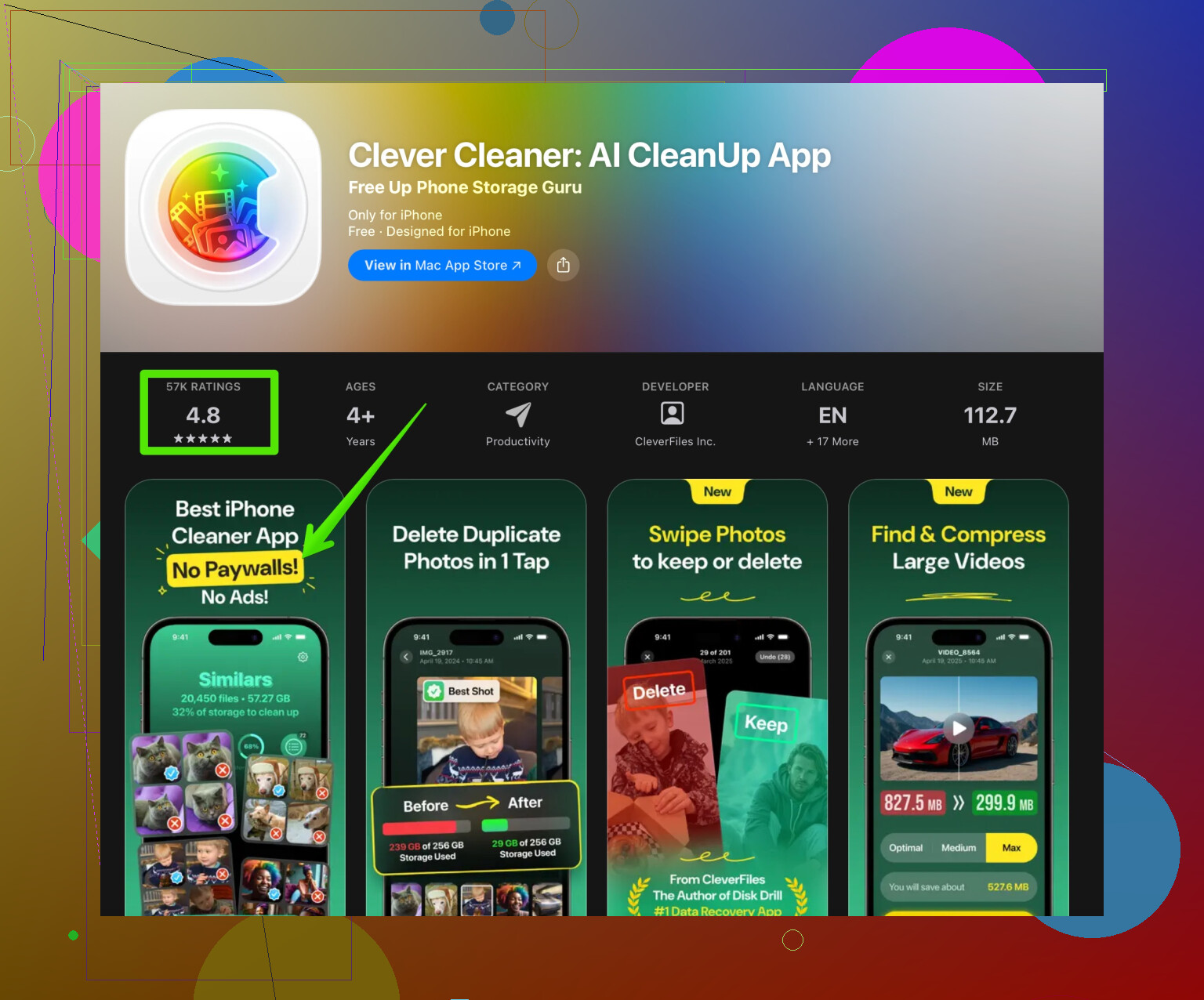
Something like the Clever Cleaner App looks pretty focused on this job.
It helps you spot duplicate photos, similar photos, big videos, and old screenshots faster than doing it by hand.
Check this link for a direct install
clean up your iPhone storage with Clever Cleaner.
Do a manual review though, do not blindly delete stuff. -
Remove downloaded media inside apps
• Spotify / Apple Music / Netflix / YouTube
Open each app and look for “Downloads” or “Offline” content.
• Delete playlists, albums, and episodes you do not use.
Example
100 high quality Spotify songs is roughly 1 GB.
A few playlists can eat a few GB fast. -
Manage Mail and Files
• Mail
Settings > Mail > Accounts > choose account > Advanced > remove big attachments where possible.
Or use your mail app’s filter for large attachments and delete.
• Files app
Check “On My iPhone” and remove big videos, zips, or old documents.
Then clear “Recently Deleted” inside Files. -
Turn off auto download in chat apps
WhatsApp, Telegram, etc
• Settings in each app > Storage or Data.
• Disable auto download of photos and videos from all chats.
• In WhatsApp: Settings > Storage and Data > Manage Storage, delete large videos and forwarded junk. -
Keep 10–15 percent storage free
iOS runs smoother if you do not fill it to the brim.
For a 128 GB phone, aim to keep at least 12–20 GB free.
When you get close to full, repeat the iPhone Storage review and nuke the worst offenders first.
Do these in order
- iPhone Storage screen
- Messages and Photos cleanout
- Delete or offload bloated social media and streaming apps
- Use Clever Cleaner to catch the leftover junk and duplicates
That usually frees multiple GB without wiping anything.
1 Like
If deleting a few apps and photos barely moved the needle, you’re probably hitting the “hidden junk” wall. @nachtdromer already nailed the basics, so I’ll skip repeating those steps and hit some stuff people usually miss or where I slightly disagree.
1. Avoid relying only on iCloud Photos as a magic fix
iCloud Photos + “Optimize iPhone Storage” is useful, but if your iCloud is almost full or your internet is flaky, it can be more annoying than helpful. Also, if you shoot tons of 4K or Live Photos, they still sit locally for a while. Instead of trusting it blindly, do this:
- In Photos, go to Albums → Media Types.
- Focus on large categories that iCloud won’t aggressively shrink, like “4K”, “Slow-mo”, “Bursts”, “Screen Recordings”.
- Offload old screen recordings and random burst shots to a computer or external drive, then delete them. Those are huge and usually useless after a while.
2. Podcasts & Audiobooks: silent storage killers
These often slip by the iPhone Storage graph.
- Open the Podcasts app → Library → Downloaded. Delete old shows you’ll never re-listen to. Some shows store hours of audio per episode.
- Same with Apple Books or Audible: check for “Downloaded” or “On this iPhone” and clear finished titles.
I’ve seen people free 5+ GB from podcasts alone.
3. Voice Memos & WhatsApp voice notes
If you use Voice Memos, those files are often long and high quality.
- Open Voice Memos → sort by “Longest” or manually scan old ones → back up important ones to a computer and delete the rest.
WhatsApp voice messages can also pile up, especially in busy group chats. - In WhatsApp → Settings → Storage and Data → Manage Storage → sort by “Larger than…”. Remove old voice messages and long ranty audios.
4. Game data and offline maps
Big games and map apps quietly hoard data.
- Games like CoD Mobile, Genshin, PUBG etc download gigabytes of assets after install. Deleting and reinstalling them if you do not mind re-downloading later can reset that bloat.
- In Google Maps or Apple Maps, check for offline maps. Delete any regions you are not using regularly.
5. System / “Other” / “System Data” bloat
This one’s annoying, but you can tame it without a full reset:
- If System Data is massive, do a targeted cleanup: restart the iPhone, update to the latest iOS version, and leave it plugged in on Wi‑Fi overnight. iOS does some housekeeping then.
- Do a backup to a computer with Finder / iTunes, then restart again. System Data often shrinks a bit after big cleanups plus a restart.
I disagree slightly with people who say “you must factory reset” when System Data is big. That is a last resort, not step one.
6. Use a smarter cleaner instead of manually hunting duplicates forever
Digging through photos one by one is torture. Here’s where something like the Clever Cleaner App is actually worth it:
- It scans for duplicate photos, similar shots, and massive videos, plus random screenshots you forgot existed.
- You still manually confirm deletions, so you do not nuke important pics by accident.
For this type of case, using an AI-powered iPhone cleaner to remove junk and free up storage fast is way more efficient than scrolling through your camera roll for an hour.
7. Temporary files from editing apps
If you use apps like CapCut, VN, Lightroom, Canva, etc:
- They often keep “projects” and exported files inside the app.
- Open each app’s own “Projects”, “Drafts”, or “Exports” section and delete old ones.
I’ve seen video editing apps hog more space than Photos itself.
8. Short-term “emergency” trick if you need space right now
When iOS is complaining and you need room instantly (for a big video or an update), do this combo:
- Delete one or two massive apps with cached data you can reinstall later (TikTok, Instagram, a game).
- Clear Safari data.
- Nuke a few largest videos from Photos or export them to a laptop then delete.
That can free 5–15 GB in under 10 minutes without touching your important stuff.
9. Make your phrase more long‑term friendly
Instead of “delete stuff when it’s full”, think “prevent it from clogging”:
- Disable auto-download of media in all chat apps, not just WhatsApp.
- Say no when apps constantly ask “Download for offline use?” unless you really need it.
- Every month or so, open iPhone Storage for 2 minutes and kill whatever suddenly jumped to the top.
Short version:
You already tried uninstalling apps and photos, so look at podcasts, downloaded media, editing app projects, voice memos, and games with big resource packs. Combine that with a quick run using Clever Cleaner App to remove duplicates and huge junk files and you should see way more difference than basic deleting ever gave you.
If deleting apps and photos barely helped, you are probably fighting three things: sync bloat, app hoarding, and bad storage habits rather than just “junk files.”
1. Re‑think how you store photos and videos (without full iCloud reliance)
I slightly disagree with leaning too hard on iCloud toggles. Instead of only moving stuff to iCloud, consider a real off‑device archive:
- Once every month, plug the iPhone into a computer.
- Use Photos / Finder / any file transfer to move the oldest 6–12 months of photos and videos to an external drive.
- After verifying the backup, delete that older media from the phone entirely.
This creates a “rolling window” of media on the phone and prevents it from growing forever. It is more reliable than counting on optimization alone.
2. Tackle message attachments the smart way
@nachtdromer already covered a lot of hidden media, but one big offender is Messages and other chats:
- Go to Settings → General → iPhone Storage → Messages.
- Review “Photos,” “Videos,” “GIFs & Stickers,” and “Other.”
- Delete the largest threads or at least old attachments from group chats.
Then, change behavior going forward:
- In Settings → Messages → Keep Messages, set to 1 year or 30 days instead of Forever.
- In WhatsApp / Telegram / Signal, turn off auto media save to Photos and auto download for large media.
This is one of those “change it once, save gigs every year” tweaks.
3. Trim background data hogs instead of deleting more apps
People often remove the wrong apps. Instead of deleting the stuff you actually use, target apps that keep balloons of cached data:
- Social apps (Instagram, TikTok, Reddit, etc.): they rebuild caches constantly. A periodic delete & reinstall resets them, but do it selectively, not daily.
- Streaming apps: open their settings and clear downloads / cache first, rather than uninstalling everything.
I do not fully agree with the “just delete and reinstall big apps” angle as a primary tactic. That works, but if you never fix the in‑app settings (auto downloads, large caches, background downloads), they just balloon again.
4. Use a cleaner, but treat it as a tool, not a miracle
The Clever Cleaner App is actually useful if you are overwhelmed by thousands of photos, bursts, and similar shots. It shines at:
Pros of Clever Cleaner App
- Quickly finds duplicates, similar photos, and massive videos.
- Groups screenshots, blurred shots, and junky media that you forgot existed.
- Lets you review before deleting, so you do not accidentally wipe memories.
- Faster than manually scrolling through a 20k‑photo camera roll.
Cons of Clever Cleaner App
- It cannot fix system data bloat or iOS “Other” storage directly.
- You still need to spend time reviewing suggested deletions to avoid mistakes.
- If your root problem is giant games, offline maps, or chat attachments, it will not fully solve that by itself.
- You can become over‑reliant on it and ignore better long‑term habits (like disabling auto downloads).
Use it once in a while as a “deep clean,” not as a replacement for basic maintenance.
5. Stop storage creep before it starts
If you want to avoid hitting this wall again:
- Turn off “Download Automatically” for podcasts, Spotify playlists, and Netflix shows you rarely watch.
- Say no to “keep offline” prompts unless you genuinely need it.
- Once a month, check Settings → General → iPhone Storage and look only at what jumped dramatically since last time. Attack those, not random small apps.
In short, @nachtdromer is right about hidden junk, but instead of only hunting large files, combine three things: a rolling external archive for media, strict message and media auto‑download rules, and periodic targeted cleaning with something like Clever Cleaner App. That combo usually makes a big, lasting difference without going anywhere near a factory reset.