My iPad storage is almost full, and duplicate photos seem to be using a lot of space. I’m not sure if they came from iCloud syncing, imports, or backups. What’s the safest way to find and delete duplicate photos on an iPad without losing the originals?
The first thing I’d figure out is whether you’re dealing with true duplicates or just a bunch of near-identical photos. I thought my iPad was packed with duplicate files too, but a lot of them were really just repeated shots: several selfies from the same moment, five photos of the same view, edited copies, or images saved again from Messages.
That difference is important because Apple’s duplicate finder is pretty strict.
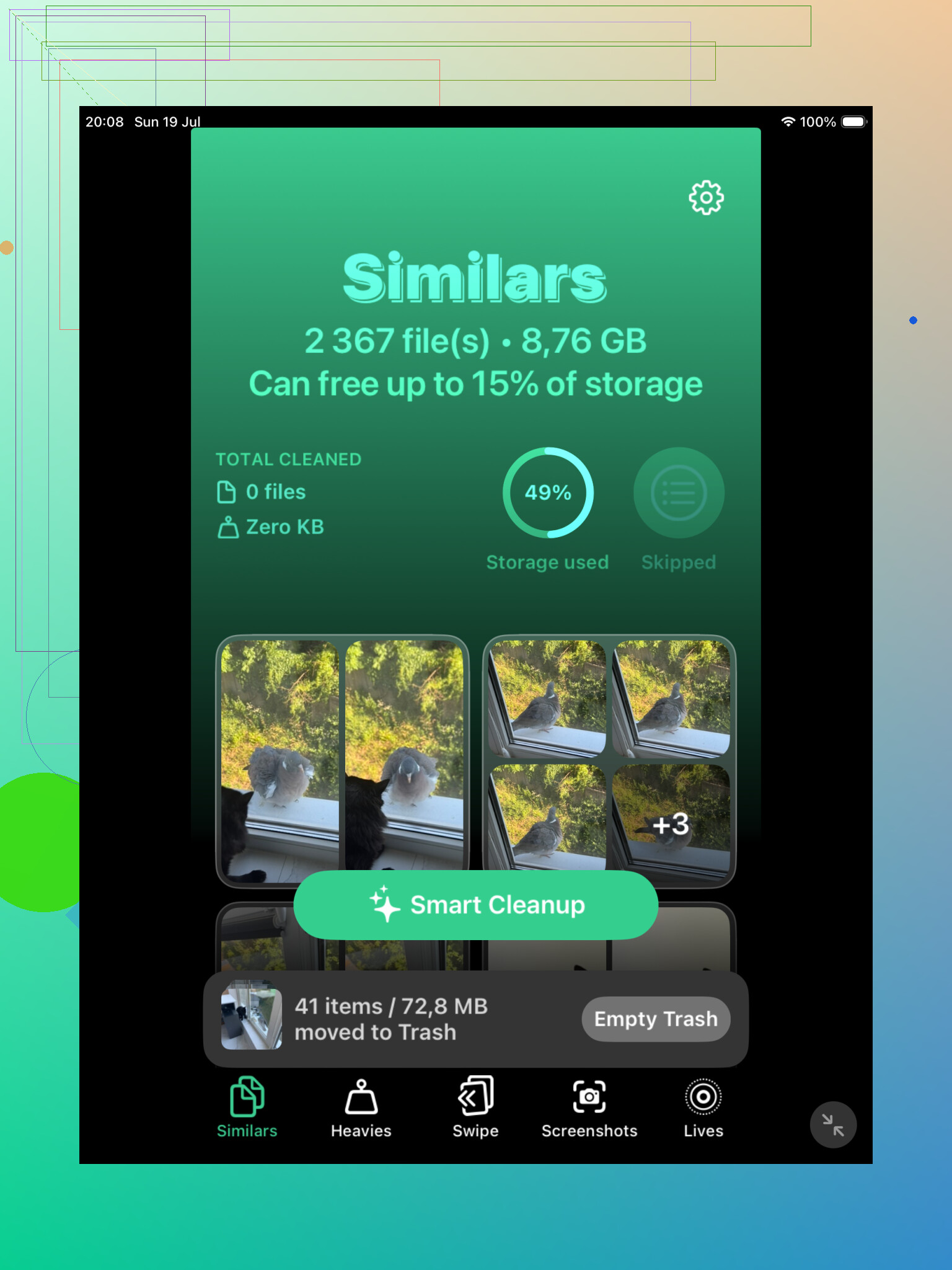
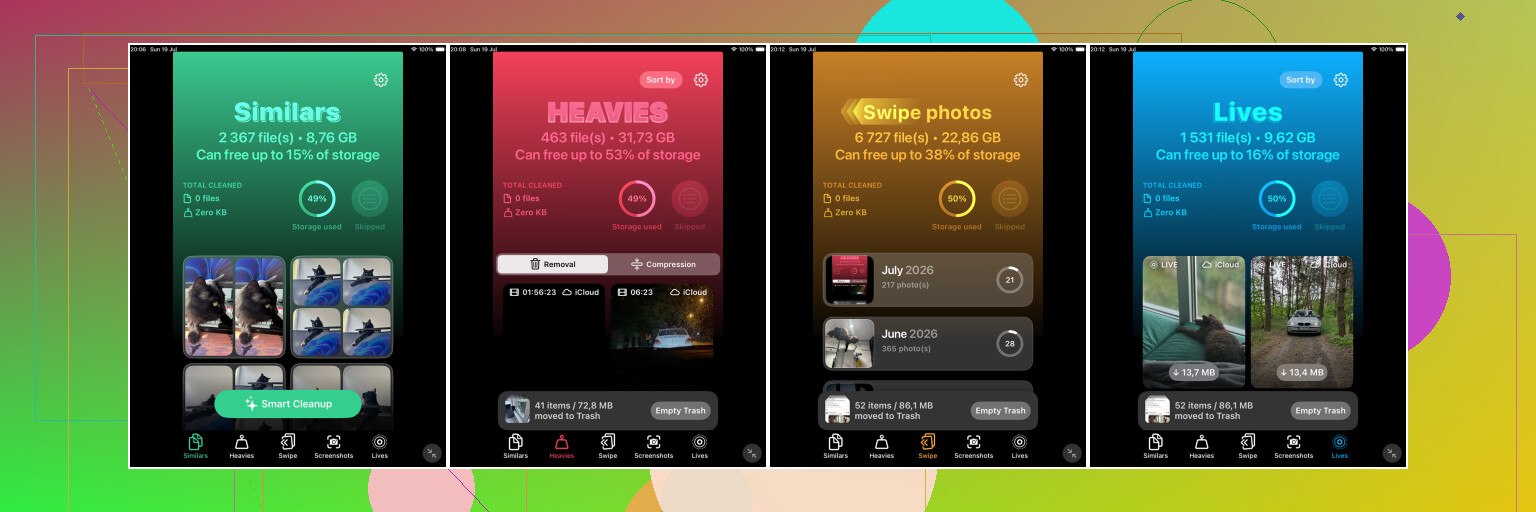
If your photo library is big, I’d probably start with Clever Cleaner. The Similars section is useful because it groups photos that look almost the same, even if they aren’t technically identical files. That catches the stuff Apple often skips, like burst-style groups, repeated selfies, and shots taken from almost the same angle.
It also picks a Best Shot from each group, but you don’t have to trust it blindly. You can open the group, look through the images yourself, and choose what to keep. That’s a lot less annoying than flipping back and forth in the Photos app and zooming into everything manually.
Clever Cleaner can find exact duplicates too, so it makes sense as a first pass if your library has been building up for years. The main reason to use it is that it handles both exact duplicates and “basically the same photo” cases.
After that, I’d still check Apple’s built-in Duplicates album.
On iPadOS 16 or newer, open Photos, scroll down to Utilities, then tap Duplicates. Apple will group matching files and show a Merge option. When you merge, it keeps the version with the best quality and useful metadata, and sends the extras to Recently Deleted.
Apple’s tool is fine when the files really match, but it won’t catch everything. If one photo was cropped, edited, compressed, saved from another app, or taken a second later, your iPad may not count it as a duplicate. That’s why the Duplicates album can look almost empty even when your library feels full of repeats.
If you don’t see the Duplicates album, the iPad may still be scanning your photos. This can happen after a big import, an iCloud sync, or a software update. Leave it locked and plugged in for a while. With a large library, it can take a day or two. Also, the feature isn’t available on iPadOS 15 or older.
For a small library, Apple’s tool may be all you need. If you only copied the same photos a few times, there’s not much reason to install another app. But if you have thousands of photos and lots of similar shots, Clever Cleaner will usually turn up more.
You can also do it manually if you’d rather avoid another app. In Photos, use Search and try things like “screenshots,” “dog,” “beach,” or the name of a city. Browsing by Months or Years also helps for trips, events, and days where you probably took the same photo several times. It’s slower, but it works.
One last thing: photos you delete or merge can stay in Recently Deleted for up to 30 days, and they still use storage while they’re there. Check that album before emptying it, especially if you need the space right away.
And if iCloud Photos is turned on, deletions sync across your iPhone, Mac, and other Apple devices too. So make sure you’re okay with removing those photos everywhere before you permanently delete them.
If iCloud Photos is on, don’t treat the iPad like a separate cleanup job. Make a small test deletion first and confirm it behaves how you expect on your other devices before removing hundreds of photos. For freeing space safely, I’d clear Recently Deleted last, only after you’re sure nothing important got caught in the duplicate sweep.
Duplicates usually aren’t coming from an iPad backup sitting on the iPad, so I wouldn’t chase backups first. Check Settings > Photos and see whether Optimize iPad Storage is on. If iCloud Photos is enabled and your iPad is set to Download and Keep Originals, cleaning duplicates may help, but you may still be wasting far more space on full-size originals, videos, and Live Photos. I agree with being careful about Recently Deleted, but I’d do the storage setting check before a huge delete session. Otherwise you can spend an hour merging “duplicates” and barely move the storage bar.
Photos appearing in multiple albums are not necessarily taking multiple copies of storage. That trips people up a lot on iPad. If the same picture is in Recents, Favorites, a trip album, and maybe a shared album, that does not automatically mean there are four files. Before deleting a bunch, check whether they are actual separate items by comparing dates, file names if visible, edits, and whether deleting one removes it from only an album or from the whole library.
I agree with @mikeappsreviewer that the storage setting matters more than people expect. Go to Settings > General > iPad Storage > Photos and see what Photos is really using, then check Settings > Photos for iCloud Photos and Optimize iPad Storage. If Optimize is off, turning it on may free more space than hunting duplicates, especially if you have lots of videos. Duplicate cleanup helps, but it is not always the big win.
For the safest cleanup, I’d do a small batch first: merge/delete a few obvious duplicates, wait for iCloud to sync if you use it, then check your other devices. Don’t empty Recently Deleted until you’re sure nothing important vanished. And if the “duplicates” are mostly screenshots, memes, downloaded images, or videos from Messages, sorting by media type can be faster than using any duplicate tool. Videos are usually where the real storage pain is.