For those of you who have been using FileZilla for a long time – what’s your overall impression looking back? Do you think it has held up well, or does it feel like it’s showing its age?
 FileZilla: My Honest Review
I’ve been using FileZilla on and off for years. If you’ve ever worked with FTP servers, you’ve probably used it too – or at least heard of it. It’s free, it supports FTP, SFTP, and FTPS, and it runs on Windows, Mac, and Linux. For a long time it was just the default answer whenever someone asked how to connect to a remote server.
It still works. But there are a few things worth knowing before you rely on it.
 Interface and Everyday Use
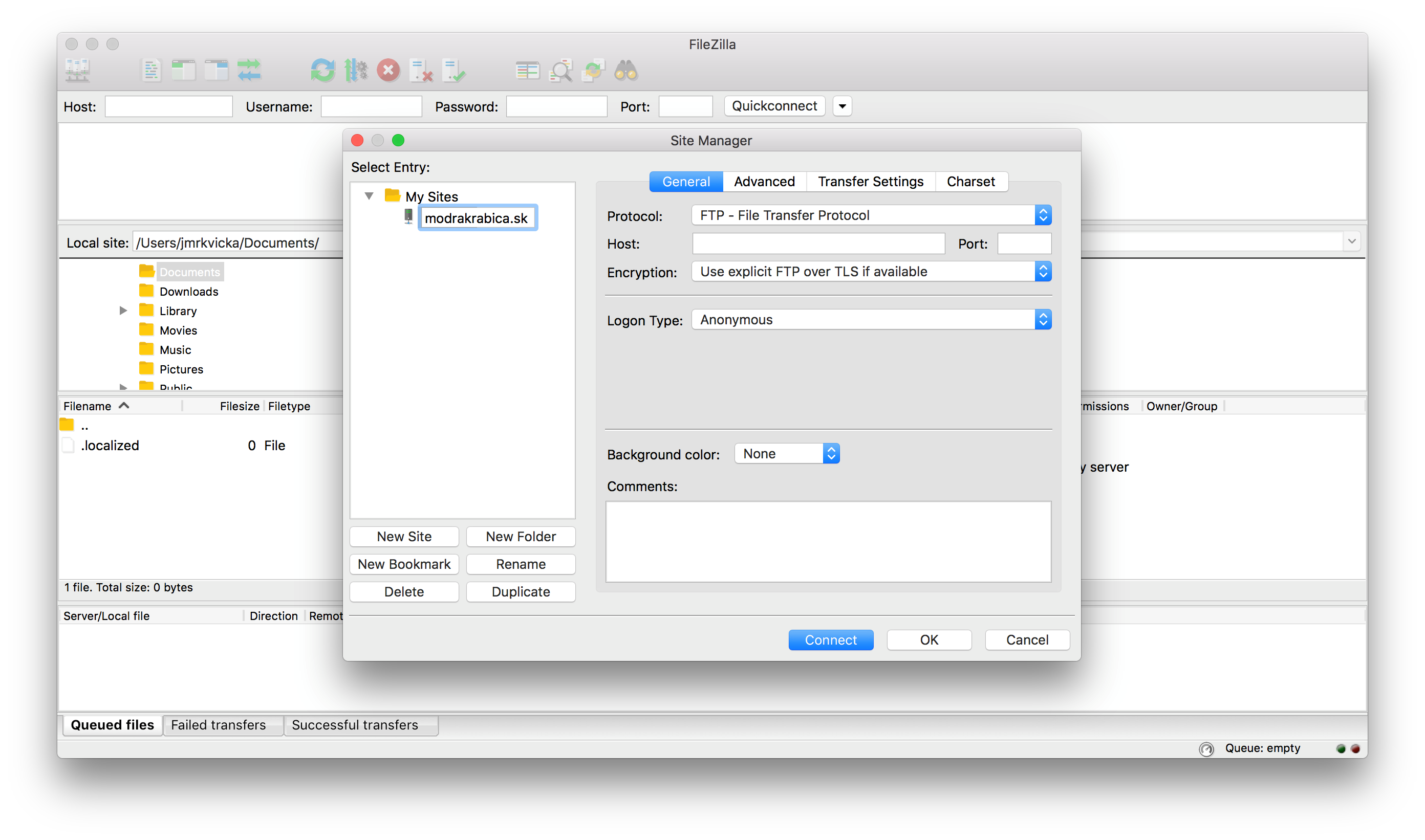
The layout is straightforward. You get two panes side by side – your local files on the left, the remote server on the right. You drag files from one side to the other, and the transfer queue at the bottom keeps track of what’s in progress.
The Site Manager lets you save connection details for servers you use regularly, which is handy. Setup is simple enough that most people figure it out without reading anything.
It gets the job done. But it feels like software that hasn’t changed much since 2008 – because honestly, it hasn’t changed much since 2008. Compared to newer tools it feels clunky, and the interface gives you very little feedback when something goes wrong.
 What Works Well
- Been around long enough that tutorials and forum help are everywhere
- Works across Windows, Mac, and Linux
- Good enough for simple, occasional FTP transfers
- The queue system handles multiple transfers without too much fuss
 Main Problems and Frustrations
This is the part I actually wanted to write about.
The core software is fine. The installer is where things get uncomfortable.
FileZilla has had a long-running issue with bundled adware in its installer. When you download and run the setup file, you may be presented with offers to install additional software – the kind most people don’t want and didn’t ask for. Some versions have triggered antivirus warnings during installation. Over the years this has happened often enough that it’s become a known complaint, not an occasional fluke.
The frustrating part is that FileZilla is a legitimate, well-known tool. You download it expecting a clean install and instead you’re reading through screens carefully to avoid clicking the wrong thing. That experience erodes trust, even if the app itself works fine once it’s installed.
A few things worth spelling out clearly:
- The main risk comes from the installer, not the software itself
- Third-party download sites make this worse – some distribute modified or outright fake versions
- Fake FileZilla download pages exist and are not hard to stumble across
- Running a malware scan after installation is a reasonable thing to do, not an overreaction
- The trust damage is real even if your specific install turned out clean
On top of that, there are smaller day-to-day frustrations:
- Transfers sometimes slow down or hang mid-way without a clear explanation
- The interface feels dated and doesn’t communicate errors well
- Plain FTP sends your credentials unencrypted – FileZilla doesn’t warn you about this or push you toward SFTP, you just have to know
 Tips for Safer Use
If you’re going to use FileZilla, a few habits help:
- Download only from filezilla-project.org – nowhere else
- Skip third-party download portals entirely
- Choose SFTP or FTPS instead of plain FTP every time
- Run a malware scan if you’re unsure about the version you installed
- Keep the client updated so you’re not running an old version with known issues
 Alternative Worth Trying
If you’re on a Mac and the installer situation has put you off, Commander One is worth a look.
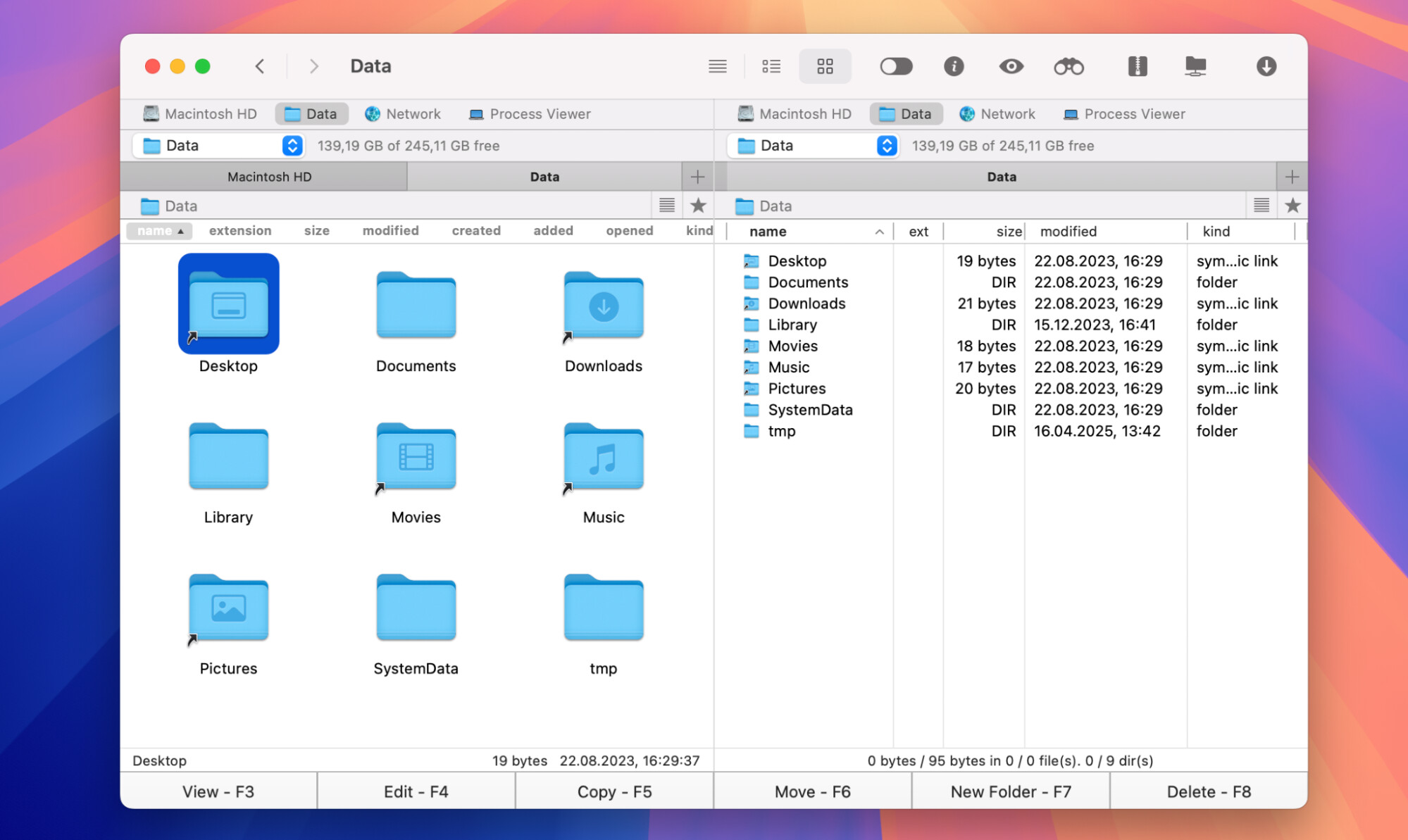
It connects via FTP, SFTP, and FTPS, so you’re not losing anything on the protocol side. The interface feels more like a modern file manager – dual-pane like FileZilla, but designed as a full file management tool rather than just an FTP client. Transfers feel more consistent in my experience, with less of the hanging and freezing that FileZilla occasionally throws at you.
It also handles multiple server connections more cleanly, lets you queue operations across different servers, and includes things FileZilla simply doesn’t have – file encryption, advanced search, a built-in Terminal emulator, a process viewer, and support for hidden files. If you also move files between your Mac and an Android or iOS device, it handles that too through the same app.
The honest part: Commander One is a paid app. FileZilla is free. That’s a real difference and only you can decide whether the smoother experience justifies the cost. For occasional transfers, FileZilla probably still makes sense. For regular use, the gap starts to feel noticeable.
 Final Thoughts
FileZilla still works as a free FTP tool and it’s not going anywhere. But the installer concerns are a legitimate reason to be cautious, and the aging interface makes regular use feel more effortful than it should. If you only connect to a server a few times a month, it’s probably fine. If you’re doing this regularly on a Mac, Commander One is worth trying – it covers more ground with less friction.
1 Like
Short answer for daily FTP work: FileZilla still works, but it is not worth fighting if it annoys you every day.
You are feeling the same stuff I did after years of daily use: UI lag, weird stalls, tiny logs, vague errors. That usually means it is time to move your main workflow to something else and keep FileZilla as a backup tool.
Where I see it now, slightly disagreeing with @mikeappsreviewer:
- Performance and stability
For large or frequent transfers, FileZilla tends to:
• Stall mid queue with no clear reason.
• Retry forever on flaky links.
• Lock the UI when handling thousands of small files.
If your daily work is WordPress sites, static assets, backups etc, that overhead wastes real time. On my side, once I crossed roughly 5–10 GB per day across multiple servers, the friction started to hurt more than the “free” price helped.
-
Security defaults
Yes, it supports SFTP and FTPS.
The problem is how easy it is for new or tired users to connect over plain FTP and forget about it. If you touch client data, this is not great. I prefer tools that push SFTP by default and make FTP harder to pick. -
Installer mess vs long term trust
I agree with @mikeappsreviewer that the main risk lives in the installer and shady download portals.
Where I differ a bit: for a tool you use every day, the installer story matters a lot for long term trust. Once you have to explain “download it, but watch every step, no, not from that site”, it stops being a clean recommendation. -
When FileZilla still makes sense
I would keep it around in these cases:
• You support many different clients and they already use FileZilla.
• You work on Windows and need a free, cross platform fallback client.
• Your usage is light, a few uploads per week, no mission critical work.
Treat it as a spare wrench, not your main one.
- Alternatives that fit daily, heavy use
Since you mentioned “years of daily FTP work”, I would look at tools built for that pace, not only for “occasional upload”.
On macOS, Commander One is an easy upgrade path:
• Dual pane file manager first, FTP/SFTP/FTPS client second.
• Feels faster on big recursive uploads, fewer random stalls.
• Better queue control, multiple server sessions, and a more modern interface.
• Integrates with local files and external devices in one place.
If you are doing daily site maintenance or backups on a Mac, Commander One becomes less about “another FTP client” and more about a full file operations hub. You get SFTP by default, decent search, and you avoid the installer drama.
On Windows or Linux, look at:
• WinSCP on Windows for SFTP heavy work.
• Native rsync or scp for scripted or automated tasks.
• Git plus deployment hooks if you push code often instead of raw files.
- Practical migration path
If you want to test a move without blowing up your workflow:
• Export or note your FileZilla Site Manager entries.
• Try Commander One on your main Mac server for a week.
• Keep FileZilla installed for one or two “known stable” servers.
• Compare: time to connect, handling of failed transfers, clarity of errors.
If after a week you notice less swearing at your screen, that is your answer.
So no, FileZilla is not “dead”, but for daily professional FTP or SFTP work, it feels like a tool from a past era. Keep it as a backup. Move your main workflow to something like Commander One or a more modern SFTP focused client. Your future self will thank you, even if you typo a few commands along the way.
Short version: if you’re doing “years of daily FTP work” and FileZilla is now annoying you, that feeling is your answer. It still works, but it’s not a great primary tool anymore.
A few points that slightly disagree with @mikeappsreviewer and @viajeroceleste:
-
The “it’s free, so it’s fine” argument is overrated
Free is nice until you burn 10–15 minutes a day on:- UI lag with big folders
- stalled queues that need babysitting
- hunting through that microscopic log to guess why a transfer died
Over a month, that’s hours of billable time. At that point a smoother client pays for itself easily.
-
The installer drama is not just a “one time” issue
They’re right that the main risk sits in the installer, but if you:- install on new machines regularly
- work with less technical teammates or clients
then you are re-living that “careful, uncheck the junk” conversation over and over. For something as basic as an FTP client, that’s just unnecessary friction. Personally, any tool that makes me read every screen like a bomb defusal manual goes on my “secondary only” list.
-
Plain FTP still being this easy is a problem
Both of them mentioned SFTP/FTPS support, which is good.
Where I’m a bit harsher: a modern client used in 2026 should almost shove you toward SFTP by default, especially for client data and backups. FileZilla feels like it’s stuck in “we’ve always done FTP” mode. It works, but it happily lets tired you click into the insecure option at 2 a.m. -
Daily workflow is where FileZilla really shows its age
The stuff that drove me off it for main use:- Thousands of small files = UI gets clunky, transfers feel weirdly slow compared to CLI tools or newer clients.
- Error handling is mediocre. It technically logs the error, but it doesn’t surface it in a way that helps you in the moment.
- Layout wastes space on things I rarely need and buries the few things I do need during a crunch.
If you only upload a theme once a month, it’s fine. If you live in it, those little papercuts pile up.
-
Where I still see a place for FileZilla
I wouldn’t nuke it completely:- As a backup / emergency client on machines where I don’t want to install paid tools.
- For quick “grab a file from an old legacy server” tasks.
- When a client already has it and I just need to walk them through something without changing their setup.
Think of it as that old screwdriver you keep around. You don’t throw it away, but you don’t build a house with it anymore.
-
Realistically: what to switch to?
Since you mentioned years of daily work, you’re exactly the kind of user who benefits from moving on.On macOS specifically, Commander One is actually worth a serious look:
- It’s a dual pane file manager first, and an FTP / SFTP / FTPS client on top of that.
- Feels more native and responsive, especially when doing big recursive uploads or moving lots of tiny files.
- Better control of multiple servers and queues without the “clunky 2009” vibe.
- Uses secure protocols more naturally, which is nice for client work.
I know @viajeroceleste already mentioned it, but I’ll disagree with the mild tone there: for daily web dev / sysadmin / backup workflows on macOS, Commander One is not just “a bit nicer,” it’s a clear upgrade in quality-of-life. It turns file transfers into part of a broader workstation, instead of a separate, dated utility you dread opening.
If you’re on Windows, I’d seriously consider:
- WinSCP for SFTP heavy stuff
- Or skipping GUI entirely and using
scp/rsyncfor big backup-style transfers
-
How I’d decide in your shoes
Very unscientific test:- Pick one of your “worst” daily tasks: big WordPress site, lots of small assets, or a backup folder.
- Do that task in FileZilla. Note every time you wait, swear, or dig for an error.
- Then trial something like Commander One on macOS or WinSCP on Windows and repeat the same task.
If you feel less friction, that’s your answer. Tools for daily work should feel invisible most of the time, not like an obstacle course.
So: FileZilla is still usable, sure. But if you’re already feeling that it’s slow, clunky, and annoying, then for a pro / daily workflow it has basically aged out of the “main tool” role. Keep it as a fallback, but move your primary workflow to something more modern like Commander One or a stronger SFTP client and stop fighting with it every day.
Short take: if FileZilla is grinding your nerves daily, that’s your signal to demote it, not to wait for some magical update.
A couple of points that tilt slightly differently from @viajeroceleste, @suenodelbosque and @mikeappsreviewer:
-
“Keep it as backup” is not always necessary
All three are fairly generous about keeping FileZilla around. In practice, if your workflow is almost entirely SFTP and you already have one or two modern clients installed, FileZilla can actually create confusion (“which one did I store this site in?”). For some setups, uninstalling it and standardizing on a single daily driver is cleaner. -
GUI vs automation
Everyone focused on GUI clients. For “years of daily FTP work,” especially backups, I would push much harder toward scripting for anything repeatable.- rsync or rclone for backups
- scp or sftp in scripted form for routine deployments
Let the GUI client handle ad hoc edits, structure browsing, or one‑off emergency uploads. That shift alone often reduces your FileZilla pain by 60–70 percent, regardless of which client you choose.
-
Where Commander One actually fits
Since you mentioned daily web work, Commander One is worth bringing into the center of the conversation, not just as a side note:Pros of Commander One:
- Dual pane file manager that makes local and remote feel like the same workflow, which FileZilla never really did.
- SFTP is treated like a first class option, so you are less likely to fall back to plain FTP out of habit.
- Handles a lot of small files with less UI jank. Typical WordPress or static site uploads feel smoother.
- Extra utilities (search, terminal panel, hidden files toggle) cut down on context switching to Finder and Terminal all the time.
Cons of Commander One:
- Paid, which matters if this is side work or you run a team of multiple seats.
- macOS only, so if your workflow hops between Windows and Linux you still need something else in the mix.
- Power features are useful, but there is more to learn compared with FileZilla’s very basic mental model. Some people actually prefer the “dumb but obvious” layout of FileZilla.
-
How I’d reposition your tools
Instead of “FileZilla vs alternative,” think in layers:- Automated layer: rsync / rclone / scripted sftp for backups and predictable deployments.
- Daily GUI layer: Commander One on macOS as your main cockpit for interactive work.
- Emergency / edge case layer: a second GUI client (WinSCP on Windows, or even FileZilla if you really want) reserved for rare situations or client hand‑holding.
-
Mild disagreement with the “it’s fine for light use” idea
Even for “light use,” the installer reputation and plain FTP friendliness are not trivial if you ever touch client credentials or personally identifiable data. At that point the argument is not just convenience but your risk profile. A more opinionated client that strongly nudges SFTP by default is just safer.
If you are already feeling that FileZilla is slow and clunky, trust that signal. For daily professional work, move your main workflow to something like Commander One plus a bit of automation, and treat FileZilla as optional rather than mandatory baggage.