My external drive is formatted as ExFAT and now shows as corrupted/unreadable after disconnecting unexpectedly. I need recommendations for safe ExFAT data recovery software or steps that won’t make the damage worse, since the drive has important files I can’t replace.
If this is an exFAT external SSD and you deleted the wrong folder, the first move is simple: stop touching the drive. Don’t copy anything to it, don’t save recovered files back onto it, don’t run repairs yet, and don’t format it because Windows or macOS suggests it. Deleted files often aren’t wiped right away. The file system usually just marks that space as free, and the real damage happens when new data gets written over it.
If the drive still mounts, go straight to recovery instead of trying to “fix” it first. A tool like Disk Drill is worth trying here since it handles exFAT and can scan for files lost through deletion, corruption, or a quick format.
The safer workflow would be:
- If the SSD is flaky, disconnecting, or throwing errors, make a disk image first and scan that instead of the original drive.
- Run a Universal Scan.
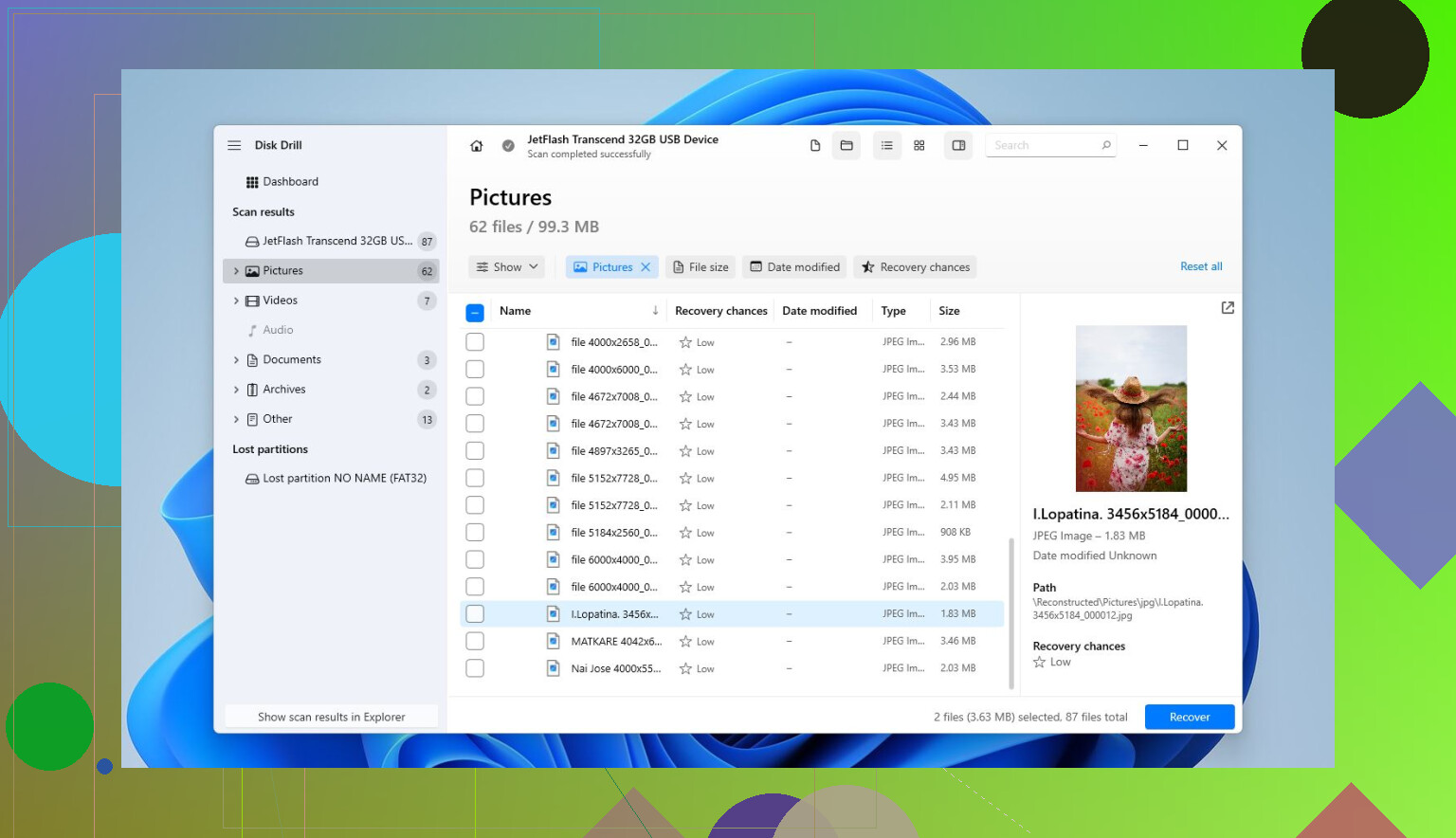
- Preview files before recovering them. If photos, docs, or videos preview correctly, that’s usually a good sign.
- Recover the files to a different drive. Never recover back onto the same exFAT SSD you’re scanning.
If the issue is corruption rather than deletion, I’d still treat it the same way: get the important data off first. Repair tools and reformatting can wait until after you’ve recovered what matters.
A quick format is also not automatically the end. It usually rebuilds the file system metadata without wiping all the actual file contents, so recovery can still work if the drive hasn’t been used much afterward. A full format is much worse because it overwrites data, which makes recovery far less likely.
If the drive shows up as RAW, asks to be formatted, or gives errors when you open it, don’t click through that format prompt. Recovery software can sometimes read the drive even when the OS can’t handle it normally.
Before scanning for hours, check the drive health too. On Windows, CrystalDiskInfo is a good free option. Disk Drill also has SMART monitoring. If you see lots of reallocated or pending sectors, or the SSD keeps disappearing, disconnecting, or acting unstable during scans, stop and consider a professional recovery service instead of pushing it harder.
So for the cases you listed:
- Deleted the wrong folder? Yes, recovery is worth trying.
- Corrupted exFAT external drive? Recover the files first, then worry about repairs.
- Quick formatted it? Still worth scanning, especially if you stopped using it right away.
- Thinking about formatting before recovery? Don’t. Recover first, format later if needed.
The main thing that affects your chances is how much the drive has been written to since the files disappeared. If you stopped using it right away, you’re in a much better position.
Don’t run chkdsk on it yet. That’s the trap with exFAT corruption, because “repair” can change the directory entries and make recovery messier if the file table is already damaged. If the drive is detected with the right size, clone/image it first, then scan the clone with whatever recovery tool you choose. Disk Drill is fine for a first pass if you want something simple with previews, but I’d judge it by whether the previews open correctly, not by how many filenames it claims to find. If the drive clicks, drops offline, shows the wrong capacity, or takes forever just to read folders, stop scanning and don’t keep retrying. That points more toward hardware trouble than an exFAT problem.

Expect the recovery to be messy even if the files are still there. With exFAT, you might get some folders back normally, but if the allocation info is damaged, a scan may find files by type with generic names instead of the original folder structure. That does not mean the software failed. It may just mean the file system metadata is the part that got hit.
I agree with the “image it first” advice, but I’d be careful about where that image goes. You need another drive with at least as much free space as the full external drive, not just the amount of data you think was on it. A 2 TB drive needs room for a 2 TB image. If you don’t have that space, don’t start experimenting with random repair attempts just because imaging is inconvenient. At minimum, scan read-only and recover to a totally separate disk.
Disk Drill is fine if you want something easy to understand, especially for checking previews before committing to recovery. My caveat is that previews matter more than the recovery list. Any tool can show a giant list of “found” files from an exFAT volume, but if the previews are broken or videos only recover as tiny fragments, you’re probably looking at deeper corruption or physical read problems. If the data is business-critical or irreplaceable, skip the long DIY scan and get a quote from a real recovery lab before the drive gets worse.
Whether this is a spinning USB hard drive or an external SSD changes the odds a lot. On a regular external hard drive, an unsafe unplug usually means the exFAT bookkeeping got scrambled, and recovery software has a fair shot if the drive still reads cleanly. On an SSD, especially if files were deleted or the drive was formatted after the problem, TRIM can make some recoveries impossible even if the recovery program lists filenames. That’s why previews matter, but it’s also why a “found file” list can be misleading.
I agree with the warnings about not running chkdsk yet, but I’d be just as suspicious of the enclosure/cable if the corruption appeared right after a disconnect. A bad USB cable, loose port, cheap hub, or failing external enclosure can make a good disk look like a corrupted one. If the drive is not making bad noises and shows the correct capacity, try a different short cable and plug it directly into the computer, not through a hub. If it is a bare SATA drive inside an enclosure, another enclosure or a direct SATA connection can change the situation completely. Don’t do this by repeatedly mounting and unplugging it for an hour, though. A quick check is fine. Endless retries are not.
For software, Disk Drill is okay as the friendly option, but I would not make it the only test if the first scan looks weird. R-Studio, UFS Explorer, DMDE, and GetDataBack are common names in recovery circles too. DMDE is less polished but can be cheaper and can show you whether the exFAT structure is still partly readable. Disk Drill is easier if you just want to scan, preview, and recover without learning a new interface. Either way, recover to another disk only. If a tool asks to “repair,” “rebuild,” “write changes,” or “fix partition,” back out unless you are working on an image.
Another small thing people forget: take screenshots or notes before changing anything. Disk Management showing RAW, the correct size, wrong size, no partition, or a prompt to initialize are all different clues. If Windows asks to initialize the disk, cancel it. If macOS asks to initialize or erase, cancel that too. The goal is to read from the drive, not make it usable again.
My order would be: check that it reports the correct capacity, stop if it disconnects or throws read errors, image it if the data matters, scan the image, then recover the important stuff first rather than trying to recover everything in one giant batch. Photos, documents, project files, tax files, whatever matters most. Leave the “fix the drive” part until after the data is somewhere else.