I was managing storage on my iPhone and noticed the “Clear Data” option in one of my apps. I’m worried it might delete photos, messages, or important app content instead of just temporary files. Before I tap it, can someone explain exactly what Clear Data means on iPhone, what it removes, and whether it’s safe to use without losing personal data?
On iPhone there are a few different “clear” options and they do different things. Apple does not always name them well, so your worry makes sense.
Here is how it usually breaks down inside Settings > General > iPhone Storage or inside an app:
-
“Offload App” in iPhone Storage
• Removes the app itself.
• Keeps your documents and data on the phone.
• Icon stays on the Home Screen with a small cloud symbol.
• When you reinstall, your data comes back.
• Safe for things like big games or apps you do not use often. -
“Delete App”
• Removes the app and its data from the device.
• This can include local files, cached photos, offline videos, downloaded maps, etc.
• If the app syncs through iCloud or has its own cloud account, your account data usually stays on their servers.
• Messages or photos from system apps like Messages or Photos are not removed when you delete a third party app. -
“Clear Cache” or “Clear Data” inside some apps
iOS does not have a system wide “Clear data” like Android. So when you see “Clear Data” it is a custom option the developer made. You need to read the text under that button.Common patterns:
• Browsers (Chrome, Firefox, Brave)
“Clear data” often wipes browsing history, cookies, site data, saved logins, offline files.
It does not touch your iPhone Photos or Messages.
• Social apps (TikTok, Instagram, Facebook)
“Clear cache” or “Free up space” usually removes cached videos, images, temporary files.
Posts, messages, and photos stored on their servers stay tied to your account.
• Chat apps (WhatsApp, Telegram, Signal)
“Clear data” or “Manage storage” can remove media stored on device.
If you tap a specific chat then remove “Photos” or “Videos” you lose those local copies.
They will not show in your Camera Roll if you remove them there and do not have a backup.
• Streaming apps (Netflix, Spotify, YouTube)
“Clear data” often deletes downloaded episodes or songs, thumbnails, watch cache.
Your account and playlists stay online.
Practical way to stay safe:
-
Check what app you are in
• If it is a system app like “Photos” or “Messages” there usually is no simple “Clear Data” button.
• If it is a third party app, tap “Clear Data” only after reading the small description text. -
Look for storage breakdown
Many apps show a list like:
• App size
• Documents and Data
• Cache
• Downloads or Offline content
If “Clear Data” mentions cache or temporary files, it normally targets that part only. If it says “all app data” assume worst case and expect logins and local files to go. -
Double check what lives outside the app
• Photos in the Photos app are separate from images inside an app’s private folder.
• If a chat app says “remove media from this device” that means pictures and videos in that chat thread on your phone.
• iCloud Photos, Google Photos, or similar services sync separately. -
Use a cleaner tool if you want to target junk
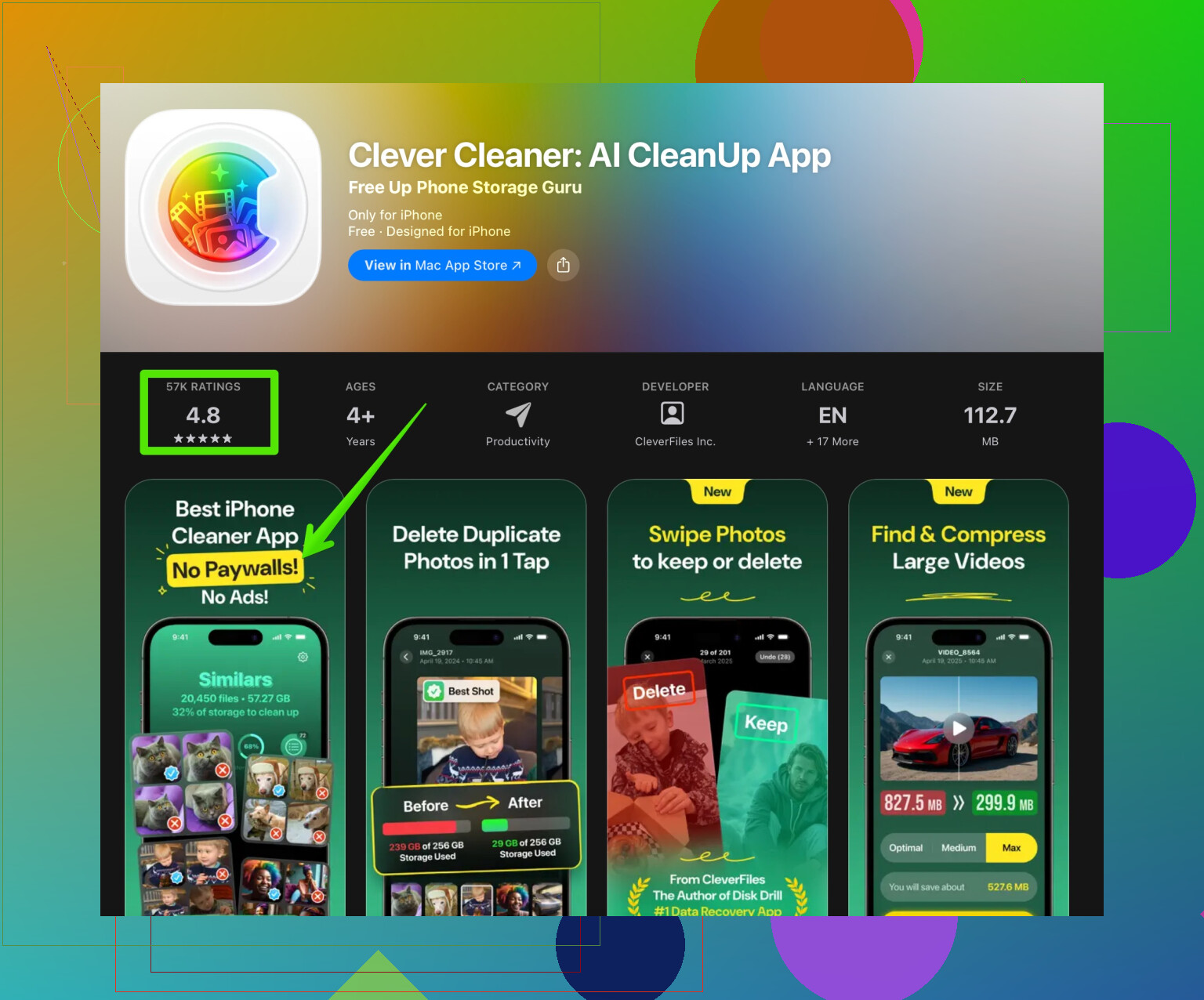
If you do not want to guess inside each app, a cleaner utility helps. For example, the Clever Cleaner App for iPhone storage cleanup focuses on duplicate photos, similar images, large videos, and other junk. You still review items before removal which gives more control than a blind “Clear Data” button. -
Before you tap
• Back up to iCloud or to a computer in Finder or iTunes.
• Take screenshots of any important in app settings or codes.
• If the app has “account” or “backup” options, use them first, then clear.
Short version
“Clear Data” on iPhone usually targets data inside that specific app. It does not touch system Photos or Messages unless the option is inside those apps. When in doubt, read the text next to the button, back up, and assume it deletes local app content such as cached files, offline downloads, or chat media.
On iPhone, “Clear Data” almost never means “erase your entire life,” but it can definitely nuke stuff inside that app, so you’re right to be cautious.
@sternenwanderer already broke down the iOS storage options really nicely, so I won’t rehash the same “Offload / Delete App / Cache” tour. I’ll add what Apple and devs rarely spell out:
1. What “Clear Data” usually does not touch
Unless you’re inside those specific system apps:
- Photos in the Photos app
- Texts in the Messages app
- iCloud backups
- Other apps’ data
A random app’s “Clear Data” button cannot just reach across iOS and delete your Camera Roll or iMessage history. iOS sandboxes apps, so their “data” is basically their own little box, not the whole phone.
So if you see “Clear Data” in, say, Instagram or Chrome, it will target that app’s stuff, not your whole device.
2. What it can actually delete
Where it gets scary is that “data” inside the app might be:
- Downloaded episodes, songs, maps
- Cached images and videos
- Offline files or docs you saved only inside the app
- Locally stored chat media in some messengers
- Login sessions, cookies, preferences
This is where I slightly disagree with the “it’s usually just cache” idea. Some devs label full resets as “Clear Data” even when it wipes logins, offline files, and custom settings. If there is no detailed explanation under that button, assume it is closer to a “factory reset” for that app.
3. Quick safety checks before tapping
Do these in like 1–2 minutes:
-
Look for clarifying text in that app
Right under or above the button there’s often a line like:- “This will sign you out and remove all local app data.”
- “Clears cached images and videos only.”
If it mentions account data, logins, or “all data,” that’s more serious than a simple cache clear.
-
Check if your stuff is synced to an account
- If the app needs you to log in (Spotify, Netflix, social media), your playlists, posts, messages, etc. are usually on their servers. Clearing data mostly hurts downloads and cache.
- If there is no account or sync option, those files are probably only on your phone in that app. Clearing data can really delete them.
-
Look where the originals live
- Photos saved to the Photos app are safe.
- Photos or docs that exist only inside that app and never got exported are at risk.
4. How to test it without risking everything
A little hack:
- Inside the app, create or download something meaningless:
- Download one small episode / song
- Take a test note or doodle
- Save a test file
- Hit “Clear Data.”
- See what vanished:
- If just the download is gone, it behaves like a cache/Downloads clear.
- If you get logged out or settings reset, then it is basically a “reset app” button.
Yes, it’s annoying. But better to lose a test file than years of random offline stuff you forgot you cared about.
5. If you mainly want to free space, not mess with apps
If your main goal is storage cleanup and you’re nervous about random “Clear Data” buttons, it’s often safer to:
- Manually delete:
- Big videos and duplicate photos in Photos
- Old message threads with giant media (especially in WhatsApp, Telegram, etc.)
- Downloads in streaming apps
And if you don’t feel like digging through every app, a dedicated cleaner is actually useful here. Something like the Clever Cleaner App helps scan for duplicate photos, similar images, unnecessary screenshots and massive videos so you can pick what to delete instead of blindly trusting a vague “Clear Data” popup. If you want a more guided approach, check out this smart iPhone storage cleaner to target junk without randomly wiping app data.
6. Simple rule of thumb
- If the button is inside a third party app: it only touches that app’s stuff.
- If the button text does not clearly say “cache” or “temporary,” treat it as potentially destructive for that app’s local content.
- Your system Photos and Messages are safe unless you are literally inside Photos or Messages messing with settings or “Delete” options.
If you post which app you’re looking at and the exact wording around “Clear Data,” people here can usually tell you pretty precisely what it’s going to do before you press it.
4 Likes