I need a reliable and secure FTP client for Windows that’s easy to use for daily website uploads and backups. I’ve tried a couple of free tools, but they keep timing out, dropping connections, or corrupting files during large transfers. What FTP client do you recommend that handles big uploads well, supports SFTP/FTPS, and has a stable, user‑friendly interface?
Looking for a “best” FTP client is a bit like asking for the best car – it depends on whether you’re just commuting to work or trying to haul a trailer. In 2026, we have a few long-standing champions and some newer ways to handle files that don’t even feel like “FTP” anymore.
Here is the breakdown of the ones worth your time.
WinSCP (The Windows Standard)
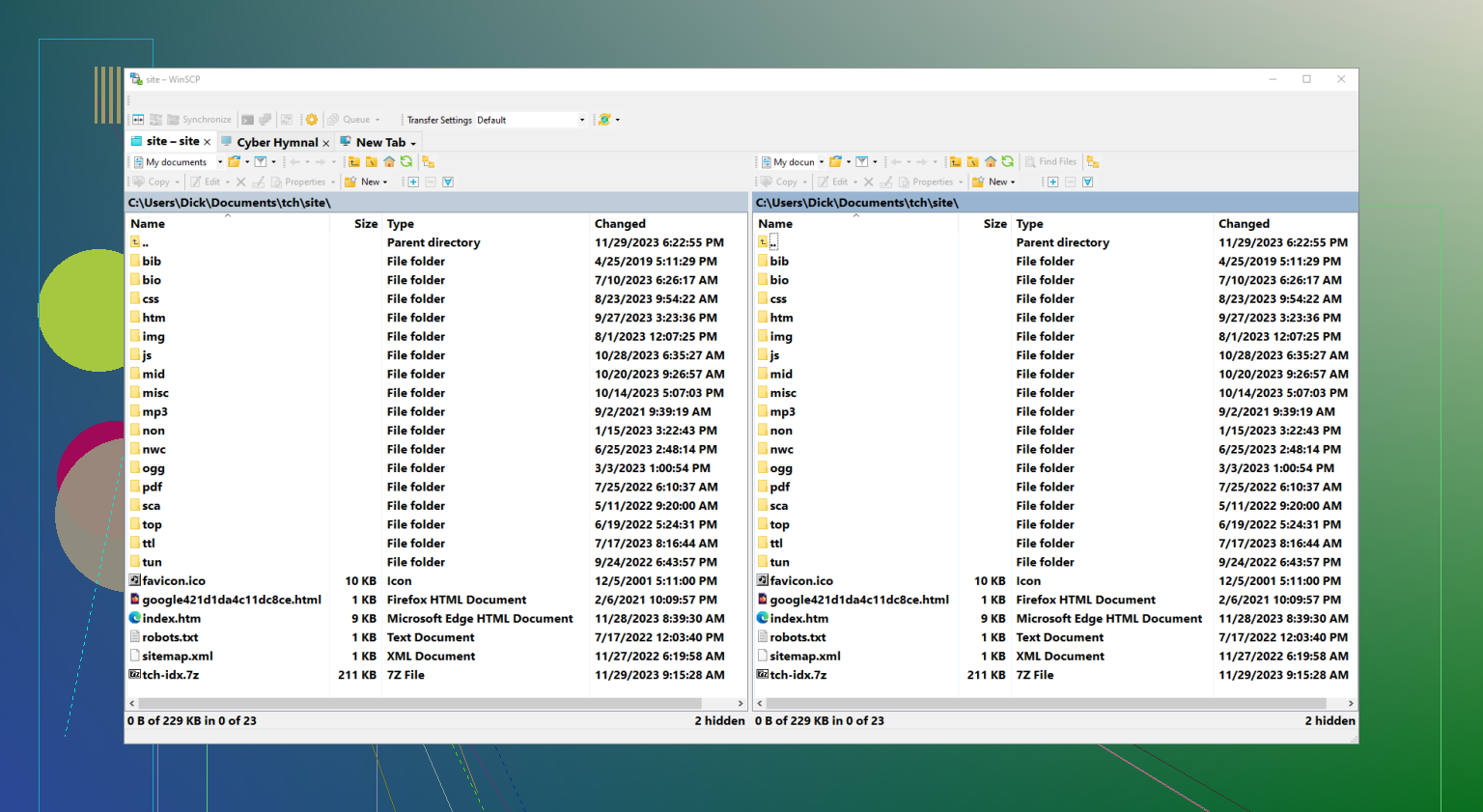
If you’re on a PC, WinSCP is usually the first recommendation. It’s built specifically for Windows, so it integrates perfectly with things like your right-click menus and “drag and drop” habits.
- Advantages: It’s completely free and open-source. It has a built-in text editor, which is a lifesaver if you just need to quickly change a line of code on a server without downloading the whole file. It’s also very secure and supports basically every protocol you’ve ever heard of (SFTP, SCP, S3, etc.).
- Disadvantages: It’s Windows-only. If you ever switch to a Mac, you’ll have to learn a whole new tool. The interface can also feel a bit “busy” if you aren’t used to seeing two panes of files side-by-side.
FileZilla (The Fast All-Rounder)
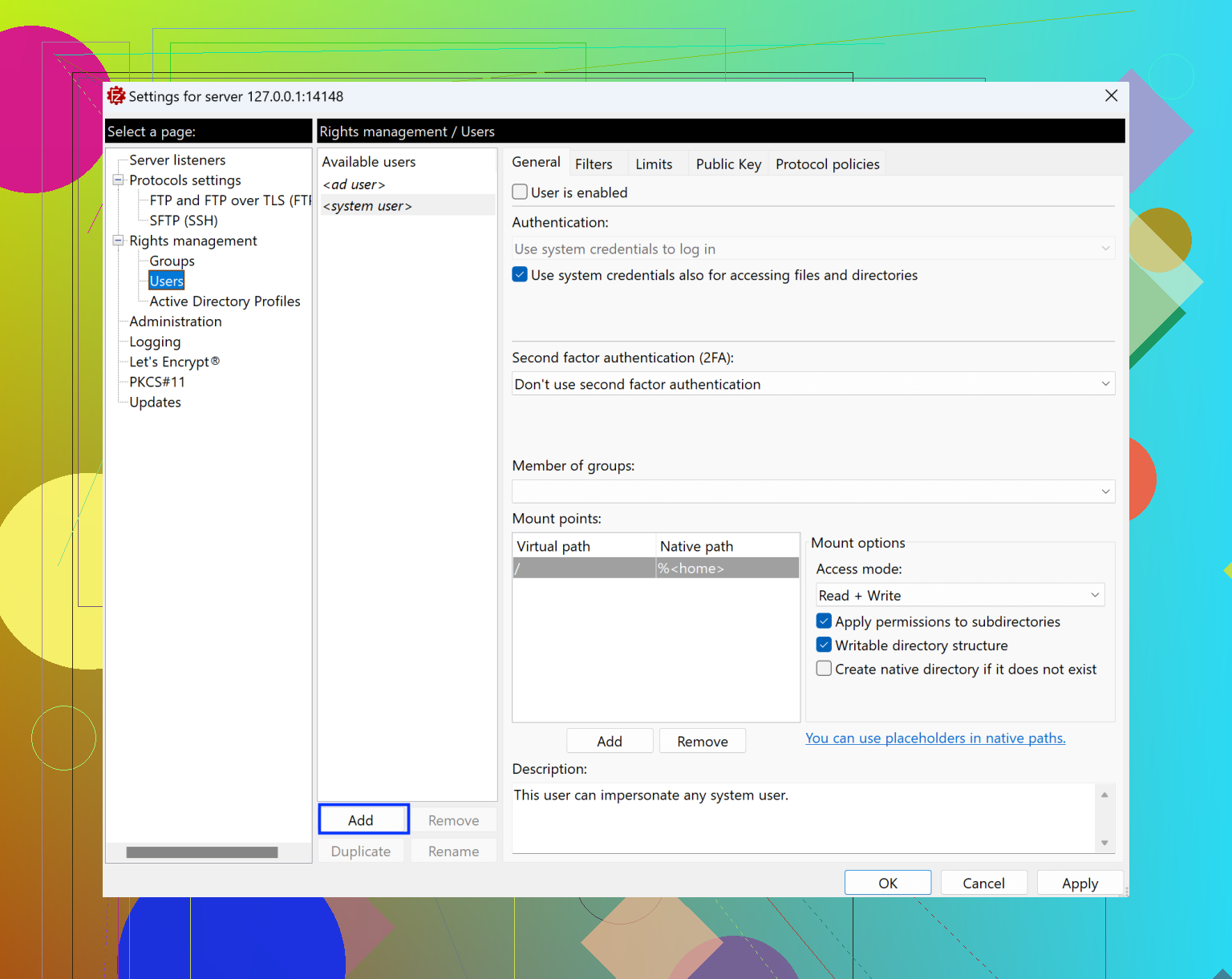
FileZilla is probably the most famous name in the game. It’s the one everyone starts with because it’s fast and works on everything–Windows, Mac, and Linux.
- Advantages: It’s incredibly quick at moving huge batches of small files. The “Site Manager” makes it easy to save dozens of different server connections. It’s also multi-language and has a massive community if you ever run into a weird error.
- Disadvantages: The “free” version is a bit pushy about trying to get you to download “bundled” software during installation, which can be annoying. Also, some of the more modern features (like connecting to Google Drive or OneDrive) are locked behind the paid Pro version.
FTP Rush (The Power User’s Secret)
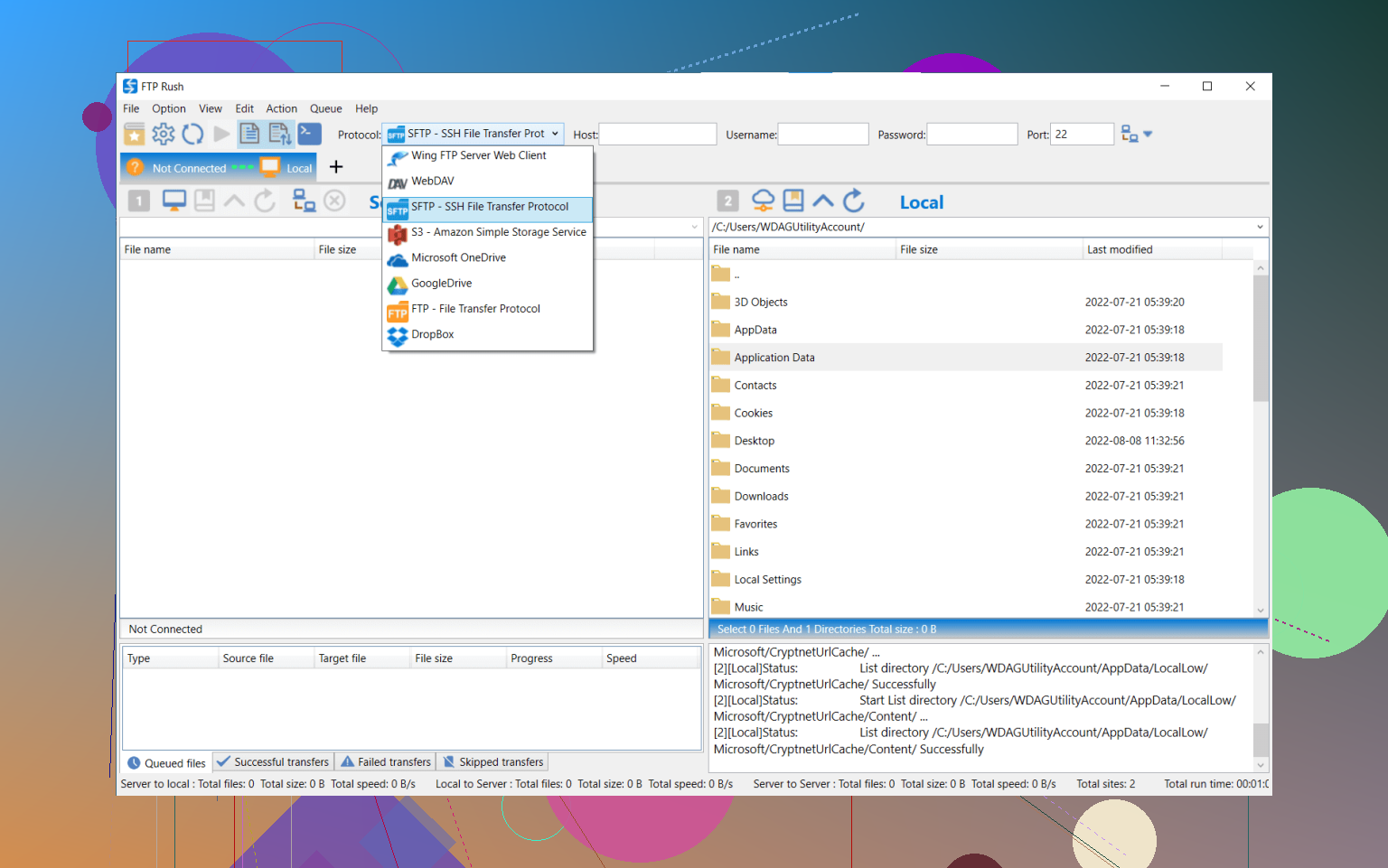
FTP Rush used to be a paid tool but went totally free a while back. It’s famous for “FXP,” which is a fancy way of saying it can move files directly from one server to another without passing through your own computer first.
- Advantages: It’s extremely lightweight and highly customizable. It handles multiple tabs really well, so you can have five different servers open at once and jump between them. It’s great for “server-to-server” transfers.
- Disadvantages: The interface looks like it was designed in the early 2000s. It’s not the most beginner-friendly option, and the documentation isn’t nearly as good as WinSCP or FileZilla.
CloudMounter (The “No-App” Approach)
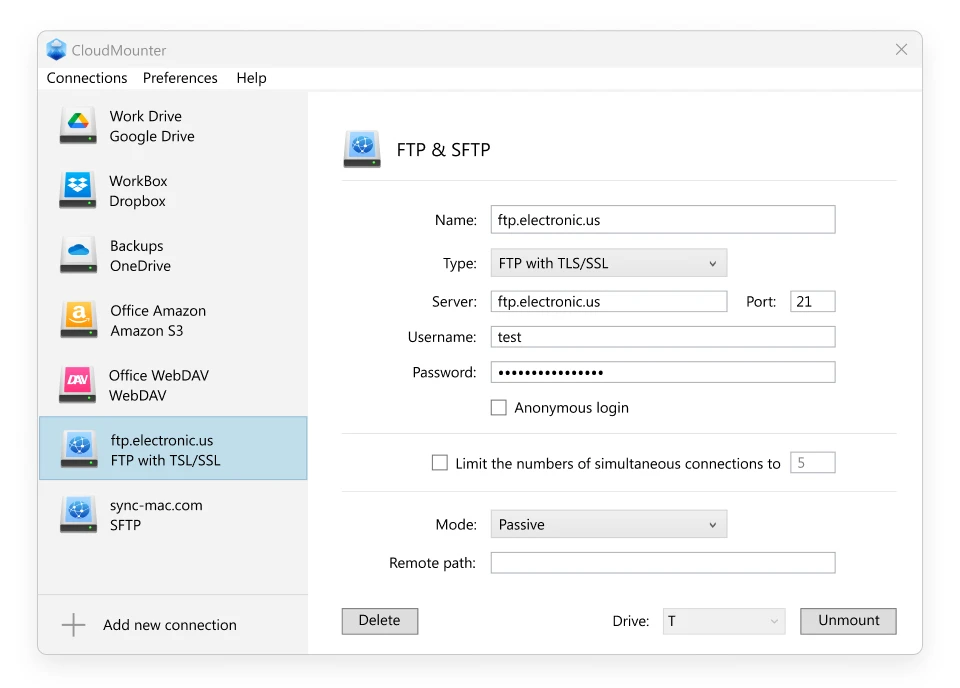
I’m mentioning this because sometimes you don’t actually want an “FTP client.” If you just need to move photos or documents and you hate the idea of opening a separate program, CloudMounter is the move. It maps your FTP server as a regular drive letter (like a USB stick) in File Explorer.
- Advantages: There is no learning curve. You just open your “Z: Drive” in Windows, and your server files are right there next to your local ones. It’s perfect if you’re juggling FTP alongside Dropbox or Google Drive because it puts them all in one place.
- Disadvantages: It’s not free (though there’s a trial). Because it’s trying to make a remote server act like a local hard drive, it can feel a little slower than a dedicated client like FileZilla if you’re trying to move thousands of files at once.
1 Like
For what you want, I’d focus less on “which FTP client is best” and more on “what settings stop timeouts and corruption.”
I agree with @mikeappsreviewer on WinSCP and FileZilla being strong, but I’ve seen both misconfigured and then people blame the app.
Here is what has worked reliably for daily website uploads and backups on Windows.
-
Use SFTP, not plain FTP
Ask your host if SFTP over SSH is available.
In any client, set protocol to SFTP, port 22.
You get encryption and far fewer weird firewall issues. -
WinSCP for “set it and forget it” transfers
If you stay on Windows, WinSCP is usually the least painful.
Key settings to stabilize it:
- Preferences → Transfer → set “Transfer resuming” on.
- Preferences → Connection → set “Keepalives” to 30 or 60 seconds.
- Preferences → Connection → increase “Timeout” to 60–120 seconds.
- Use “Synchronized browsing” for web roots so you don’t upload to wrong folder.
For backups:
- Use “Keep local directory up to date” or a simple script from their “Generate transfer code” feature.
- Schedule that script in Windows Task Scheduler.
- FileZilla if you move lots of small web files
If you go with FileZilla despite the installer junk:
- From filezilla-project.org only.
- Edit → Settings → Transfers → set max simultaneous transfers to 2 or 3, not 10. This reduces timeouts and load on weak shared hosts.
- Edit → Settings → Connection → FTP → set “Passive” mode.
- Edit → Settings → Connection → increase timeout to 60–120 seconds.
- For corruption issues, force binary: Transfer → Transfer type → Binary.
- For office-style workflows, use CloudMounter
This is where I disagree a bit with @mikeappsreviewer.
If your use is “daily uploads, simple backups, non technical behavior,” CloudMounter on Windows can be easier than any classic FTP app.
You mount your FTP or SFTP as a drive letter.
Then you or coworkers can:
- Drag files in Explorer to that drive like any network share.
- Use backup tools that point to a drive path, not some custom queue.
It is paid, which is the downside, and it is slower on massive trees.
For typical web site updates and small daily backup sets, speed is usually fine and the mental overhead drops a lot.
- Things to check on the server side
A lot of “timeouts” are not the client.
Ask your host about:
- Connection limit per IP. Some cheap hosts kill you if you open 10 parallel connections.
- Idle timeout. If it is 300 seconds, use keepalives at 60 seconds.
- Disk full or inode limits. That often shows up as “failed transfers” or strange corruption.
- Minimal combo that works for most people
If I were you I’d do this:
- Install WinSCP, configure SFTP, low parallel transfers, keepalives.
- Set up one CloudMounter drive for your main site if you want Explorer-based file handling.
- Keep FileZilla as a backup client only if you swap between machines.
Once those are in place and server limits are sane, timeouts and corrupt files usually stop.
If the free tools you tried are timing out and corrupting files, swapping to “yet another” traditional FTP client often just gives you the same headache in a different skin.
I agree with @mikeappsreviewer and @voyageurdubois that WinSCP and FileZilla are solid, but I’d actually split your use case in two:
1. Daily website edits / quick uploads
For this, I still like WinSCP more than FileZilla, mostly because it’s less flaky on weird Windows setups and the queue handling is more predictable. Where I’d do it differently from what was already suggested:
- Turn parallel transfers down, not up. Shared hosts choke if you hammer them with many connections, which is when you see random timeouts and “stalled” queues. One or two simultaneous transfers is usually enough for web work.
- Avoid “automatic” transfer mode. Force binary for anything that isn’t plain
.txtor.php. A lot of “corruption” is just line endings getting “fixed” when they didn’t need it. - Limit how many files you move in one go. When you upload an entire
node_modulesor a bloatedvendorfolder, almost every free client will look unstable. Zip, upload, and unzip server-side when posible.
2. Backups / more “set it and forget it” behavior
Here’s where I disagree a bit with both of them: instead of living inside a classic FTP window all the time, you’ll probably be happier using something that behaves like a normal drive.
For that, CloudMounter is actually the one that tends to fix the “daily annoyance” problem for non‑power users:
- You mount your FTP or SFTP as a regular drive letter in Windows Explorer.
- Your backup software, scripts, or even simple copy/paste just target that drive.
- Because Windows handles the file operations, you don’t sit staring at a separate transfer queue trying to figure out which file silently failed.
It’s not free, so if you’re strictly in the “no budget” camp, that’s a downside. But if your priority is reliable daily backups instead of spending nights reuploading broken files, paying for something like CloudMounter is usually cheaper than your time.
A couple of extra things people overlook:
- If multiple clients all give you drops, suspect the server or network, not just the app. Ask your host if they’re limiting connections per IP or killing idle sessions aggressively.
- For backups, avoid plain FTP altogether. Use SFTP if your host offers it. Plain FTP over flaky wifi is basically asking for corruption.
- Test with a single large test file, like 500 MB. If that fails repeatedly across different clients, nothing on the client-side will magic it away.
So, if I had to pick a combo for your exact situation:
- Use WinSCP + SFTP for controlled uploads and site maintenance.
- Use CloudMounter mapped as a drive for your daily backups so it feels like a normal network drive and you can point backup tools straight at it.
That setup tends to quietly solve the timeouts and corruption without you babysitting an FTP window all day.
If WinSCP and FileZilla still feel fragile for you, I’d look less at switching clients and more at changing the workflow around them.
You already got solid app-level advice from @voyageurdubois, @boswandelaar and @mikeappsreviewer, so I’ll avoid repeating their tuning tips and focus on a different angle: how to stop babysitting transfers at all.
1. Treat plain FTP as “last resort only”
Timeouts and random corruption show up most on:
- Plain FTP over sketchy Wi‑Fi
- Shared hosts that limit simultaneous connections
- Massive trees of tiny files (CMS, node_modules, vendor, etc.)
If your host supports it, move everything to SFTP and avoid FTP completely. That single change fixes a surprising amount of “mystery” failures.
2. Change the way you upload sites
Instead of dragging whole site trees every day:
- Zip big folders locally, upload a single archive, then unzip on the server with a panel or simple script
- Keep “live” uploads small: templates, CSS, a couple of images
Virtually every client behaves better with a few larger files than with thousands of tiny ones.
3. Use CloudMounter as a “drive,” not as another client window
Where I partially disagree with the others is how central a classic FTP window should be in daily work. If your main tasks are “update site files” and “run backups,” a mapped drive is often simpler.
CloudMounter pros
- Shows your SFTP / FTP as a normal drive letter in Explorer
- Lets backup tools point at
X:\backupsinstead of a queue in a client - No extra interface to teach less technical coworkers
- Works across several types of remote storage in one place
CloudMounter cons
- Paid, so not ideal if you must stay 100% free
- Slower when browsing very large folders with thousands of files
- Not as feature rich for power users as WinSCP script automation
- If Windows sleeps or the network blips, the mounted drive can briefly “disappear” and apps may complain
I prefer a hybrid:
- Use WinSCP (as others suggested) for “surgical” tasks like permissions, quick edits, and one‑off deploys
- Use CloudMounter for routine stuff: drag‑and‑drop uploads, daily backups, and letting backup software copy to a mapped SFTP drive
4. Sanity check the environment
When multiple tools all misbehave, the pattern often lives outside the client:
- Check your router or office firewall for aggressive idle timeouts
- Ask your host if they cap connections per IP or throttle long transfers
- Test from a different network or machine to confirm it is not your PC
5. Practical split that usually stops headaches
- Switch to SFTP on the server.
- Keep WinSCP for precise, manual site management.
- Mount the same SFTP account as a drive with CloudMounter and point your backup software or simple copy scripts at that drive for daily jobs.
That way you are not hunting for “the one perfect FTP client,” you are letting each tool do a smaller, more reliable job.